Windows 11 Tips and Tricks: 100+ Hidden Features, Settings & Productivity Hacks (2026 Guide)
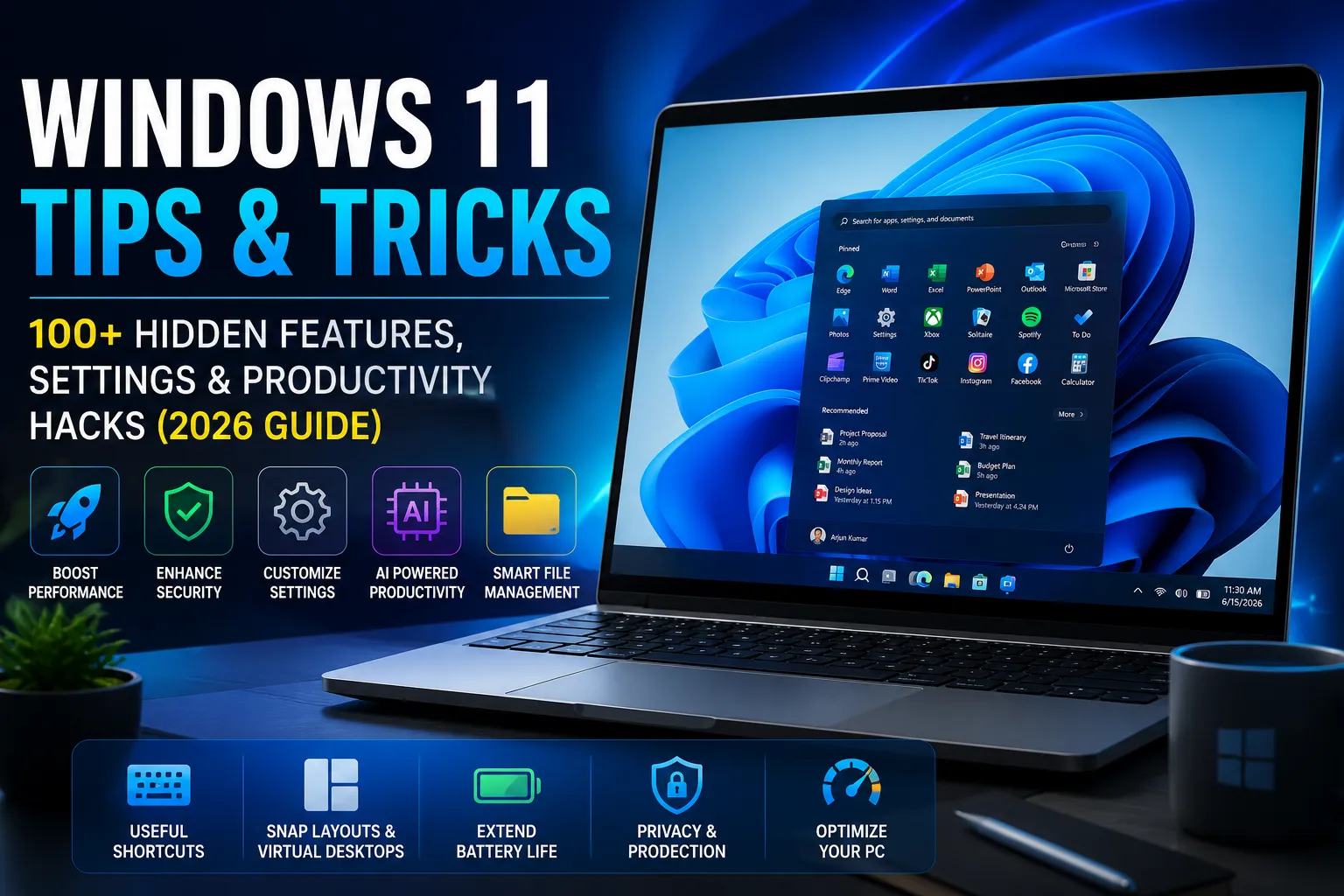
Windows 11 is Microsoft's most modern desktop operating system, designed to deliver a faster, cleaner, and more productive computing experience. Whether you use your computer for work, education, gaming, programming, content creation, or everyday browsing, Windows 11 includes numerous features that can significantly improve your workflow.
Many users only scratch the surface of what Windows 11 can do. While the redesigned Start Menu, centered Taskbar, and modern interface are immediately noticeable, there are many hidden settings and built-in tools that remain undiscovered. These features can help you save time, organize your desktop more efficiently, improve system performance, strengthen security, and customize your PC according to your needs.
This comprehensive guide explores the most useful Windows 11 tips and tricks for beginners, professionals, students, and business users worldwide. Each section explains practical features that can be applied immediately without requiring advanced technical knowledge.
Whether you recently upgraded from Windows 10 or purchased a new Windows 11 laptop, these tips will help you unlock the full potential of your computer.
Why Learn Windows 11 Tips and Tricks?
Learning Windows 11 goes beyond knowing where buttons are located. Small improvements in your daily workflow can save hours every month.
Some benefits include:
-
Faster multitasking
-
Better desktop organization
-
Improved battery life
-
Increased security
-
Better privacy protection
-
Higher productivity
-
Faster file management
-
Reduced distractions
-
More efficient window management
-
Better overall PC performance
Instead of installing third-party software for every task, Windows 11 already provides many built-in tools that many users never discover.
1. Customize the Start Menu
The Start Menu has been completely redesigned in Windows 11.
Rather than filling it with unnecessary shortcuts, organize it based on the applications you actually use.
You can pin:
-
Microsoft Office
-
Browser
-
File Explorer
-
Visual Studio Code
-
Adobe Photoshop
-
Calculator
-
Terminal
-
Settings
-
Teams
-
Outlook
Simply right-click any application and choose Pin to Start.
Keeping frequently used applications at the top reduces unnecessary searching and improves daily efficiency.
You can also remove unwanted pinned apps by selecting Unpin from Start, creating a cleaner interface.
2. Organize Your Taskbar
The Taskbar is where you spend most of your time.
Avoid pinning dozens of applications.
Instead, keep only frequently used programs such as:
-
Browser
-
File Explorer
-
Terminal
-
Microsoft Store
-
Email
-
Office apps
-
Media player
A clean taskbar improves navigation and reduces visual clutter.
Windows 11 also allows you to hide unnecessary icons, making the desktop appear more professional.
3. Master Snap Layouts
Snap Layouts are one of the best productivity features introduced in Windows 11.
Hover your mouse over the maximize button on any window to see multiple layout options.
Examples include:
-
Two equal windows
-
Three-column layout
-
Four-grid layout
-
Large-left, small-right layout
-
Large-right, small-left layout
This feature is extremely useful for:
-
Developers
-
Designers
-
Writers
-
Researchers
-
Students
-
Financial analysts
Instead of manually resizing windows, Windows arranges everything automatically.
4. Use Snap Groups
After arranging multiple applications using Snap Layouts, Windows remembers your workspace.
These collections are called Snap Groups.
For example:
Browser + Word + Excel + Calculator
If you switch to another application, Windows allows you to restore the entire group instantly.
This makes multitasking much faster.
5. Create Multiple Virtual Desktops
Many users don't realize Windows 11 supports multiple desktops.
You can create separate workspaces for:
Work
Personal use
Gaming
Programming
School
Design projects
Instead of opening dozens of windows on one desktop, organize different activities into separate environments.
Use:
Windows + Tab
Then select New Desktop.
Each desktop can even have its own wallpaper.
6. Customize Desktop Wallpapers
Personalizing your desktop isn't just about appearance.
Different wallpapers can help you identify different virtual desktops instantly.
Examples:
Blue wallpaper → Office work
Dark wallpaper → Programming
Nature wallpaper → Personal use
Gaming wallpaper → Entertainment
This small trick improves navigation throughout the day.
7. Use Focus Sessions
Windows 11 includes Focus Sessions to help reduce distractions.
When activated:
Notifications are minimized.
Timers keep you focused.
Background interruptions are reduced.
This feature is excellent for:
Students
Remote workers
Developers
Writers
Content creators
Anyone working on important projects.
8. Improve Productivity with Widgets
Widgets provide quick access to useful information without opening multiple websites.
Examples include:
Weather
Calendar
News
Stock updates
Sports
Traffic
Tasks
Microsoft To Do
Customize Widgets to display only information relevant to your daily routine.
9. Search Faster
Windows Search has improved significantly.
Instead of navigating through folders manually, simply press:
Windows Key
Start typing:
Document names
Applications
Settings
Control Panel
Calculator
Files
Photos
Search is much faster than browsing through folders manually.
10. Learn Essential Keyboard Shortcuts
Keyboard shortcuts dramatically increase productivity.
Some essential shortcuts include:
Windows + E
Open File Explorer
Windows + D
Show Desktop
Windows + L
Lock Computer
Windows + I
Open Settings
Windows + S
Search
Windows + V
Clipboard History
Windows + Shift + S
Screenshot Tool
Alt + Tab
Switch Applications
Ctrl + Shift + Esc
Open Task Manager
Learning these shortcuts can save hundreds of mouse clicks every day.
11. Pin Important Folders
Frequently accessed folders should be pinned to Quick Access.
Examples include:
Documents
Downloads
Projects
Photos
Videos
Business files
Client folders
Simply right-click the folder and choose:
Pin to Quick Access
This reduces navigation time considerably.
12. Customize Quick Settings
Click the network, battery, or volume icon to open Quick Settings.
You can quickly control:
Wi-Fi
Bluetooth
Night Light
Accessibility
Airplane Mode
Brightness
Volume
Battery Saver
Customize this panel so your most-used controls are always one click away.
13. Enable Dark Mode
Dark Mode is not only visually appealing but also helps reduce eye strain, especially in low-light environments.
To enable it:
Settings → Personalization → Colors
Choose:
Dark
Many supported applications will automatically switch to the dark theme.
14. Personalize Accent Colors
Windows 11 lets you customize accent colors across the operating system.
Choose colors that match your:
Brand
Workspace
Wallpaper
Company theme
Personal preference
Small personalization options can make your workspace feel more enjoyable and professional.
15. Customize Lock Screen
Your lock screen can display more than just the time.
You can add:
Weather
Calendar
Notifications
Beautiful wallpapers
Windows Spotlight images
This creates a more informative and visually appealing login experience.
16. Use Windows Spotlight
Windows Spotlight automatically downloads stunning high-quality wallpapers from Microsoft.
Instead of manually changing wallpapers, your desktop receives fresh backgrounds regularly.
This keeps your desktop looking new without any effort.
17. Hide Desktop Icons
Too many desktop icons create unnecessary clutter.
Store files inside organized folders rather than directly on the desktop.
A clean desktop:
Looks professional
Loads faster
Improves focus
Makes file management easier
18. Rename Multiple Files Quickly
Need to rename dozens of photos?
Select all files.
Press F2.
Enter a name.
Windows automatically renames every selected file with sequential numbering.
Example:
Vacation (1)
Vacation (2)
Vacation (3)
This saves considerable time compared to renaming files individually.
19. Preview Files Without Opening Them
Use the Preview Pane in File Explorer to quickly view:
PDF files
Images
Documents
Text files
This reduces unnecessary application launches and speeds up file browsing.
20. Keep Windows Updated
Many users postpone updates, but regular updates provide:
Security improvements
Bug fixes
Driver updates
Performance enhancements
New features
Better compatibility
Navigate to:
Settings → Windows Update
Check periodically for updates to ensure your system remains secure and optimized.
21. Keep Startup Apps Under Control
One of the biggest reasons a Windows PC becomes slow over time is too many applications launching automatically when the computer starts.
Many software programs add themselves to the startup list without asking.
To review startup apps:
Settings → Apps → Startup
Disable programs that you don't need immediately after logging in.
Examples include:
-
Chat applications
-
Music players
-
Update utilities
-
Game launchers
-
Cloud storage apps you rarely use
Reducing startup applications can noticeably improve boot time and overall system responsiveness.
22. Monitor Performance Using Task Manager
Task Manager is one of the most powerful built-in tools in Windows 11.
Press:
Ctrl + Shift + Esc
Here you can monitor:
-
CPU usage
-
Memory usage
-
Disk activity
-
Network activity
-
GPU performance
-
Running processes
-
Startup applications
If your PC feels slow, Task Manager often helps identify which application is consuming excessive resources.
23. Free Up Storage with Storage Sense
Storage Sense automatically removes unnecessary files and helps keep your drive organized.
It can clean:
-
Temporary files
-
Recycle Bin
-
Downloaded update files
-
Cache files
-
Delivery Optimization files
Enable it from:
Settings → System → Storage
Automating storage cleanup helps maintain consistent performance without manual maintenance.
24. Remove Unused Applications
Many computers include applications that users never open.
Unused software consumes:
-
Storage
-
System resources
-
Background services
-
Update bandwidth
Periodically review installed applications and uninstall anything you no longer need.
Keeping only essential software makes Windows cleaner and faster.
25. Enable Battery Saver
Laptop users should make full use of Battery Saver.
It reduces power consumption by:
-
Limiting background activity
-
Reducing brightness
-
Optimizing power usage
-
Managing background synchronization
Battery Saver is especially useful during travel or long work sessions away from a charger.
26. Optimize Power Mode
Windows 11 allows users to choose different power profiles.
Options generally include:
-
Best Power Efficiency
-
Balanced
-
Best Performance
Desktop users usually benefit from Best Performance, while laptop users may prefer Balanced for longer battery life.
Choose the mode that matches your workload.
27. Turn On Clipboard History
Most users copy only one item at a time.
Windows 11 can remember multiple copied items.
Enable Clipboard History:
Settings → System → Clipboard
Or press:
Windows + V
This feature is especially useful for:
-
Writers
-
Developers
-
Designers
-
Office workers
-
Students
Instead of repeatedly copying the same text, simply choose it from your clipboard history.
28. Sync Clipboard Across Devices
If you use multiple Windows devices, clipboard synchronization can save time.
Copied text on one device becomes available on another after signing in with the same Microsoft account.
This feature improves workflow across desktop and laptop computers.
29. Improve Privacy Settings
Privacy is an important aspect of Windows 11.
Visit:
Settings → Privacy & Security
Review permissions for:
-
Camera
-
Microphone
-
Location
-
Contacts
-
Calendar
-
Notifications
-
File access
Disable permissions that applications don't actually require.
Doing so improves both privacy and security.
30. Review Diagnostic Data
Windows collects diagnostic information to improve system reliability.
If you prefer greater privacy, review these settings carefully.
Navigate to:
Settings → Privacy & Security → Diagnostics & Feedback
Adjust the level of diagnostic data according to your comfort level.
31. Enable Device Encryption
If supported by your hardware, device encryption protects your files if your computer is lost or stolen.
Without encryption, someone could potentially access your data by removing the storage drive.
Encryption provides an additional layer of security for sensitive information.
32. Use Windows Security
Windows Security provides excellent built-in protection.
Features include:
-
Virus protection
-
Firewall
-
Ransomware protection
-
Family options
-
Device security
-
Browser protection
Many users no longer need third-party antivirus software for everyday protection.
Regularly check Windows Security to ensure everything remains active.
33. Schedule Security Scans
Although Windows Security works automatically, running occasional manual scans is still recommended.
Scanning your PC regularly helps detect:
-
Malware
-
Viruses
-
Suspicious software
-
Potentially unwanted applications
This keeps your computer healthy and secure.
34. Configure Windows Firewall
Windows Firewall monitors incoming and outgoing network traffic.
Avoid disabling it unless absolutely necessary.
The firewall helps prevent unauthorized network access and protects your computer while connected to public Wi-Fi networks.
35. Use Nearby Sharing
Nearby Sharing lets you quickly send files between nearby Windows devices.
Instead of:
-
USB drives
-
Email attachments
-
Messaging apps
You can transfer files wirelessly in seconds.
This is particularly useful in offices and classrooms.
36. Compress Files Without Extra Software
Windows supports ZIP compression natively.
Select files.
Right-click.
Choose:
Compress to ZIP File
This makes sharing documents much easier without installing additional software.
37. Improve File Explorer Productivity
Windows 11 File Explorer includes useful features like:
-
Tabs
-
Quick Access
-
Home view
-
Recent files
-
Favorite folders
Using tabs instead of multiple Explorer windows reduces desktop clutter and simplifies navigation.
38. Pin Important Files
Besides folders, frequently used files can also be added to Favorites.
Examples include:
-
Reports
-
Excel sheets
-
Project documents
-
Presentations
This reduces the time spent searching for important work.
39. Use Voice Typing
Windows 11 includes built-in voice typing.
Press:
Windows + H
Speak naturally.
Windows converts speech into text.
This feature is useful for:
-
Emails
-
Notes
-
Documents
-
Brainstorming
-
Accessibility
Voice typing has become significantly more accurate in recent Windows versions.
40. Take Better Screenshots
Instead of pressing Print Screen alone, use:
Windows + Shift + S
The Snipping Tool lets you capture:
-
Full screen
-
Window
-
Rectangle
-
Freeform selection
You can instantly annotate and save screenshots.
This is ideal for tutorials, presentations, bug reports, and documentation.
41. Use Focus Assist for Better Concentration
Frequent notifications interrupt productivity.
Focus Assist helps by reducing distractions during:
-
Meetings
-
Gaming
-
Studying
-
Writing
-
Coding
You can configure automatic rules so notifications stay silent during specific hours.
42. Manage Notifications
Not every application deserves permission to send notifications.
Review notification settings regularly.
Disable alerts from applications that aren't important.
This keeps your desktop cleaner and helps maintain focus.
43. Use Dynamic Refresh Rate (Supported Devices)
Some modern laptops support Dynamic Refresh Rate.
Windows automatically switches between refresh rates depending on the activity.
Benefits include:
-
Smoother scrolling
-
Better battery life
-
Improved responsiveness
44. Improve Multitasking with Alt + Tab
Alt + Tab remains one of the fastest navigation shortcuts.
You can instantly switch between multiple open applications without touching the mouse.
Heavy multitaskers should make this shortcut part of their daily workflow.
45. Explore the Quick Settings Panel
The Quick Settings panel provides instant access to frequently used controls such as:
-
Wi-Fi
-
Bluetooth
-
Airplane Mode
-
Brightness
-
Volume
-
Accessibility
-
Battery Saver
Customize the panel so your most-used options are always available with a single click.
46. Keep Drivers Updated
Outdated drivers can cause:
-
Hardware issues
-
Performance problems
-
Game crashes
-
Audio problems
-
Display glitches
Install driver updates through Windows Update or directly from your hardware manufacturer when appropriate.
Keeping drivers current improves compatibility and stability.
47. Restart Instead of Always Shutting Down
Many users always shut down their computer.
However, restarting periodically clears temporary memory, refreshes system processes, and completes pending updates.
A simple restart often resolves minor performance issues without additional troubleshooting.
48. Learn Built-In Accessibility Features
Windows 11 includes powerful accessibility tools for every user.
Examples include:
-
Magnifier
-
Narrator
-
Live Captions
-
Color Filters
-
Voice Access
-
On-Screen Keyboard
Even users without accessibility needs may find some of these tools helpful in specific situations.
49. Back Up Important Files Regularly
No computer is immune to hardware failure or accidental deletion.
Create regular backups of:
-
Photos
-
Videos
-
Work documents
-
Financial records
-
Project files
Using cloud storage or an external drive ensures your important data remains protected.
50. Make Windows Work for You
The biggest productivity improvement doesn't come from installing dozens of applications—it comes from understanding the tools Windows 11 already provides.
Take time to explore settings, customize your workspace, organize files, and learn shortcuts that match your daily routine. Small adjustments made today can save countless hours over the lifetime of your computer.
51. Use Copilot for Everyday Tasks
Windows 11 includes Microsoft Copilot on supported versions, bringing AI assistance directly to your desktop.
You can use Copilot to:
-
Summarize information
-
Generate ideas
-
Rewrite text
-
Answer questions
-
Explain technical concepts
-
Assist with coding
-
Improve productivity
Instead of opening multiple websites, Copilot can help you complete many daily tasks more efficiently.
52. Customize File Explorer
File Explorer has become more powerful in Windows 11.
Take advantage of:
-
File tabs
-
Quick Access
-
Favorites
-
Recent files
-
Search filters
-
Home page
Keeping your frequently used folders organized makes navigation much faster.
53. Use File Search Filters
If you have thousands of files, searching manually becomes difficult.
Windows Search allows filtering by:
-
File type
-
Date modified
-
File size
-
Folder location
-
Document name
Learning these filters saves significant time when locating important documents.
54. Keep Your Desktop Organized
Avoid storing every file directly on the desktop.
Instead, create folders such as:
-
Work
-
Personal
-
Projects
-
Photos
-
Videos
-
Downloads
-
Documents
A clean desktop improves productivity and makes your computer look more professional.
55. Empty the Recycle Bin Regularly
Deleted files continue occupying storage until the Recycle Bin is emptied.
Cleaning it periodically:
-
Frees storage
-
Reduces clutter
-
Improves organization
Storage Sense can also automate this process.
56. Learn Windows Recovery Options
If Windows develops startup problems, recovery tools can help.
Useful recovery features include:
-
Startup Repair
-
System Restore
-
Reset This PC
-
Advanced Startup
-
Safe Mode
Knowing these options before problems occur makes troubleshooting much easier.
57. Create Restore Points
A Restore Point allows you to return Windows to an earlier working state.
Create one before:
-
Installing drivers
-
Updating software
-
Making major system changes
-
Editing advanced settings
Restore Points can save hours of troubleshooting.
58. Keep Browser Tabs Organized
Modern browsers support:
-
Tab Groups
-
Pinned Tabs
-
Vertical Tabs (supported browsers)
Managing tabs properly reduces confusion during research or multitasking.
59. Use Cloud Storage Wisely
Cloud storage helps keep files available across multiple devices.
Benefits include:
-
Automatic backup
-
File synchronization
-
Easy sharing
-
Version history
-
Remote access
Keep your most important files backed up both locally and in the cloud whenever possible.
60. Keep Downloads Folder Clean
The Downloads folder often becomes one of the most cluttered locations on a computer.
Review it regularly and:
-
Delete unnecessary files
-
Move important documents
-
Organize installers
-
Archive completed projects
This improves storage management and file organization.
61. Learn Basic Command Line Tools
Windows Terminal provides access to Command Prompt and PowerShell.
Useful commands include:
-
ipconfig
-
ping
-
systeminfo
-
hostname
-
tasklist
-
cls
Even basic command-line knowledge can simplify troubleshooting and system management.
62. Enable Night Light
Night Light reduces blue light during evening hours.
Benefits include:
-
Reduced eye strain
-
Better nighttime comfort
-
Improved reading experience
You can schedule Night Light to activate automatically after sunset.
63. Check Storage Usage
Windows provides a detailed breakdown of storage usage.
Review categories such as:
-
Apps
-
Documents
-
Pictures
-
Videos
-
Temporary files
-
Other files
Understanding where storage is being used helps you clean your drive more effectively.
64. Improve Gaming Performance
Gamers can optimize Windows 11 by:
-
Enabling Game Mode
-
Closing background apps
-
Updating graphics drivers
-
Keeping Windows updated
-
Using SSD storage
-
Monitoring temperatures
These simple steps can improve game stability and responsiveness.
65. Reduce Background Applications
Too many background applications consume:
-
CPU
-
RAM
-
Battery
-
Network bandwidth
Review running applications occasionally and close programs you no longer need.
66. Learn Useful Mouse Shortcuts
Many users know keyboard shortcuts but overlook mouse productivity features.
Examples include:
-
Double-click title bar to maximize
-
Middle-click taskbar icon to open another instance
-
Right-click Start button for power tools
-
Drag windows to screen edges for Snap
These small tricks make navigation much faster.
67. Keep Software Updated
Don't update only Windows.
Regularly update:
-
Browsers
-
Office applications
-
Development tools
-
Graphics software
-
Media players
Software updates improve security, compatibility, and performance.
68. Avoid Installing Unnecessary Programs
Every installed application occupies:
-
Disk space
-
Registry entries
-
Background services
-
Update resources
Install only software you genuinely need.
A minimal system is usually faster and easier to maintain.
69. Restart After Major Updates
After installing significant Windows updates, restart your computer even if it doesn't seem necessary.
This ensures:
-
Updates finish correctly
-
Drivers reload properly
-
Memory is refreshed
-
Pending changes are applied
70. Practice Good Security Habits
Technology alone cannot guarantee security.
Always remember to:
-
Use strong passwords
-
Enable two-factor authentication where available
-
Download software only from trusted sources
-
Avoid suspicious email attachments
-
Keep Windows Security enabled
Safe browsing habits are just as important as antivirus protection.
Common Mistakes Windows 11 Users Should Avoid
Many users accidentally reduce system performance by making avoidable mistakes.
Some common examples include:
-
Ignoring Windows Updates
-
Installing unknown software
-
Disabling security features
-
Never restarting the computer
-
Keeping hundreds of desktop files
-
Running too many startup applications
-
Filling the system drive completely
-
Downloading drivers from unofficial websites
Avoiding these habits helps maintain a fast and reliable computer.
Frequently Asked Questions
Is Windows 11 better than Windows 10?
Windows 11 introduces a modern interface, improved multitasking, stronger security, better gaming support, and numerous productivity enhancements. For most compatible devices, it offers a more refined user experience.
Does Windows 11 slow down older computers?
Performance depends on hardware specifications. Systems that meet Microsoft's recommended requirements generally run Windows 11 smoothly, while older hardware may experience limitations.
How often should Windows be updated?
Check for updates regularly. Installing security and feature updates helps protect your computer and ensures access to the latest improvements.
Is Windows Security enough?
For most home and business users, Windows Security provides strong built-in protection when combined with safe browsing practices and regular software updates.
Should I use SSD storage?
Yes. Replacing a traditional hard drive with an SSD can significantly improve boot times, application loading, and overall responsiveness.
Final Thoughts
Windows 11 is much more than a visual redesign. It combines productivity tools, intelligent multitasking, enhanced security, improved accessibility, AI-powered assistance, and powerful built-in utilities into a modern operating system suitable for users around the world.
The key to getting the best experience isn't installing dozens of third-party applications—it's learning how to use the features already included with Windows 11. From organizing your desktop and managing storage to mastering keyboard shortcuts and using AI tools, every small improvement contributes to a faster and more enjoyable workflow.
Whether you're a student, professional, software developer, business owner, gamer, or casual home user, investing a little time in learning Windows 11 can save hours of work over the long term. Keep your system updated, stay organized, prioritize security, and continue exploring new features as Microsoft releases future updates.
By applying the tips covered across all three parts of this guide, you'll be well equipped to make your Windows 11 PC faster, safer, and more productive every day.
Thank you for reading this complete Windows 11 Tips and Tricks guide. Continue exploring new features, practice these techniques regularly, and enjoy a smoother, smarter computing experience.
Your email address will not be published. Comments are moderated.
0 Comments on This Post
Leave a Reply
Comments (0)
Spread the Word!
Join Our Developer Community!
Get weekly coding tips, tool updates, and exclusive tutorials straight to your inbox.
Request a Tool
×