Using keyboard shortcuts is one of the easiest ways to become more productive on Windows. Instead of navigating through menus with a mouse, shortcut keys let you perform tasks instantly.
Whether you're a student, office worker, programmer, gamer, or content creator, learning these shortcuts can save hours every week.
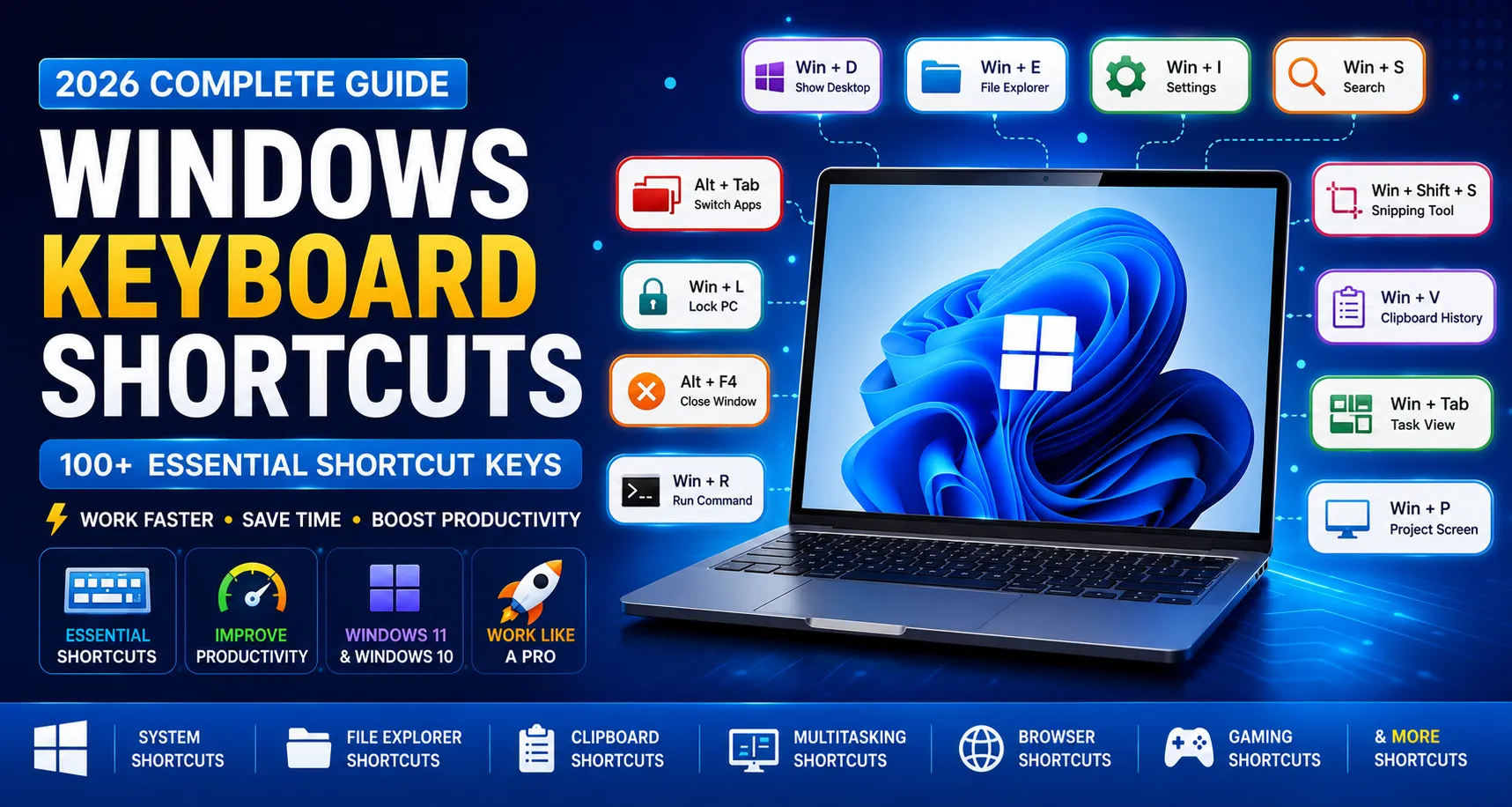
This guide includes over 100 Windows keyboard shortcuts compatible with Windows 11 and Windows 10.
Why Learn Keyboard Shortcuts?
Benefits
- Work faster
- Increase productivity
- Reduce mouse usage
- Save time
- Improve multitasking
- Navigate Windows efficiently
Basic Windows Shortcuts
| Shortcut |
Function |
| Ctrl + C |
Copy |
| Ctrl + V |
Paste |
| Ctrl + X |
Cut |
| Ctrl + Z |
Undo |
| Ctrl + Y |
Redo |
| Ctrl + A |
Select All |
| Ctrl + S |
Save |
| Ctrl + P |
Print |
| Ctrl + N |
New Window |
| Ctrl + O |
Open File |
Windows Key Shortcuts
| Shortcut |
Action |
| Win |
Open Start Menu |
| Win + D |
Show Desktop |
| Win + E |
Open File Explorer |
| Win + I |
Open Settings |
| Win + L |
Lock Computer |
| Win + R |
Run Command |
| Win + S |
Search Windows |
| Win + A |
Quick Settings |
| Win + N |
Notification Center |
| Win + X |
Power User Menu |
File Explorer Shortcuts
| Shortcut |
Function |
| Alt + Left |
Back |
| Alt + Right |
Forward |
| Alt + Up |
Parent Folder |
| F2 |
Rename |
| F5 |
Refresh |
| Delete |
Delete |
| Shift + Delete |
Permanently Delete |
| Ctrl + Shift + N |
New Folder |
Clipboard Shortcuts
| Shortcut |
Function |
| Win + V |
Clipboard History |
| Ctrl + C |
Copy |
| Ctrl + X |
Cut |
| Ctrl + V |
Paste |
Screenshot Shortcuts
| Shortcut |
Action |
| PrtSc |
Full Screenshot |
| Alt + PrtSc |
Active Window Screenshot |
| Win + Shift + S |
Snipping Tool |
| Win + PrtSc |
Save Screenshot Automatically |
Virtual Desktop Shortcuts
| Shortcut |
Function |
| Win + Ctrl + D |
New Desktop |
| Win + Ctrl + Left |
Previous Desktop |
| Win + Ctrl + Right |
Next Desktop |
| Win + Ctrl + F4 |
Close Desktop |
Taskbar Shortcuts
| Shortcut |
Action |
| Win + 1 |
Open First App |
| Win + 2 |
Open Second App |
| Win + 3 |
Open Third App |
| Win + T |
Select Taskbar Apps |
Multitasking Shortcuts
| Shortcut |
Function |
| Alt + Tab |
Switch Apps |
| Win + Tab |
Task View |
| Alt + F4 |
Close Program |
| Ctrl + Shift + Esc |
Task Manager |
| Ctrl + Alt + Delete |
Security Options |
Browser Shortcuts
| Shortcut |
Function |
| Ctrl + T |
New Tab |
| Ctrl + W |
Close Tab |
| Ctrl + Shift + T |
Reopen Closed Tab |
| Ctrl + Tab |
Next Tab |
| Ctrl + L |
Address Bar |
| Ctrl + F |
Find |
| Ctrl + D |
Bookmark |
| Ctrl + J |
Downloads |
| Ctrl + H |
History |
Developer Shortcuts
| Shortcut |
Function |
| Ctrl + Shift + I |
Developer Tools |
| Ctrl + U |
View Source |
| Ctrl + Shift + Delete |
Clear Browsing Data |
| F12 |
Inspect Element |
System Shortcuts
| Shortcut |
Function |
| Win + Pause |
System Information |
| Win + . |
Emoji Panel |
| Win + + |
Magnifier Zoom In |
| Win + - |
Magnifier Zoom Out |
| Win + Esc |
Exit Magnifier |
Hidden Windows Shortcuts
- Win + K → Connect Devices
- Win + P → Project Screen
- Win + G → Xbox Game Bar
- Win + H → Voice Typing
- Win + U → Accessibility
- Win + B → Focus System Tray
- Win + O → Lock Screen Rotation
- Win + Space → Change Keyboard Language
- Win + Ctrl + Shift + B → Restart Graphics Driver
Advanced Window Management Shortcuts
| Shortcut |
Function |
| Win + Left Arrow |
Snap window to the left |
| Win + Right Arrow |
Snap window to the right |
| Win + Up Arrow |
Maximize current window |
| Win + Down Arrow |
Minimize or restore window |
| Win + Shift + Left Arrow |
Move window to the left monitor |
| Win + Shift + Right Arrow |
Move window to the right monitor |
| Win + Home |
Minimize all windows except the active one |
| Win + M |
Minimize all windows |
| Win + Shift + M |
Restore minimized windows |
| Win + , (Comma) |
Peek at Desktop |
File Explorer Shortcuts
| Shortcut |
Function |
| Ctrl + Shift + E |
Expand all folders |
| Ctrl + Mouse Wheel |
Change icon size |
| Alt + Enter |
File Properties |
| Ctrl + F |
Search current folder |
| Ctrl + L |
Address bar |
| Ctrl + N |
Open another Explorer window |
| Ctrl + W |
Close Explorer |
| Backspace |
Previous folder |
| Shift + F10 |
Context menu |
| F11 |
Full-screen mode |
Command Prompt & Terminal Shortcuts
| Shortcut |
Function |
| Ctrl + Shift + Enter |
Run as Administrator |
| Ctrl + C |
Stop running command |
| Ctrl + V |
Paste command |
| Ctrl + A |
Select all |
| Ctrl + M |
Enable Mark Mode |
| Alt + Enter |
Full Screen (legacy systems) |
Microsoft Office Shortcuts
| Shortcut |
Function |
| Ctrl + B |
Bold |
| Ctrl + I |
Italic |
| Ctrl + U |
Underline |
| Ctrl + K |
Insert hyperlink |
| Ctrl + Shift + > |
Increase font size |
| Ctrl + Shift + < |
Decrease font size |
| Ctrl + E |
Center text |
| Ctrl + L |
Align left |
| Ctrl + R |
Align right |
| Ctrl + J |
Justify text |
Browser Productivity Shortcuts
| Shortcut |
Function |
| Ctrl + Shift + N |
Incognito Window |
| Ctrl + Shift + B |
Show/Hide Bookmarks Bar |
| Ctrl + Shift + O |
Bookmark Manager |
| Ctrl + Plus (+) |
Zoom In |
| Ctrl + Minus (-) |
Zoom Out |
| Ctrl + 0 |
Reset Zoom |
| Ctrl + Shift + Esc |
Browser Task Manager (Chrome/Edge) |
| Alt + Home |
Open Homepage |
Media Control Shortcuts
| Shortcut |
Function |
| Space |
Play/Pause |
| Ctrl + Right Arrow |
Skip Forward |
| Ctrl + Left Arrow |
Skip Backward |
| Volume Up Key |
Increase Volume |
| Volume Down Key |
Decrease Volume |
| M |
Mute (many media apps) |
| F |
Full Screen (YouTube, VLC) |
| Esc |
Exit Full Screen |
Accessibility Shortcuts
| Shortcut |
Function |
| Win + U |
Accessibility Settings |
| Win + Ctrl + O |
On-Screen Keyboard |
| Win + Plus (+) |
Magnifier |
| Win + Esc |
Exit Magnifier |
| Left Alt + Left Shift + Print Screen |
High Contrast Mode |
| Shift (Press 5 Times) |
Sticky Keys |
Gaming Shortcuts
| Shortcut |
Function |
| Win + G |
Xbox Game Bar |
| Win + Alt + G |
Record Last 30 Seconds |
| Win + Alt + R |
Start/Stop Recording |
| Win + Alt + PrtSc |
Screenshot During Game |
| Win + Alt + M |
Toggle Microphone |
Power User Shortcuts
| Shortcut |
Function |
| Win + X |
Power User Menu |
| Win + Ctrl + Shift + B |
Restart Graphics Driver |
| Win + P |
Project Display |
| Win + K |
Connect Wireless Display |
| Win + O |
Lock Screen Rotation |
| Win + C |
Microsoft Copilot (supported versions) |
| Win + Z |
Snap Layouts (Windows 11) |
Function Key (F1–F12) Shortcuts
| Key |
Function |
| F1 |
Help |
| F2 |
Rename |
| F3 |
Search |
| F4 |
Address Bar (Explorer) |
| F5 |
Refresh |
| F6 |
Cycle Screen Elements |
| F7 |
Spell Check (Office Apps) |
| F8 |
Startup Options (older Windows) |
| F9 |
Refresh Fields (Office) |
| F10 |
Activate Menu Bar |
| F11 |
Full Screen |
| F12 |
Save As / Developer Tools |
Lesser-Known Windows Shortcuts
- Win + . (Period) → Emoji Picker
- Win + ; (Semicolon) → Emoji Panel
- Win + H → Voice Typing
- Win + Space → Change Input Language
- Win + Ctrl + Enter → Start Narrator
- Win + Alt + B → Toggle HDR (supported devices)
- Win + Ctrl + C → Turn Color Filters On/Off
- Win + V → Clipboard History
- Win + Shift + S → Screen Snipping
- Win + Tab → Task View
Tips to Remember Shortcut Keys
- Learn 5–10 new shortcuts every week.
- Use them consistently until they become a habit.
- Print a shortcut cheat sheet and keep it near your workspace.
- Focus on shortcuts you use daily, such as Copy, Paste, Search, Task View, and File Explorer.
- Enable Clipboard History (
Win + V) for improved productivity.
Conclusion
Advanced Windows keyboard shortcuts can dramatically improve your workflow by reducing repetitive mouse clicks and making navigation faster. Whether you're managing files, coding, writing documents, browsing the web, or gaming, mastering these shortcuts will help you work more efficiently.
Bookmark this guide and keep practicing. Over time, these shortcut keys will become second nature and significantly boost your productivity on both Windows 10 and Windows 11.
Your email address will not be published. Comments are moderated.
0 Comments on This Post
Leave a Reply
Comments (0)
Spread the Word!
Join Our Developer Community!
Get weekly coding tips, tool updates, and exclusive tutorials straight to your inbox.
Request a Tool
×