Google Chrome vs Microsoft Edge: Which Browser Is Better in 2026?
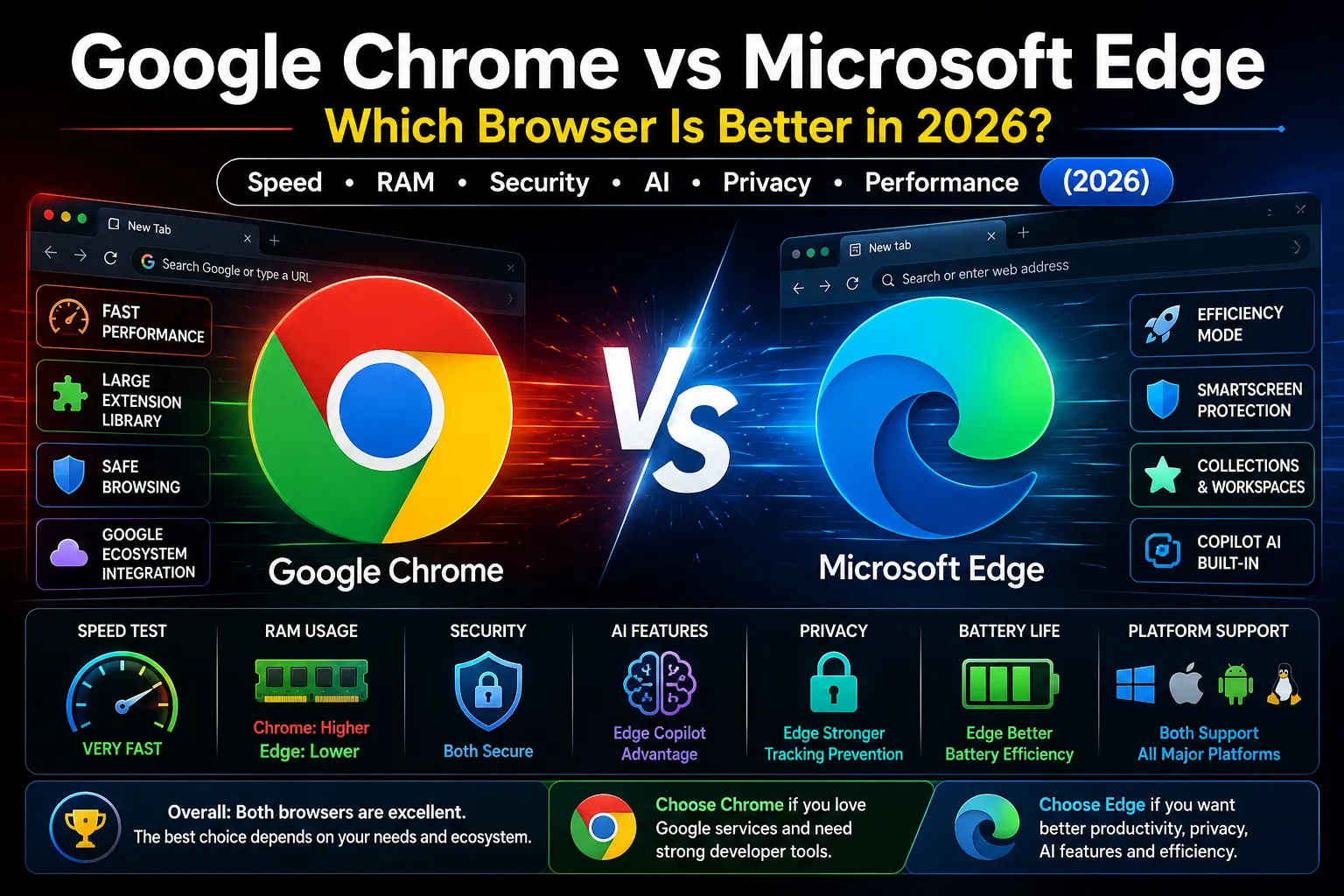
The internet has become an essential part of our daily lives, and a web browser is the gateway that connects us to it. Whether you're checking emails, attending online meetings, shopping, watching videos, working on cloud applications, or developing websites, your browser plays a major role in your overall digital experience. A fast, secure, and efficient browser can improve productivity, reduce system resource usage, and make browsing more enjoyable.
Among all the web browsers available today, Google Chrome and Microsoft Edge are the two most popular choices for millions of users around the world. Both browsers are built on the Chromium engine, which means they share many core technologies. However, despite having the same foundation, they differ in performance, memory usage, privacy, security, productivity features, and artificial intelligence integration.
If you're wondering which browser is better for your personal or professional needs, this comprehensive comparison will help you make an informed decision. Throughout this article, we'll explore every important aspect of both browsers, including speed, RAM usage, battery life, extensions, security, AI capabilities, developer tools, and much more.
Why Choosing the Right Browser Matters
Many people think all browsers perform the same because they can all open websites. However, the browser you use can significantly affect your computer's speed, battery life, online privacy, and overall productivity.
For example, developers need advanced debugging tools and extension support, while students often prefer a lightweight browser that consumes less memory. Business professionals may prioritize security and integration with Microsoft Office or Google Workspace. Gamers usually want a browser that doesn't consume excessive CPU and RAM while gaming.
Modern browsers have evolved far beyond simply loading web pages. Today they include built-in password managers, AI assistants, PDF readers, screenshot tools, shopping assistants, vertical tabs, synchronization across devices, and advanced privacy controls. Therefore, selecting the right browser can improve your everyday workflow and save valuable time.
What is Google Chrome?
Google Chrome is a free web browser developed by Google and officially launched in September 2008. At the time of its release, Internet Explorer dominated the browser market. Chrome introduced a fresh approach by focusing on speed, simplicity, and security.
One of Chrome's biggest innovations was its multi-process architecture, where each browser tab runs independently. This design improves stability because if one tab crashes, the others continue working without interruption. Google also introduced a powerful JavaScript engine that significantly improved website performance compared to older browsers.
Over the years, Chrome has become the world's most widely used browser and is available on Windows, macOS, Linux, Android, iPhone, and ChromeOS. It is especially popular among developers because of its excellent Developer Tools and extensive extension ecosystem.
Key Features of Google Chrome
- Fast browsing performance
- Google Account synchronization
- Chrome Web Store with thousands of extensions
- Built-in Google Translate
- Password Manager
- Safe Browsing protection against malicious websites
- Automatic updates
- Cross-device synchronization
- Excellent support for Google services like Gmail, Drive, Docs, and YouTube
Chrome is the preferred browser for users deeply invested in Google's ecosystem and those who rely heavily on browser extensions.
What is Microsoft Edge?
Microsoft Edge is Microsoft's modern web browser and the official replacement for Internet Explorer. The original version of Edge was introduced in 2015 with Windows 10, but it used Microsoft's own EdgeHTML rendering engine.
Although the original Edge was an improvement over Internet Explorer, it struggled to compete with Chrome because many websites were optimized primarily for Chromium-based browsers.
To address this issue, Microsoft rebuilt Edge using the Chromium engine in 2020. This decision transformed Edge into one of the fastest and most feature-rich browsers available today.
The Chromium-based Edge supports almost all Chrome extensions while adding several exclusive features like Vertical Tabs, Collections, Sleeping Tabs, Efficiency Mode, Workspaces, Immersive Reader, and Microsoft Copilot AI.
Key Features of Microsoft Edge
- Chromium-based architecture
- Microsoft Copilot AI integration
- Vertical Tabs
- Collections for research
- Sleeping Tabs to reduce memory usage
- Built-in PDF reader and annotation tools
- Tracking Prevention
- Password Monitor
- Shopping Assistant
- Efficiency Mode
- Microsoft Rewards integration
Microsoft Edge is especially attractive for Windows users because it is optimized for the operating system and often uses fewer system resources than Chrome.
Google Chrome vs Microsoft Edge: Similarities
Since both browsers are based on Chromium, they share several important technologies and features.
Both browsers support modern web standards such as HTML5, CSS3, and JavaScript. They are compatible with nearly all websites and web applications. They also support Progressive Web Apps (PWAs), browser synchronization, multiple user profiles, private browsing modes, and most Chrome extensions.
Because of their shared Chromium engine, users switching between Chrome and Edge will notice a familiar interface and similar browsing experience.
Major Differences Between Chrome and Edge
Despite their similarities, Google Chrome and Microsoft Edge have different priorities.
Google Chrome focuses on delivering seamless integration with Google's ecosystem, making it the best choice for users who frequently use Gmail, Google Drive, Google Docs, Google Photos, and other Google services.
Microsoft Edge focuses on productivity and efficiency. It includes unique features like Vertical Tabs, Collections, Copilot AI, and Efficiency Mode, making it particularly useful for professionals and Windows users.
Chrome is often considered the browser with the largest extension ecosystem, while Edge emphasizes better memory management and battery optimization.
Browser Market Share in 2026
Google Chrome continues to dominate the global browser market with billions of active users worldwide. Its popularity is driven by its speed, reliability, extension library, and integration with Google's services.
Microsoft Edge has steadily increased its market share over the last few years. Since it comes pre-installed on Windows 10 and Windows 11, many users have adopted it as their primary browser.
Other browsers like Mozilla Firefox, Safari, Opera, Brave, and Vivaldi remain popular among niche audiences, but Chrome and Edge continue to lead the desktop browser market.
Who Should Use Google Chrome?
Google Chrome is an excellent choice for:
- Developers
- Android users
- Google Workspace users
- Students
- Content creators
- Digital marketers
- Users who rely on browser extensions
- Anyone already using Google's ecosystem
Its seamless synchronization across devices makes it especially convenient for users who frequently switch between desktop and mobile devices.
Who Should Use Microsoft Edge?
Microsoft Edge is ideal for:
- Windows users
- Business professionals
- Microsoft 365 users
- Laptop users seeking better battery life
- Users with limited RAM
- Researchers
- Students managing multiple tabs
- Users interested in AI-powered productivity features
Its resource efficiency makes it a strong option for older computers or systems with lower hardware specifications.
What Will We Compare?
In the upcoming sections of this guide, we'll compare both browsers in detail based on:
- Speed and overall performance
- Startup time
- RAM usage
- CPU consumption
- Battery efficiency
- Privacy and tracking protection
- Security features
- Password management
- Browser extensions
- AI capabilities
- Developer tools
- PDF editing features
- Gaming performance
- Productivity features
- Mobile experience
- Synchronization
- Accessibility
- Customization options
- Overall user experience
Each category will help determine which browser performs better for different types of users.
When choosing a web browser, performance is often the first factor users consider. A browser should open quickly, load websites fast, consume minimal system resources, and remain responsive even with multiple tabs open. While both Google Chrome and Microsoft Edge are built on Chromium, Microsoft and Google have optimized their browsers differently, resulting in noticeable differences in real-world usage.
In this section, we'll compare both browsers based on startup speed, webpage loading, RAM consumption, CPU usage, battery efficiency, multitasking performance, and benchmark results.
Browser Startup Speed
Startup speed refers to how quickly the browser launches after you click its icon.
Both Chrome and Edge are designed for fast startup, but Microsoft Edge has an advantage on Windows because it is deeply integrated with the operating system. Edge uses Startup Boost, a feature that keeps certain browser processes running in the background, allowing it to launch almost instantly.
Google Chrome also starts quickly, especially on modern SSD-based computers, but it generally takes slightly longer than Edge during a cold start.
Winner
Microsoft Edge
Website Loading Speed
One of the most important aspects of browser performance is webpage loading speed.
Since both browsers use Chromium's Blink rendering engine, they display websites almost identically. In everyday browsing, the difference in loading speed is so small that most users won't notice it.
Popular websites like Google, YouTube, Facebook, Amazon, GitHub, and DailyCodeTools load extremely fast on both browsers.
However, Chrome often receives web optimization updates directly from Google, which can occasionally give it a slight advantage on Google services such as Gmail, Google Docs, and Google Drive.
Winner
Tie
JavaScript Performance
Modern websites rely heavily on JavaScript for interactive content.
Google Chrome has traditionally been known for its outstanding JavaScript performance thanks to the V8 JavaScript engine.
Microsoft Edge uses the same V8 engine because it is Chromium-based, meaning JavaScript execution speed is almost identical.
Developers using web applications like Visual Studio Code Online, Figma, Canva, Notion, Trello, and ChatGPT will experience excellent performance on both browsers.
Winner
Tie
RAM Usage
Memory usage is one of the biggest concerns for users.
Google Chrome has earned a reputation for consuming a large amount of RAM, especially when multiple tabs are open. Chrome isolates each tab into separate processes to improve security and stability, but this architecture increases memory usage.
Microsoft Edge includes several optimizations such as Sleeping Tabs and Efficiency Mode that reduce RAM consumption significantly.
For example:
- 5 browser tabs
- Chrome: approximately 900 MB
- Edge: approximately 700 MB
- 20 browser tabs
- Chrome: approximately 2.5–3.5 GB
- Edge: approximately 2.0–2.7 GB
- 50 browser tabs
- Chrome: can exceed 6 GB
- Edge: usually remains below Chrome because inactive tabs are suspended automatically.
Users with 8 GB RAM laptops often notice smoother multitasking with Edge.
Winner
Microsoft Edge
CPU Usage
CPU usage determines how efficiently a browser handles webpages, animations, videos, and background tasks.
Both browsers perform similarly under normal browsing conditions.
However, Edge includes additional optimizations that reduce background activity when tabs remain inactive for extended periods.
During intensive browsing sessions involving dozens of tabs, Edge generally maintains lower CPU utilization.
Chrome may use more CPU when running multiple browser extensions simultaneously.
Winner
Microsoft Edge (Slight Advantage)
Multitasking Performance
Many users keep dozens of tabs open while working.
Examples include:
- Gmail
- YouTube
- ChatGPT
- GitHub
- Stack Overflow
- Figma
- Google Docs
- Spotify
- Notion
- Microsoft Teams
Chrome handles multitasking exceptionally well but consumes more RAM.
Edge's Sleeping Tabs automatically suspend inactive tabs, freeing memory without closing them.
As a result, switching between active tabs often feels smoother on systems with limited RAM.
Winner
Microsoft Edge
Battery Life
Laptop users care about battery efficiency.
Microsoft has optimized Edge specifically for Windows laptops.
Features like:
- Efficiency Mode
- Sleeping Tabs
- Background optimization
help reduce battery consumption.
Independent tests consistently show that Edge can provide longer battery life compared to Chrome during web browsing and video streaming.
For students and professionals working away from a charger, this difference can be significant over a full workday.
Winner
Microsoft Edge
Performance During Video Streaming
Streaming services require smooth decoding and hardware acceleration.
Both browsers support:
- YouTube
- Netflix
- Disney+
- Amazon Prime Video
- Twitch
Video playback quality is excellent on both browsers.
Edge offers efficient hardware acceleration on Windows, which may reduce power consumption during long streaming sessions.
Chrome remains one of the best browsers for YouTube because of Google's ecosystem integration.
Winner
Tie
Download Performance
Download speed mainly depends on your internet connection rather than the browser itself.
Both browsers support:
- Parallel downloading
- Resume downloads
- Download manager
- Secure HTTPS downloads
Neither browser has a significant advantage.
Winner
Tie
Performance with Extensions
Extensions improve browser functionality but also consume system resources.
Google Chrome has the largest extension ecosystem.
However, installing too many extensions can noticeably slow down Chrome.
Microsoft Edge supports almost every Chrome extension while managing resources slightly more efficiently.
Users who install 20–30 extensions may observe better stability on Edge.
Winner
Microsoft Edge
Performance on Older Computers
Older computers usually have:
- 4 GB RAM
- Dual-core processors
- HDD storage
On such systems, Chrome may feel heavier.
Edge's memory optimizations make it more suitable for older hardware.
Winner
Microsoft Edge
Performance on High-End PCs
On gaming PCs and workstations equipped with:
- Intel Core i7/i9
- AMD Ryzen 7/9
- 16–64 GB RAM
- SSD or NVMe storage
Both browsers perform exceptionally well.
Resource usage becomes less important because the hardware can easily handle multiple browser processes.
Winner
Tie
Benchmark Comparison
Although benchmark scores vary depending on hardware and browser version, both browsers consistently achieve excellent results.
Typical benchmark categories include:
- Speedometer
- JetStream
- MotionMark
Google Chrome and Microsoft Edge usually score within a few percentage points of each other because they share the Chromium engine.
In some tests Chrome leads slightly, while in others Edge performs better due to Microsoft's optimizations.
For everyday users, the difference is practically unnoticeable.
Winner
Tie
Resource Management Features
Google Chrome
- Memory Saver
- Energy Saver
- Process Isolation
- Background Sync
- Hardware Acceleration
Microsoft Edge
- Sleeping Tabs
- Efficiency Mode
- Startup Boost
- Performance Mode
- Resource Control
- Vertical Tabs Optimization
Edge includes more built-in resource management tools by default.
Performance Comparison Table
| Feature | Google Chrome | Microsoft Edge | Winner |
|---|---|---|---|
| Startup Speed | Excellent | Excellent | Edge |
| Website Loading | Excellent | Excellent | Tie |
| JavaScript Speed | Excellent | Excellent | Tie |
| RAM Usage | Higher | Lower | Edge |
| CPU Usage | Higher | Lower | Edge |
| Battery Life | Good | Excellent | Edge |
| Streaming | Excellent | Excellent | Tie |
| Downloads | Excellent | Excellent | Tie |
| Older PCs | Good | Better | Edge |
| High-End PCs | Excellent | Excellent | Tie |
| Multiple Tabs | Good | Excellent | Edge |
| Resource Management | Good | Excellent | Edge |
Overall Performance Verdict
When it comes to raw browsing speed, Google Chrome and Microsoft Edge are nearly identical because they use the same Chromium engine. Most users won't notice any meaningful difference in website loading or JavaScript performance.
However, Microsoft Edge stands out in resource efficiency. It generally uses less RAM, consumes less CPU during extended browsing sessions, and delivers better battery life on Windows laptops. Features like Sleeping Tabs, Efficiency Mode, and Startup Boost make Edge particularly appealing for users with older computers or limited system memory.
Google Chrome remains an excellent choice for users deeply integrated into Google's ecosystem and those who rely heavily on Google services and extensions. On powerful computers with 16 GB or more RAM, Chrome's higher resource usage is rarely an issue.
In today's digital world, speed is no longer the only factor when choosing a web browser. Privacy and security have become equally important. Every day, browsers handle sensitive information such as passwords, banking details, personal documents, emails, browsing history, and payment information. Choosing a browser with strong security features can significantly reduce the risk of cyberattacks, phishing scams, malware infections, and online tracking.
Although Google Chrome and Microsoft Edge are both built on Chromium, they approach privacy and security differently. Chrome focuses on protecting users from dangerous websites while maintaining seamless integration with Google's services. Microsoft Edge, on the other hand, emphasizes tracking prevention, identity protection, and Windows security integration.
Let's compare both browsers in detail.
Security Architecture
Both browsers use Chromium's modern multi-process architecture, which isolates each browser tab into its own process. This means if one tab crashes or becomes infected with malicious code, it is less likely to affect the rest of the browser.
Both Chrome and Edge also use sandbox technology, which restricts what websites and downloaded files can do on your computer. Even if a malicious webpage attempts to execute harmful code, the sandbox greatly limits its ability to access your system.
Both browsers receive regular security updates to fix newly discovered vulnerabilities.
Winner
Tie
Safe Browsing Protection
Google Chrome includes Google's Safe Browsing technology, one of the most advanced phishing and malware protection systems available.
Whenever you visit a suspicious website or attempt to download a dangerous file, Chrome checks it against Google's constantly updated database of malicious websites.
If a threat is detected, Chrome immediately displays a warning page before allowing access.
Safe Browsing protects users from:
- Phishing websites
- Malware downloads
- Fake login pages
- Harmful browser extensions
- Dangerous software
Because Google operates one of the world's largest web indexes, its threat detection system is extremely fast.
Winner
Google Chrome
Microsoft Defender SmartScreen
Microsoft Edge uses Microsoft Defender SmartScreen instead of Google Safe Browsing.
SmartScreen analyzes websites, downloads, and applications for suspicious behavior.
It provides protection against:
- Phishing attacks
- Malware
- Fake software downloads
- Unsafe websites
- Suspicious applications
One major advantage is its deep integration with Windows Security. If Windows Defender identifies a suspicious file, SmartScreen can block it before it is opened.
For Windows users, this creates an additional layer of protection.
Winner
Microsoft Edge
Tracking Prevention
Modern websites often use tracking scripts to monitor your browsing behavior for advertising and analytics purposes.
Microsoft Edge offers a built-in Tracking Prevention feature with three privacy levels:
- Basic
- Balanced
- Strict
Balanced mode blocks many third-party trackers without breaking websites, while Strict mode blocks even more trackers for users who prioritize privacy.
Google Chrome also offers privacy controls, but its tracking protection has historically been less aggressive because many advertising services rely on Google's ecosystem.
Winner
Microsoft Edge
Privacy Controls
Privacy settings determine how much information a browser collects and shares.
Google Chrome allows users to manage:
- Cookies
- Location access
- Camera permissions
- Microphone permissions
- Notifications
- Pop-ups
- Background synchronization
- Site permissions
Microsoft Edge includes all of these settings while also providing additional privacy dashboards and easier access to tracking controls.
Users who are more privacy-conscious may find Edge's settings more comprehensive and easier to understand.
Winner
Microsoft Edge
Password Manager
Both browsers include built-in password managers that securely store usernames and passwords.
Google Chrome Password Manager
Chrome automatically:
- Saves passwords
- Suggests strong passwords
- Syncs passwords across devices
- Detects compromised passwords
- Autofills login forms
It works seamlessly with Android devices and Google Accounts.
Microsoft Edge Password Manager
Edge offers similar functionality while integrating with Microsoft Accounts and Windows Security.
Additional features include:
- Password health monitoring
- Password leak detection
- Secure password generation
- Autofill support
- Microsoft Authenticator integration
Winner
Tie
Password Leak Detection
Both browsers continuously monitor known data breaches.
If one of your saved passwords appears in a public data breach, the browser immediately recommends changing it.
This feature significantly improves account security.
Winner
Tie
HTTPS Protection
Whenever possible, both browsers automatically prefer secure HTTPS connections over HTTP.
Secure HTTPS websites encrypt data between your browser and the website, helping protect information such as passwords and payment details from interception.
Both browsers also warn users before visiting insecure websites.
Winner
Tie
Incognito vs InPrivate Mode
Google Chrome offers Incognito Mode, while Microsoft Edge provides InPrivate Browsing.
Both modes prevent the browser from storing:
- Browsing history
- Cookies after the session ends
- Search history
- Temporary website data
- Form entries
However, it's important to understand that private browsing does not make you anonymous online. Your internet service provider, employer, school, or the websites you visit may still be able to see your activity.
Winner
Tie
Extension Security
Browser extensions can improve productivity but may also introduce security risks if installed from untrusted sources.
Google Chrome reviews extensions available in the Chrome Web Store and warns users about potentially unsafe add-ons.
Microsoft Edge also verifies extensions in the Microsoft Edge Add-ons store and allows installation from the Chrome Web Store.
For maximum security, users should install extensions only from trusted developers and avoid unnecessary permissions.
Winner
Tie
AI Features
Artificial intelligence is becoming an essential part of modern web browsers.
Google Chrome
Chrome integrates with Google's AI ecosystem, including Gemini-powered features available through Google services. Users can benefit from AI-assisted search experiences, writing help, and other intelligent tools as Google continues expanding AI capabilities.
Microsoft Edge
Microsoft Edge includes built-in Microsoft Copilot, allowing users to:
- Summarize web pages
- Generate content
- Answer questions
- Translate text
- Compare products
- Assist with coding
- Explain complex topics
Because Copilot is integrated directly into the browser, users can access AI assistance without opening a separate website.
Winner
Microsoft Edge
Security Updates
Both Google and Microsoft release security patches frequently to address newly discovered vulnerabilities.
Chrome generally receives updates very quickly because Google maintains the Chromium project.
Microsoft typically releases Edge updates shortly after Chromium security fixes become available.
Both browsers update automatically, helping users stay protected without manual intervention.
Winner
Tie
Enterprise Security
Businesses require advanced security controls for managing large numbers of employees.
Microsoft Edge offers several enterprise-focused features, including:
- Microsoft Entra ID integration
- Group Policy management
- Microsoft Defender integration
- Application Guard
- Enterprise synchronization
- Information protection
Google Chrome Enterprise also provides centralized management, browser policies, cloud-based administration, and security reporting.
The better choice often depends on whether an organization primarily uses Microsoft 365 or Google Workspace.
Winner
Tie
Data Collection
Both companies collect some diagnostic and usage data to improve their browsers, though the amount and type of data can differ based on user settings.
Google Chrome is closely integrated with Google's services, which may result in more interaction with Google's ecosystem if features like sync, search suggestions, and personalized services are enabled.
Microsoft Edge also collects diagnostic information and integrates with Microsoft services such as Bing and Microsoft accounts. Many of these settings can be adjusted or disabled in the browser's privacy options.
Users concerned about data collection should review the privacy settings in either browser and customize them according to their preferences.
Winner
Microsoft Edge (More built-in privacy controls)
Security Comparison Table
| Feature | Google Chrome | Microsoft Edge | Winner |
|---|---|---|---|
| Sandbox Security | Excellent | Excellent | Tie |
| Safe Browsing | Excellent | Very Good | Chrome |
| SmartScreen | No | Yes | Edge |
| Tracking Prevention | Good | Excellent | Edge |
| Privacy Controls | Very Good | Excellent | Edge |
| Password Manager | Excellent | Excellent | Tie |
| Password Leak Detection | Yes | Yes | Tie |
| HTTPS Protection | Excellent | Excellent | Tie |
| Private Browsing | Incognito | InPrivate | Tie |
| AI Integration | Gemini Ecosystem | Built-in Copilot | Edge |
| Enterprise Security | Excellent | Excellent | Tie |
| Security Updates | Excellent | Excellent | Tie |
Overall Privacy & Security Verdict
Both Google Chrome and Microsoft Edge provide excellent security for everyday browsing. They share Chromium's secure architecture, receive frequent updates, and include strong protections against malware and phishing attacks.
Google Chrome stands out with its powerful Safe Browsing technology and seamless integration with Google's security services, making it an excellent choice for users who rely heavily on Google's ecosystem.
Microsoft Edge, however, takes the lead in privacy and productivity. Its Tracking Prevention, Microsoft Defender SmartScreen, built-in Copilot AI, and Windows integration make it especially attractive for users who value stronger privacy controls and enhanced security on Windows devices.
For most Windows users, Microsoft Edge offers a more balanced combination of privacy, security, and built-in features. Meanwhile, Chrome remains an outstanding option for those who prioritize Google's services and ecosystem.
A modern web browser is much more than just a tool for opening websites. Today, browsers help users manage work, organize research, edit documents, develop applications, take notes, and even use artificial intelligence. Features like browser extensions, customization, developer tools, PDF editing, synchronization, and productivity utilities have become essential for students, professionals, developers, and businesses.
Although Google Chrome and Microsoft Edge are built on the same Chromium engine, Microsoft and Google have taken different approaches when designing their browsers. Chrome focuses on simplicity and seamless integration with Google services, while Edge emphasizes productivity, organization, and efficiency.
In this section, we'll compare both browsers based on extensions, developer tools, customization, PDF features, productivity tools, synchronization, and overall user experience.
Browser Extensions
Extensions are one of the biggest reasons users choose Chrome or Edge. They allow you to add extra features to your browser, such as ad blockers, password managers, grammar checkers, VPNs, screenshot tools, SEO utilities, and developer tools.
Google Chrome
Google Chrome has the largest extension ecosystem in the world through the Chrome Web Store. There are hundreds of thousands of extensions covering almost every category imaginable.
Popular Chrome extensions include:
- Grammarly
- LastPass
- Bitwarden
- Dark Reader
- AdBlock Plus
- uBlock Origin
- React Developer Tools
- SEOquake
- SimilarWeb
- ColorZilla
- JSON Formatter
- Lighthouse
- MetaMask
- Loom
Developers usually release Chrome versions of their extensions first, making Chrome the preferred choice for users who depend heavily on browser add-ons.
Advantages
- Largest extension library
- Frequent updates
- Better developer support
- Huge community
Microsoft Edge
Microsoft Edge has its own Add-ons Store, but that's not its biggest strength.
Edge also allows users to install almost every extension available on the Chrome Web Store.
This means Edge users get access to both:
- Microsoft Edge Add-ons
- Chrome Web Store Extensions
As a result, extension availability is no longer a limitation for Edge users.
Advantages
- Supports Chrome extensions
- Microsoft Add-ons Store
- Better resource management for extensions
- Smooth installation process
Winner
Tie
Extension Performance
Installing many browser extensions can slow down any browser.
Google Chrome generally consumes more RAM when many extensions remain active.
Microsoft Edge manages background extensions more efficiently and often suspends inactive processes to reduce memory usage.
Users running 20–30 extensions usually experience smoother performance in Edge, especially on systems with limited RAM.
Winner
Microsoft Edge
Developer Tools
For web developers, browser developer tools are extremely important.
They help debug websites, inspect HTML and CSS, analyze JavaScript, optimize performance, test responsiveness, and monitor network activity.
Chrome DevTools
Chrome DevTools remains the industry standard.
Features include:
- Elements Inspector
- JavaScript Debugger
- Network Monitor
- Lighthouse Performance Audits
- Performance Timeline
- Memory Analysis
- Device Emulator
- CSS Grid Inspector
- Animation Inspector
- Security Panel
- Application Storage
Chrome receives new developer features directly from Google's Chromium development team.
Many tutorials, online courses, and documentation use Chrome DevTools.
Edge DevTools
Microsoft Edge includes nearly identical developer tools because both browsers share Chromium.
Edge also provides additional utilities such as:
- 3D View
- Accessibility Insights
- Performance Dashboard
- Microsoft-specific debugging tools
For most developers, the experience feels almost identical.
Winner
Google Chrome (Slight Advantage)
PDF Reader
Many users regularly open PDF files in their browser.
Google Chrome
Chrome includes a basic PDF viewer.
Users can:
- Open PDFs
- Print documents
- Zoom
- Rotate pages
- Download files
However, editing options are limited.
Microsoft Edge
Microsoft Edge offers one of the best built-in PDF readers among all browsers.
Features include:
- Highlight text
- Add notes
- Draw with digital ink
- Fill PDF forms
- Read PDFs aloud
- Search inside PDFs
- Rotate pages
- Save annotations
Students and professionals working with PDF documents often prefer Edge because of these additional features.
Winner
Microsoft Edge
Vertical Tabs
Managing dozens of browser tabs can become difficult.
Microsoft Edge introduced Vertical Tabs, allowing users to display tabs on the left side of the browser.
Benefits include:
- More visible tab titles
- Easier navigation
- Better multitasking
- Improved organization
Google Chrome still primarily uses traditional horizontal tabs.
Winner
Microsoft Edge
Collections
Collections is one of Edge's most useful productivity features.
Users can save:
- Articles
- Images
- Shopping items
- Notes
- Research links
- Product comparisons
Everything stays organized in one place.
Researchers, students, and content creators find this feature particularly useful.
Google Chrome does not provide a similar built-in feature.
Winner
Microsoft Edge
Workspaces
Microsoft Edge allows users to create separate Workspaces.
For example:
- Office Work
- College
- Personal
- Freelance Projects
- Web Development
Each workspace has its own browser tabs and organization.
This greatly improves productivity.
Chrome requires third-party extensions for similar functionality.
Winner
Microsoft Edge
Synchronization
Both browsers synchronize data across devices.
Google Chrome Sync
Chrome synchronizes:
- Bookmarks
- Passwords
- History
- Extensions
- Open Tabs
- Payment Methods
- Settings
Everything syncs through your Google Account.
Microsoft Edge Sync
Edge synchronizes:
- Favorites
- Passwords
- History
- Extensions
- Collections
- Settings
- Open Tabs
Everything syncs through a Microsoft Account.
Both systems are reliable.
Winner
Tie
Customization
Customization allows users to personalize their browsing experience.
Google Chrome
Users can:
- Install themes
- Change wallpapers
- Customize shortcuts
- Organize profiles
- Modify toolbar
Microsoft Edge
Edge offers:
- Themes
- Custom backgrounds
- Sidebar customization
- Vertical Tabs
- Split Screen
- Copilot Sidebar
- Startup layouts
Edge provides more built-in customization options without requiring extensions.
Winner
Microsoft Edge
Built-in Productivity Features
Google Chrome
Chrome includes:
- Google Translate
- Password Manager
- Reading List
- Memory Saver
- Energy Saver
- Tab Groups
- Live Captions
Microsoft Edge
Edge includes:
- Copilot AI
- Collections
- Vertical Tabs
- Split Screen
- Read Aloud
- Immersive Reader
- Web Capture
- Screenshot Tool
- Shopping Assistant
- Sidebar Apps
- PDF Annotation
- Efficiency Mode
Edge clearly offers more built-in productivity tools.
Winner
Microsoft Edge
User Interface
Google Chrome follows a clean and minimal design.
Everything is simple, making it easy for beginners.
Microsoft Edge looks more modern and includes additional sidebars, productivity panels, and customizable layouts.
Some users prefer Chrome's simplicity, while others appreciate Edge's extra functionality.
Winner
Depends on User Preference
Accessibility Features
Both browsers include accessibility options such as:
- Live captions
- Screen reader support
- High contrast mode
- Keyboard navigation
- Zoom controls
- Text scaling
Microsoft Edge also includes Immersive Reader, which removes distractions from web pages and improves readability.
Winner
Microsoft Edge
Feature Comparison Table
| Feature | Google Chrome | Microsoft Edge | Winner |
|---|---|---|---|
| Extension Library | Excellent | Excellent | Tie |
| Extension Performance | Good | Better | Edge |
| Developer Tools | Excellent | Excellent | Chrome |
| PDF Reader | Good | Excellent | Edge |
| Vertical Tabs | No | Yes | Edge |
| Collections | No | Yes | Edge |
| Workspaces | Limited | Yes | Edge |
| Sync | Excellent | Excellent | Tie |
| Customization | Very Good | Excellent | Edge |
| Productivity Features | Good | Excellent | Edge |
| Accessibility | Very Good | Excellent | Edge |
| User Interface | Simple | Feature Rich | Depends |
Overall User Experience
Google Chrome remains one of the easiest browsers to use. Its clean interface, extensive extension support, and excellent compatibility with Google's services make it a favorite among developers, students, and everyday users.
Microsoft Edge, however, has evolved into a comprehensive productivity browser. Features like Vertical Tabs, Collections, Split Screen, Workspaces, Immersive Reader, Copilot AI, and its advanced PDF tools provide a richer experience without relying on third-party extensions.
For users who want a lightweight, straightforward browser tightly integrated with Google services, Chrome remains an excellent choice. For those seeking built-in productivity tools, better organization, and enhanced functionality—especially on Windows—Edge offers a more feature-complete experience.
While speed, privacy, and productivity are important, many users also want to know which browser performs better during gaming, video streaming, multitasking, and everyday use. A browser should work smoothly across different devices and operating systems while consuming minimal resources. In this section, we'll compare Google Chrome and Microsoft Edge based on gaming performance, streaming quality, battery life, platform compatibility, and identify which browser is best for different types of users.
Gaming Performance
Gamers often keep a browser open while playing games to access Discord, YouTube tutorials, Twitch streams, game guides, or music. In these situations, the browser should use as little RAM and CPU as possible.
Google Chrome
Google Chrome delivers excellent browsing performance, but it is known for using more system memory, especially when multiple tabs and extensions are active. On high-end gaming PCs with 16 GB or more RAM, this usually isn't a problem. However, on systems with limited memory, Chrome can reduce the resources available for games.
Advantages
- Fast website loading
- Excellent compatibility with gaming websites
- Great support for game-related extensions
- Smooth performance on powerful PCs
Microsoft Edge
Microsoft Edge includes features such as Efficiency Mode and Sleeping Tabs, which reduce CPU and RAM usage when tabs are inactive. This allows more system resources to remain available for games.
Many Windows gamers prefer Edge because it has less impact on game performance while running in the background.
Advantages
- Lower RAM usage
- Lower CPU consumption
- Better background resource management
- Optimized for Windows
Winner
Microsoft Edge
Cloud Gaming Support
Cloud gaming has become increasingly popular with services like:
- Xbox Cloud Gaming
- NVIDIA GeForce NOW
- Amazon Luna
- Boosteroid
Both Chrome and Edge support these platforms.
Microsoft Edge often performs particularly well with Xbox Cloud Gaming because of Microsoft's ecosystem integration.
Winner
Microsoft Edge (Slight Advantage)
Video Streaming Experience
Millions of users spend hours watching content on:
- YouTube
- Netflix
- Disney+
- Amazon Prime Video
- Hulu
- Twitch
Both browsers support:
- 4K streaming
- HDR (supported devices)
- Hardware acceleration
- High-definition video playback
Google Chrome is naturally optimized for YouTube since both products are developed by Google.
Microsoft Edge provides excellent streaming quality while often consuming less battery on laptops.
Winner
Tie
Audio and Video Calling
Modern browsers are frequently used for online meetings.
Popular services include:
- Google Meet
- Microsoft Teams
- Zoom
- Discord
- Slack
Both browsers support:
- Webcam access
- Microphone permissions
- Screen sharing
- Background noise reduction (application dependent)
- WebRTC
Edge integrates particularly well with Microsoft Teams, while Chrome works seamlessly with Google Meet.
Winner
Tie
Battery Life During Everyday Use
Battery performance is extremely important for laptop users.
Microsoft Edge includes several battery-saving technologies:
- Efficiency Mode
- Sleeping Tabs
- Startup Boost
- Optimized background activity
These features reduce unnecessary resource consumption.
Google Chrome has introduced Energy Saver and Memory Saver modes, significantly improving battery performance compared to older versions.
However, Edge still generally provides longer battery life during everyday browsing on Windows laptops.
Winner
Microsoft Edge
Windows 11 Experience
Microsoft Edge is deeply integrated into Windows 11.
Benefits include:
- Faster startup
- Better memory optimization
- Windows Security integration
- Microsoft Defender SmartScreen
- Copilot integration
- Better battery optimization
- Native PDF reader
Chrome also performs exceptionally well on Windows but lacks this level of operating system integration.
Winner
Microsoft Edge
macOS Experience
On macOS, both Chrome and Edge perform well.
Chrome integrates better with Google's ecosystem, making it popular among users who rely on Gmail, Google Drive, and Google Workspace.
Edge offers excellent performance but doesn't have the same level of system integration as Safari on macOS.
Winner
Google Chrome
Linux Experience
Developers frequently use Linux for programming.
Chrome offers:
- Stable releases
- Excellent developer support
- Strong compatibility
Edge is also available for Linux and performs well, but Chrome remains the more widely adopted option in the Linux developer community.
Winner
Google Chrome
Android Experience
Google Chrome comes pre-installed on most Android smartphones.
Advantages include:
- Automatic synchronization
- Google Password Manager
- Google Discover
- Better integration with Android services
- Smooth tab syncing
Microsoft Edge is available for Android and includes synchronization with Windows PCs, making it useful for users in the Microsoft ecosystem.
Winner
Google Chrome
iPhone and iPad Experience
Both browsers are available on iOS and iPadOS.
Because Apple requires all iOS browsers to use WebKit, Chrome and Edge perform similarly on iPhones and iPads.
The primary differences are in synchronization and interface design.
Winner
Tie
Business and Enterprise Use
Large organizations require secure, manageable browsers.
Google Chrome Enterprise
Features include:
- Cloud management
- Enterprise policies
- Security controls
- Device management
- Google Workspace integration
Microsoft Edge for Business
Features include:
- Microsoft Entra ID integration
- Microsoft 365 compatibility
- Windows Security
- Group Policy management
- Defender integration
- Enterprise synchronization
Organizations using Microsoft 365 generally benefit more from Edge, while businesses relying on Google Workspace often prefer Chrome.
Winner
Depends on Business Environment
Best Browser for Students
Students need:
- Good battery life
- Note-taking
- PDF reading
- Research organization
- Cross-device synchronization
Edge's Collections, Read Aloud, PDF annotation, and better battery efficiency make it an excellent browser for academic work.
Winner
Microsoft Edge
Best Browser for Developers
Developers require:
- Powerful DevTools
- Extension support
- Fast debugging
- Web standards compatibility
Chrome remains the industry standard for web development because of its DevTools and extensive ecosystem.
Winner
Google Chrome
Best Browser for Content Creators
Content creators frequently use:
- Canva
- Figma
- YouTube Studio
- ChatGPT
- Google Drive
- Adobe Express
Chrome integrates exceptionally well with Google's services, while Edge's Copilot AI and productivity features help with writing and research.
Winner
Tie
Best Browser for Office Users
Professionals working with:
- Microsoft Word
- Excel
- Outlook
- Teams
- OneDrive
will benefit from Microsoft's deep ecosystem integration.
Winner
Microsoft Edge
Best Browser for Everyday Users
For general browsing, shopping, social media, banking, and entertainment, both browsers provide excellent performance.
Users already invested in Google services may prefer Chrome, while Windows users seeking longer battery life and additional built-in tools may find Edge more appealing.
Winner
Depends on User Preference
Comparison Table
| Category | Google Chrome | Microsoft Edge | Winner |
|---|---|---|---|
| Gaming | Excellent | Excellent | Edge |
| Cloud Gaming | Excellent | Excellent | Edge |
| Video Streaming | Excellent | Excellent | Tie |
| Video Calls | Excellent | Excellent | Tie |
| Battery Life | Very Good | Excellent | Edge |
| Windows 11 | Excellent | Excellent | Edge |
| macOS | Excellent | Very Good | Chrome |
| Linux | Excellent | Good | Chrome |
| Android | Excellent | Good | Chrome |
| iPhone | Excellent | Excellent | Tie |
| Enterprise | Excellent | Excellent | Depends |
| Students | Very Good | Excellent | Edge |
| Developers | Excellent | Excellent | Chrome |
| Office Users | Very Good | Excellent | Edge |
| Everyday Browsing | Excellent | Excellent | Tie |
Technology is evolving rapidly, and modern browsers are becoming much more than simple tools for accessing websites. Artificial Intelligence (AI), productivity enhancements, accessibility features, and advanced security have become standard expectations. Google Chrome and Microsoft Edge are both investing heavily in these areas, but they take different approaches. In this final part, we'll compare their AI capabilities, hidden features, accessibility, answer common questions, and provide a final recommendation.
Artificial Intelligence (AI) Features
Artificial Intelligence has transformed how users browse the internet. Instead of simply displaying webpages, browsers can now summarize articles, generate content, answer questions, assist with coding, translate languages, and improve productivity.
Google Chrome AI Features
Google is integrating its Gemini AI technology into Chrome and other Google services. AI-powered features continue to expand and include:
- Writing assistance
- Smarter search suggestions
- AI-powered organization
- Enhanced Google Lens integration
- Automatic translation
- Image search improvements
- Smart tab organization (rolling out in supported versions)
Because Chrome is deeply connected to the Google ecosystem, users who frequently use Gmail, Google Docs, Google Drive, and Google Search can benefit from these AI-powered enhancements.
Advantages
- Strong integration with Google services
- Excellent AI-powered search capabilities
- Smart writing assistance
- Seamless Google Workspace experience
Microsoft Edge AI Features
Microsoft Edge has integrated Microsoft Copilot directly into the browser.
Copilot can help users:
- Summarize long articles
- Generate emails
- Write blog posts
- Explain code
- Solve programming problems
- Translate languages
- Compare products
- Create travel plans
- Generate images (where supported)
- Research topics
Unlike Chrome, users don't need to visit a separate AI website because Copilot is built directly into the browser sidebar.
Advantages
- Built-in AI assistant
- Excellent research capabilities
- Faster productivity
- Coding assistance
- Document summarization
Winner
Microsoft Edge
Accessibility Features
Accessibility ensures that people with different abilities can comfortably use the browser.
Both browsers support:
- Screen readers
- Keyboard navigation
- High contrast mode
- Zoom controls
- Live captions
- Voice input support
Microsoft Edge also includes several unique accessibility tools.
Immersive Reader
One of Edge's standout features is Immersive Reader.
It removes advertisements, menus, and distractions from web pages, making articles easier to read.
Users can:
- Change font size
- Change font style
- Adjust spacing
- Highlight grammar
- Read text aloud
- Focus on individual lines
This feature is particularly useful for students, language learners, and readers with dyslexia.
Winner
Microsoft Edge
Reading Mode
Google Chrome offers Reading Mode through its side panel, providing a cleaner interface for reading articles.
Microsoft Edge offers a more advanced version through Immersive Reader.
Winner
Microsoft Edge
Built-in Translation
Language barriers are common while browsing international websites.
Google Chrome includes Google Translate, which automatically detects foreign languages and offers instant translation.
Microsoft Edge uses Microsoft Translator and provides similar functionality.
Google Translate generally supports more languages and often produces more natural translations.
Winner
Google Chrome
Screenshot Tools
Google Chrome allows users to capture screenshots using developer tools or third-party extensions.
Microsoft Edge includes Web Capture, allowing users to:
- Capture full pages
- Capture selected areas
- Add annotations
- Share screenshots
No extension is required.
Winner
Microsoft Edge
Hidden Features in Google Chrome
Many users are unaware of Chrome's powerful built-in features, including:
- Memory Saver
- Energy Saver
- Live Caption
- Tab Groups
- Reading List
- Chrome Task Manager
- Password Checkup
- QR Code Generator
- Developer Tools
- Chrome Flags for experimental features
These features improve productivity and performance without requiring additional software.
Hidden Features in Microsoft Edge
Edge includes several exclusive features that many users never discover:
- Vertical Tabs
- Split Screen
- Collections
- Workspaces
- Copilot Sidebar
- Immersive Reader
- Read Aloud
- Sleeping Tabs
- Efficiency Mode
- Startup Boost
- Web Capture
- Sidebar Apps
- Shopping Assistant
These tools are built directly into the browser, reducing the need for third-party extensions.
Tips to Improve Browser Performance
Regardless of which browser you use, these tips can improve speed and responsiveness:
- Keep your browser updated.
- Remove unused extensions.
- Clear cache and cookies periodically.
- Limit the number of open tabs.
- Enable hardware acceleration if supported.
- Restart the browser occasionally.
- Use built-in memory-saving features.
- Avoid installing unnecessary toolbars.
- Close background applications when multitasking.
Following these practices helps maintain smooth browsing performance over time.
Common Browser Myths
Myth 1: Chrome is always faster than Edge.
Reality: Both browsers use the Chromium engine, and in most real-world scenarios, their browsing speed is nearly identical.
Myth 2: Edge cannot use Chrome extensions.
Reality: Microsoft Edge supports almost all Chrome extensions from the Chrome Web Store.
Myth 3: Chrome is more secure.
Reality: Both browsers provide excellent security with sandboxing, automatic updates, and phishing protection.
Myth 4: Edge is just Internet Explorer.
Reality: Modern Microsoft Edge is completely different from Internet Explorer and is built on Chromium.
Myth 5: Browsers don't affect battery life.
Reality: Browser resource usage can significantly impact laptop battery life, and Edge generally performs better in this area on Windows devices.
Frequently Asked Questions (FAQs)
Which browser is faster?
Both browsers offer very similar browsing speeds, but Edge often feels smoother on Windows due to better resource optimization.
Which browser uses less RAM?
Microsoft Edge generally consumes less RAM because of features like Sleeping Tabs and Efficiency Mode.
Which browser is better for developers?
Google Chrome remains the preferred choice for many developers due to its DevTools and widespread adoption.
Which browser is better for gaming?
Edge has a slight advantage because it consumes fewer system resources while running in the background.
Which browser is better for students?
Microsoft Edge is an excellent choice because of Collections, Immersive Reader, PDF annotation, and better battery efficiency.
Which browser is better for business users?
Organizations using Microsoft 365 often benefit more from Edge, while businesses relying on Google Workspace may prefer Chrome.
Which browser is better for Android users?
Google Chrome provides the best integration with Android devices and Google services.
Which browser is safer?
Both browsers are highly secure. Chrome excels with Google Safe Browsing, while Edge offers Microsoft Defender SmartScreen and stronger built-in tracking prevention.
Can I use Chrome extensions in Edge?
Yes. Microsoft Edge supports most extensions available in the Chrome Web Store.
Should I switch from Chrome to Edge?
If you're a Windows user looking for better battery life, lower RAM usage, and more built-in productivity features, switching to Edge is worth considering. If you depend heavily on Google's ecosystem or developer workflows, Chrome remains an excellent choice.
Final Comparison Score
| Category | Winner |
|---|---|
| Speed | Tie |
| RAM Usage | Microsoft Edge |
| CPU Efficiency | Microsoft Edge |
| Battery Life | Microsoft Edge |
| Security | Tie |
| Privacy | Microsoft Edge |
| Extension Support | Tie |
| Developer Tools | Google Chrome |
| AI Features | Microsoft Edge |
| Productivity | Microsoft Edge |
| PDF Features | Microsoft Edge |
| Windows Integration | Microsoft Edge |
| Android Integration | Google Chrome |
| Google Services | Google Chrome |
| Enterprise Features | Tie |
| Accessibility | Microsoft Edge |
Final Verdict
Google Chrome and Microsoft Edge are both outstanding browsers, and the best choice depends on your needs rather than a single overall winner.
Choose Google Chrome if you:
- Use Gmail, Google Drive, and Google Workspace every day.
- Are a web developer who relies on Chrome DevTools.
- Use Android devices as your primary mobile platform.
- Need the widest possible extension ecosystem.
Choose Microsoft Edge if you:
- Primarily use Windows 10 or Windows 11.
- Want lower RAM and CPU usage.
- Need better battery life on a laptop.
- Prefer built-in productivity tools like Collections, Vertical Tabs, and Split Screen.
- Want an integrated AI assistant with Microsoft Copilot.
- Frequently work with PDF documents or long research sessions.
For most Windows users in 2026, Microsoft Edge offers a more balanced experience, combining excellent performance, strong privacy controls, AI-powered productivity, and efficient resource management. Meanwhile, Google Chrome continues to be the go-to browser for developers, Android users, and anyone deeply invested in Google's ecosystem.
Ultimately, neither browser is objectively better for everyone. The right choice depends on your workflow, preferred services, and the features that matter most to you. Both Chrome and Edge are mature, secure, and capable browsers that can handle everything from casual browsing to professional development and enterprise workloads.
Your email address will not be published. Comments are moderated.
0 Comments on This Post
Leave a Reply
Comments (0)
Spread the Word!
Join Our Developer Community!
Get weekly coding tips, tool updates, and exclusive tutorials straight to your inbox.
Request a Tool
×