25 Best Google Chrome Extensions for Productivity
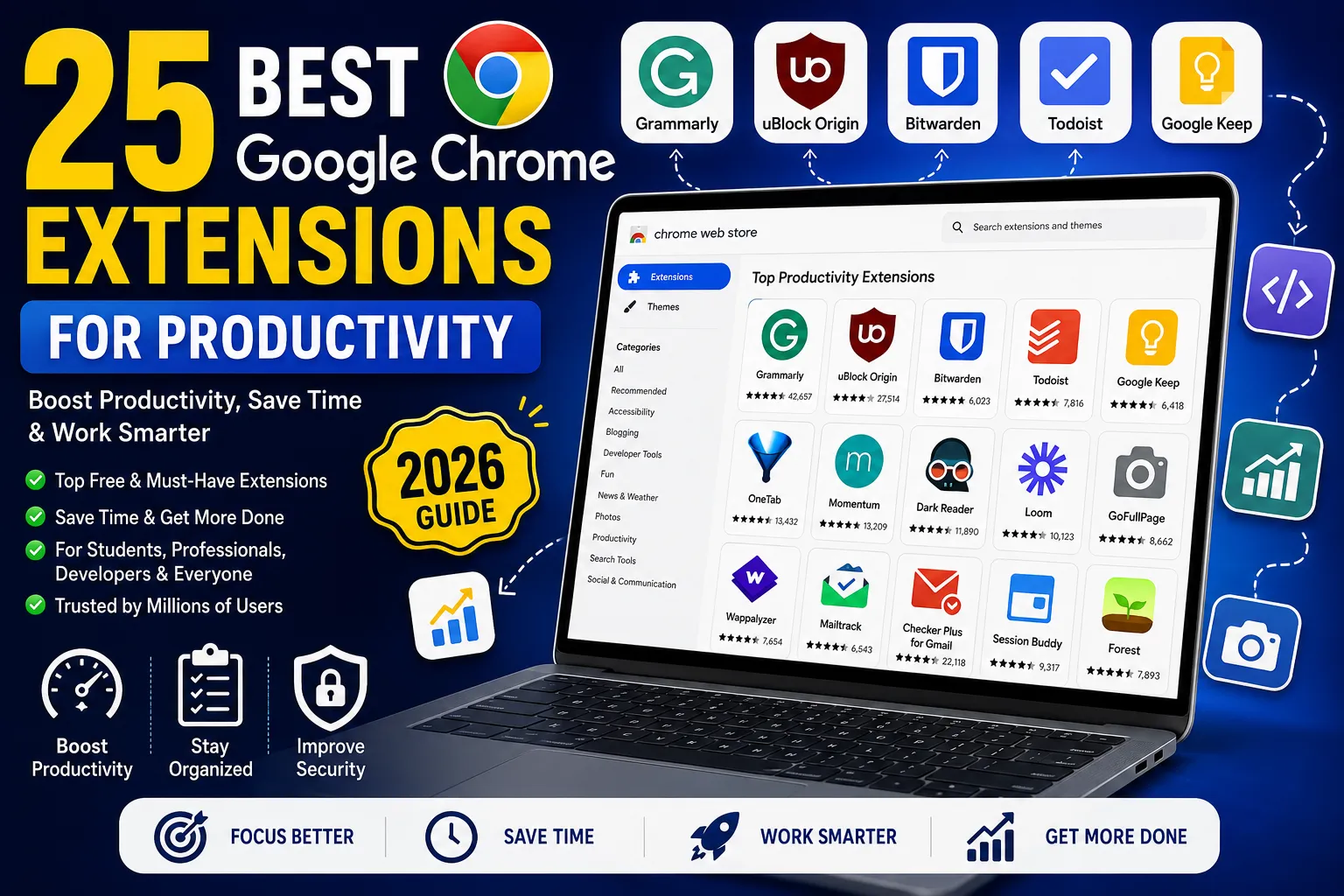
Google Chrome is the world's most popular web browser, trusted by billions of users for work, study, entertainment, and everyday browsing. While Chrome is powerful on its own, its real strength comes from extensions—small add-ons that can transform your browser into a productivity powerhouse.
Whether you're writing emails, managing projects, attending online meetings, designing websites, researching information, or developing applications, the right Chrome extensions can save time, automate repetitive tasks, and help you stay organized.
Today, there are thousands of Chrome extensions available on the Chrome Web Store. However, not all of them are useful. Some are outdated, while others consume unnecessary memory or may even pose security risks.
In this comprehensive guide, we've carefully selected 25 of the best Google Chrome extensions for productivity in 2026. These extensions are trusted by millions of users worldwide and cover everything from writing assistance and password management to note-taking, tab organization, developer tools, screenshots, email tracking, and AI-powered productivity.
Whether you're a student, freelancer, developer, digital marketer, content creator, business owner, or office professional, you'll discover extensions that can significantly improve your workflow.
By the end of this guide, you'll know exactly which Chrome extensions deserve a place in your browser—and which ones to avoid.
Why Use Chrome Extensions?
Chrome extensions add new features directly to your browser without installing large desktop applications.
They can help you:
- Save hours every week
- Improve writing quality
- Block annoying ads
- Organize dozens of tabs
- Manage passwords securely
- Capture screenshots
- Improve online security
- Boost browsing speed
- Increase work efficiency
- Automate repetitive tasks
Instead of switching between multiple apps, many everyday tasks can be completed directly within Chrome using extensions.
Benefits of Using Productivity Extensions
Installing the right extensions can help you:
✅ Write faster
✅ Stay organized
✅ Manage projects efficiently
✅ Improve focus
✅ Save browser tabs
✅ Remember important tasks
✅ Protect your passwords
✅ Capture screenshots instantly
✅ Increase productivity
✅ Reduce repetitive work
Are Chrome Extensions Safe?
Most extensions available on the Chrome Web Store are safe, but it's important to install them wisely.
Before installing any extension:
- Download only from the official Chrome Web Store.
- Check the developer's reputation.
- Read recent user reviews.
- Review requested permissions.
- Remove extensions you no longer use.
- Keep extensions updated.
Avoid installing multiple extensions that perform the same task, as they can slow down your browser.
How to Install Chrome Extensions
Installing a Chrome extension takes less than a minute.
Step 1
Open the Chrome Web Store.
Step 2
Search for the extension by name.
Step 3
Click Add to Chrome.
Step 4
Review the permissions requested.
Step 5
Click Add Extension.
The extension will appear in the Chrome toolbar and be ready to use immediately.
Who Should Read This Guide?
This article is designed for:
- Students
- Developers
- Bloggers
- Content Writers
- Digital Marketers
- Graphic Designers
- SEO Professionals
- Business Owners
- Office Employees
- Freelancers
- Remote Workers
- Researchers
Whether you're working from home, studying online, or managing multiple projects, these extensions can simplify your daily tasks.
What You'll Learn
In this guide, you'll discover:
- The best free Chrome extensions
- AI-powered productivity tools
- Writing and grammar assistants
- Password managers
- Tab management tools
- Screenshot utilities
- Developer extensions
- Email productivity tools
- Browser optimization tips
- Security best practices
Table of Contents
- Grammarly
- uBlock Origin
- Bitwarden
- Momentum
- Todoist
- Dark Reader
- Google Keep
- OneTab
- LanguageTool
- Loom
- ColorZilla
- Wappalyzer
- GoFullPage
- Similarweb
- Mailtrack
- Checker Plus for Gmail
- Session Buddy
- Save to Pocket
- Forest
- Nimbus Screenshot
- React Developer Tools
- JSON Formatter
- Lighthouse
- Google Translate
- Volume Master
What Makes These Extensions the Best?
Our recommendations are based on several important factors:
- Millions of active users
- Regular updates
- High ratings
- Trusted developers
- Security and privacy
- Ease of use
- Real productivity benefits
- Compatibility with the latest version of Google Chrome
Every extension included in this guide has been selected because it solves a real problem and can make your browsing experience more productive.
1. Grammarly
Category: Writing & Grammar
Grammarly is one of the most popular Chrome extensions for improving writing. Whether you're composing emails, writing blog posts, posting on social media, or chatting with colleagues, Grammarly checks your grammar, spelling, punctuation, clarity, and tone in real time.
It supports writing across thousands of websites, including Gmail, Google Docs (limited support), LinkedIn, Facebook, X (Twitter), and many more.
Key Features
- Real-time grammar correction
- Spelling checker
- Tone suggestions
- Vocabulary improvements
- AI writing assistance
- Plagiarism checker (Premium)
- Rewrite suggestions
Best For
- Students
- Bloggers
- Content Writers
- Business Professionals
- Freelancers
Pros
- Easy to use
- Improves writing quality
- Saves editing time
- Free version available
Cons
- Advanced features require Premium
2. uBlock Origin
Category: Ad Blocker
uBlock Origin is one of the fastest and lightest ad blockers available for Chrome. Unlike many alternatives, it focuses on performance while effectively blocking ads, trackers, pop-ups, and malicious websites.
Key Features
- Blocks ads automatically
- Stops tracking scripts
- Improves page loading speed
- Reduces bandwidth usage
- Protects privacy
Benefits
- Faster browsing
- Cleaner websites
- Better security
- Lower CPU usage
Best For
Anyone who wants a faster, distraction-free browsing experience.
3. Bitwarden
Category: Password Manager
Remembering dozens of passwords is nearly impossible. Bitwarden securely stores all your passwords in an encrypted vault and autofills them whenever you log in.
Features
- Unlimited password storage
- Password generator
- Secure notes
- Autofill login forms
- Cross-device synchronization
- Two-factor authentication support
Advantages
- Open-source
- Highly secure
- Affordable premium plan
- Excellent free version
Best For
- Business users
- Developers
- Students
- Everyday internet users
4. Momentum
Category: Focus & Productivity
Momentum transforms your Chrome New Tab page into a beautiful personal productivity dashboard.
Instead of opening a blank page, you'll see:
- Daily goals
- Weather updates
- Inspirational quotes
- To-do list
- Background images
- Personal focus reminders
Features
- Daily focus
- Task management
- Inspirational dashboard
- Personalized greetings
- Beautiful wallpapers
Benefits
- Reduces distractions
- Encourages productivity
- Keeps daily goals visible
5. Todoist
Category: Task Management
Todoist is one of the best task management tools available for Chrome. It helps you organize projects, deadlines, and daily activities in one place.
Features
- Create tasks instantly
- Set reminders
- Add due dates
- Organize projects
- Priority levels
- Recurring tasks
- Team collaboration
Example
Instead of remembering:
- Finish blog
- Call client
- Submit assignment
You can schedule everything inside Todoist.
Best For
- Students
- Project Managers
- Freelancers
- Office Workers
6. Dark Reader
Category: Accessibility
Many websites still don't offer a dark mode. Dark Reader automatically converts bright websites into comfortable dark themes, reducing eye strain during long browsing sessions.
Features
- Dark mode for every website
- Brightness adjustment
- Contrast control
- Font customization
- Sepia mode
Benefits
- Less eye fatigue
- Better night browsing
- Improved readability
- Battery savings on OLED displays
Perfect For
- Developers
- Readers
- Students
- Night-time users
7. Google Keep Chrome Extension
Category: Note Taking
Google Keep lets you save ideas, notes, links, images, and reminders directly from your browser.
Instead of copying information into a notebook, simply click the Keep icon.
Features
- Save notes instantly
- Add labels
- Create reminders
- Sync across devices
- Save webpages
- Add images
Example
While reading an article, click the Keep extension to save:
- Important quotes
- Research links
- Ideas
- Shopping lists
Everything syncs with your Google account.
Best For
- Students
- Researchers
- Bloggers
- Writers
8. OneTab
Category: Tab Management
If you frequently work with dozens of open tabs, OneTab can dramatically reduce Chrome's memory usage.
With one click, OneTab converts all open tabs into a simple list.
You can restore them anytime.
Features
- Save all tabs
- Restore individual tabs
- Restore entire session
- Export tab lists
- Share tab collections
Benefits
- Reduces RAM usage
- Keeps browser organized
- Prevents accidental tab loss
- Speeds up Chrome
Example
Instead of keeping 50 tabs open:
Click OneTab →
All tabs are stored in a neat list, freeing system resources while preserving your work.
Productivity Tips
To get the most out of these extensions:
- Install only the extensions you genuinely need.
- Regularly remove unused extensions to keep Chrome fast.
- Pin your most-used extensions to the toolbar for quick access.
- Review extension permissions occasionally to protect your privacy.
- Keep extensions updated to receive new features and security fixes.
Summary of Extensions 1–8
| Extension | Purpose | Best For |
|---|---|---|
| Grammarly | Writing & Grammar | Writers, Students |
| uBlock Origin | Ad Blocking | Everyone |
| Bitwarden | Password Manager | All Users |
| Momentum | Daily Focus | Professionals |
| Todoist | Task Management | Teams & Freelancers |
| Dark Reader | Dark Mode | Night Browsing |
| Google Keep | Note Taking | Students & Researchers |
| OneTab | Tab Management | Heavy Chrome Users |
9. LanguageTool
Category: Writing & Proofreading
LanguageTool is an excellent alternative to Grammarly that supports grammar, spelling, punctuation, and style corrections in multiple languages. It's especially useful for users who write in English as well as other languages.
Key Features
- Grammar correction
- Spelling checker
- Style suggestions
- Multilingual support
- AI writing assistance
- Browser-wide correction
Best For
- Students
- Bloggers
- Translators
- Content Writers
- Business Professionals
Pros
- Supports 30+ languages
- Excellent free version
- Works across most websites
Cons
- Premium features require a subscription
10. Loom
Category: Screen Recording
Loom allows you to record your screen, webcam, or both with a single click. It's perfect for tutorials, presentations, bug reporting, and team communication.
Features
- Screen recording
- Webcam recording
- Audio recording
- Instant sharing links
- HD video quality
- Cloud storage
Real-Life Example
Instead of writing a long email explaining a problem, record a 2-minute video and share the link instantly.
Best For
- Remote teams
- Teachers
- Developers
- Customer support
- Freelancers
Benefits
- Saves time
- Improves communication
- Easy sharing
- Professional presentations
11. ColorZilla
Category: Web Design
ColorZilla is one of the most popular Chrome extensions for designers and front-end developers. It lets you identify any color used on a webpage instantly.
Features
- Color picker
- Eyedropper tool
- CSS gradient generator
- Color history
- RGB, HEX, and HSL support
Example
Found a beautiful blue button on a website?
Click the ColorZilla icon and instantly copy its HEX code.
Best For
- UI Designers
- Web Developers
- Graphic Designers
- Digital Artists
12. Wappalyzer
Category: Website Analysis
Ever wondered what technology a website uses?
Wappalyzer reveals the tech stack behind almost any website.
It Can Detect
- CMS (WordPress, Shopify, Joomla)
- JavaScript Frameworks
- Analytics Tools
- Payment Gateways
- Hosting Providers
- CDN Services
- Marketing Tools
- Programming Languages
Best For
- Developers
- SEO Experts
- Digital Marketers
- Business Analysts
Example
Visit an online store, and Wappalyzer can show whether it's built with Shopify, WooCommerce, Magento, or another platform.
13. GoFullPage
Category: Screenshot Tool
GoFullPage captures an entire webpage—not just the visible portion—without requiring multiple screenshots.
Features
- Full-page screenshots
- One-click capture
- Export as PNG
- Export as PDF
- No watermark
Perfect For
- Bloggers
- QA Testers
- Designers
- Developers
- Students
Benefits
- Save long articles
- Capture full documentation
- Share complete webpages
- Create website reports
14. Similarweb
Category: Website Analytics
Similarweb provides valuable insights into website traffic and performance directly in your browser.
It Shows
- Estimated monthly visitors
- Traffic sources
- Top countries
- Engagement metrics
- Competitors
- Referral traffic
- Popular keywords (where available)
Best For
- SEO Professionals
- Bloggers
- Digital Marketers
- Business Owners
Example
Before targeting a niche, you can quickly estimate how much traffic competing websites receive.
15. Mailtrack
Category: Email Productivity
Mailtrack tells you whether your emails have been opened by the recipient.
It's particularly useful for professionals who rely on email communication.
Features
- Email open tracking
- Real-time notifications
- Link click tracking (Premium)
- Daily reports
- Gmail integration
Best For
- Sales Teams
- Freelancers
- Recruiters
- Consultants
- Business Owners
Benefits
- Know if your email was read
- Improve follow-ups
- Better client communication
16. Checker Plus for Gmail
Category: Email Management
Checker Plus lets you manage Gmail without keeping Gmail open all day.
You'll receive desktop notifications and can even read or reply to emails directly from the extension.
Features
- Desktop notifications
- Read emails instantly
- Reply without opening Gmail
- Multiple Gmail accounts
- Voice notifications
- Dark mode support
Best For
- Office Workers
- Freelancers
- Business Users
- Remote Employees
Benefits
- Saves time
- Faster email management
- Never miss important emails
- Supports multiple accounts
Productivity Tips
To maximize your productivity with these extensions:
- Use LanguageTool if you write in multiple languages.
- Record tutorials or bug reports quickly with Loom.
- Use ColorZilla to identify website colors instantly.
- Analyze competitors using Wappalyzer and Similarweb.
- Capture complete webpages with GoFullPage.
- Track important business emails with Mailtrack.
- Stay updated on emails without opening Gmail using Checker Plus for Gmail.
Summary of Extensions 9–16
| Extension | Purpose | Best For |
|---|---|---|
| LanguageTool | Grammar & Style Checking | Writers, Students |
| Loom | Screen Recording | Teams, Educators |
| ColorZilla | Color Picker | Designers, Developers |
| Wappalyzer | Website Technology Detection | Developers, Marketers |
| GoFullPage | Full-Page Screenshots | Bloggers, QA, Designers |
| Similarweb | Website Traffic Analysis | SEO & Marketing |
| Mailtrack | Email Open Tracking | Sales & Business |
| Checker Plus for Gmail | Gmail Notifications | Professionals |
17. Session Buddy
Category: Session & Tab Management
If you often work with dozens or even hundreds of browser tabs, Session Buddy is a lifesaver. It automatically saves your browsing sessions so you can restore them later.
Whether Chrome crashes unexpectedly or you accidentally close a window, Session Buddy helps you recover your work within seconds.
Key Features
- Save unlimited browser sessions
- Restore tabs with one click
- Organize sessions into collections
- Search saved tabs
- Export sessions for backup
Best For
- Researchers
- Developers
- Students
- Content Writers
- Digital Marketers
Pros
- Prevents loss of important tabs
- Lightweight and easy to use
- Excellent for project management
18. Save to Pocket
Category: Read Later
Pocket lets you save articles, blogs, videos, and web pages so you can read them later—even on another device.
Instead of opening dozens of tabs, simply save content to Pocket and organize it for later.
Features
- Save articles with one click
- Offline reading
- Tag saved content
- Highlight important text
- Cross-device synchronization
Best For
- Students
- Researchers
- Bloggers
- Journalists
Benefits
- Reduces browser clutter
- Better reading organization
- Access saved content anywhere
19. Forest
Category: Focus & Time Management
Forest helps you stay focused by encouraging you to avoid distracting websites and social media.
When you start a focus session, a virtual tree begins to grow. If you leave to browse distracting sites, the tree stops growing.
Features
- Focus timer
- Productivity tracking
- Website blocking
- Daily statistics
- Gamified motivation
Best For
- Students
- Remote workers
- Freelancers
- Anyone looking to reduce distractions
Benefits
- Encourages deep work
- Improves concentration
- Builds healthier browsing habits
20. Nimbus Screenshot & Screen Video Recorder
Category: Screenshots & Screen Recording
Nimbus is an all-in-one tool for taking screenshots and recording your screen directly from Chrome.
Features
- Capture full web pages
- Record screen and webcam
- Annotate screenshots
- Blur sensitive information
- Export as PNG, PDF, or JPG
Best For
- Teachers
- Developers
- QA Testers
- Designers
- Customer Support Teams
Advantages
- Easy sharing
- High-quality captures
- Powerful editing tools
21. React Developer Tools
Category: Web Development
If you're building React applications, this extension is almost essential.
It allows you to inspect React component trees, analyze props and state, and debug applications more efficiently.
Features
- Component inspection
- State monitoring
- Props analysis
- Performance profiling
- React Hooks support
Best For
- React Developers
- Front-end Engineers
- JavaScript Developers
Benefits
- Faster debugging
- Improved development workflow
- Better application analysis
22. JSON Formatter
Category: Developer Tool
Developers often work with APIs that return raw JSON. JSON Formatter makes it much easier to read and debug JSON data.
Features
- Pretty-print JSON
- Syntax highlighting
- Tree view
- Error detection
- Expand/collapse objects
Perfect For
- API Developers
- Backend Developers
- QA Engineers
- Students learning APIs
Benefits
- Easier debugging
- Faster API development
- Better readability
23. Lighthouse
Category: Website Performance & SEO
Lighthouse is a powerful auditing tool developed by Google. It evaluates websites for performance, accessibility, SEO, and best practices.
It Analyzes
- Page speed
- Accessibility
- SEO issues
- Best practices
- Progressive Web App (PWA) support
Best For
- SEO Experts
- Web Developers
- Website Owners
- Digital Agencies
Benefits
- Improve website performance
- Find SEO opportunities
- Enhance user experience
24. Google Translate
Category: Language Translation
Google Translate for Chrome allows you to translate words, phrases, or entire webpages instantly.
Features
- One-click webpage translation
- Translate selected text
- Supports 100+ languages
- Quick toolbar access
Best For
- Travelers
- Students
- Researchers
- International Businesses
Benefits
- Read foreign-language websites
- Learn new languages
- Access global content
25. Volume Master
Category: Audio Enhancement
Sometimes videos or online meetings are too quiet, even at maximum system volume. Volume Master lets you boost the audio far beyond the default browser limit.
Features
- Increase volume up to 600%
- Individual tab volume control
- Simple interface
- Works on most websites
Best For
- Online classes
- Podcasts
- Video conferences
- Music streaming
- YouTube viewers
Benefits
- Louder audio without extra software
- Control sound for individual tabs
- Better listening experience
Tips for Managing Chrome Extensions
Having too many extensions can slow down Chrome. Follow these best practices:
- Install only the extensions you use regularly.
- Remove unused extensions every few months.
- Keep extensions updated.
- Review permissions before installing.
- Avoid installing multiple extensions with the same purpose.
- Disable extensions temporarily if you don't need them.
A clean browser is generally faster and more secure.
How to Improve Chrome Performance
To keep Chrome running smoothly:
- Enable Memory Saver in Chrome Settings.
- Close unused tabs.
- Clear browsing cache periodically.
- Restart Chrome occasionally.
- Keep both Chrome and your extensions updated.
- Disable extensions that consume excessive resources.
Frequently Asked Questions (FAQs)
1. Are Chrome extensions free?
Many of the best Chrome extensions offer free versions with useful features. Some also provide premium plans for advanced functionality.
2. Can too many extensions slow down Chrome?
Yes. Running too many extensions simultaneously can increase memory usage and reduce browser performance. It's best to install only what you need.
3. Are Chrome extensions safe?
Extensions from trusted developers on the Chrome Web Store are generally safe. Always check ratings, reviews, permissions, and update history before installing.
4. Which Chrome extension is best for students?
Some excellent choices include:
- Grammarly
- Google Keep
- Todoist
- Forest
- LanguageTool
These tools help with writing, note-taking, focus, and organization.
5. Which Chrome extension is best for developers?
Developers often benefit from:
- React Developer Tools
- JSON Formatter
- Wappalyzer
- Lighthouse
- ColorZilla
- GoFullPage
These extensions simplify debugging, performance testing, and website analysis.
6. Which extension is best for managing passwords?
Bitwarden is widely recommended because it offers strong security, cross-device synchronization, password generation, and an excellent free plan.
7. How many Chrome extensions should I install?
There's no fixed limit, but keeping around 10–15 essential extensions is a good practice for balancing functionality and performance.
Final Thoughts
Chrome extensions can dramatically improve the way you work, study, browse, and manage daily tasks. Whether you need better writing assistance, stronger password security, smarter tab management, or developer tools, choosing the right extensions can save time and increase productivity.
Start with a few essential extensions such as Grammarly, Bitwarden, Todoist, uBlock Origin, OneTab, and Lighthouse. As your needs evolve, you can add more specialized tools like React Developer Tools, ColorZilla, or Session Buddy.
Remember to keep your browser uncluttered by reviewing your installed extensions regularly. A well-maintained Chrome setup not only improves performance but also enhances security and overall browsing efficiency.
Your email address will not be published. Comments are moderated.
0 Comments on This Post
Leave a Reply
Comments (0)
Spread the Word!
Join Our Developer Community!
Get weekly coding tips, tool updates, and exclusive tutorials straight to your inbox.
Request a Tool
×