Why Your Website Is Not Showing on Google — 12 SEO Problems You Should Check Today
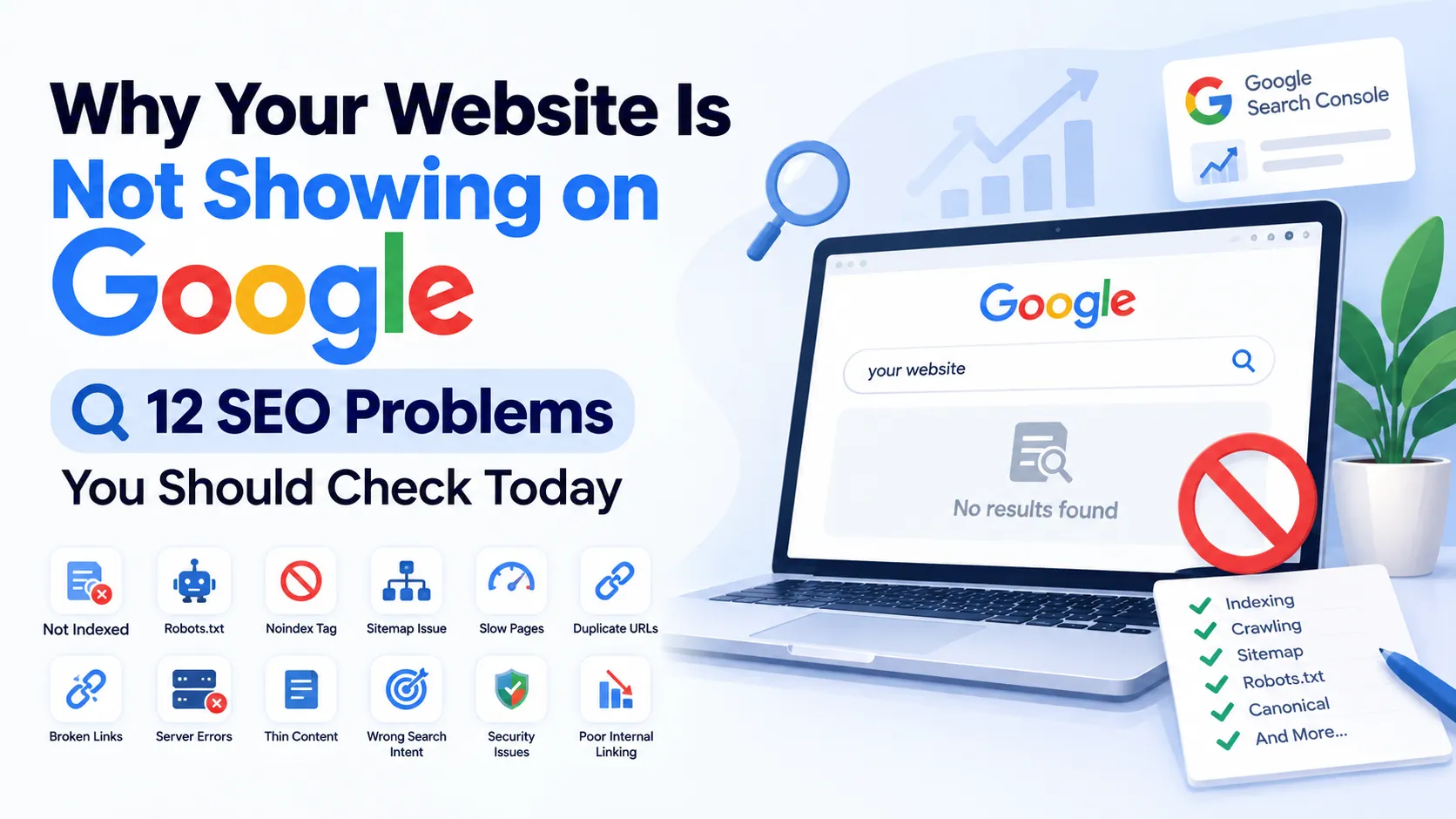
If you recently launched a website, published a new blog, created a landing page, or added a useful online tool, one of the first things you probably did was search for it on Google.
And then came the frustrating part.
Nothing.
You searched your brand name. You searched the exact page title. You even copied the complete URL into Google, but your page still did not appear.
At this point, many website owners immediately assume that their SEO is bad or that Google has somehow ignored their website. In reality, there can be several different reasons why a website or individual page does not appear in Google Search.
Sometimes Google has not discovered the page yet. Sometimes the page has been discovered but has not been indexed. In other situations, the page may already be indexed but is ranking so far down the search results that you cannot easily find it. There can also be technical problems involving robots.txt, noindex tags, canonical URLs, redirects, server errors, duplicate content, or poor internal linking.
The important thing is to identify which problem you actually have before trying random SEO techniques.
Google Search generally involves several stages. Google needs to discover a URL, crawl and access the content, understand the page, decide whether it should be indexed, and then determine where it may appear for relevant searches. Google provides tools such as Search Console and URL Inspection to help website owners understand these processes.
This guide explains 12 common reasons why your website may not be showing on Google and what you can check today.
First: Is Your Website Not Indexed or Simply Not Ranking?
Before changing anything, determine what “not showing on Google” actually means.
These are two very different problems.
Problem 1: Your page is not indexed
If Google has not added your page to its searchable index, the page generally will not appear for normal search queries.
For example, suppose you publish:
https://example.com/my-new-blog
If Google has not indexed that URL, searching for the exact title may not return the page.
Problem 2: Your page is indexed but ranking poorly
Your page might already be indexed but appear on page 10, page 20, or even further down the results.
In that situation, the technical indexing process may be working correctly. Your problem is more likely related to relevance, competition, content quality, search intent, authority, internal linking, or other ranking factors.
You can often check indexing more reliably through Google Search Console rather than simply searching the website name on Google.
A useful first step is to open Search Console, use the URL Inspection tool, and enter the exact URL you are concerned about.
Google recommends using URL Inspection to test how Google sees a URL and to request crawling when appropriate. Google also notes that crawling and re-indexing can take time after a page is published.
So before changing your entire website, find out whether the problem is:
- Discovery
- Crawling
- Indexing
- Ranking
- Technical accessibility
- Content quality
- Search intent
Once you know which category you're dealing with, troubleshooting becomes much easier.
1. Your Website or Page Is Too New
One of the most common reasons a website is not appearing on Google is simply that it is new.
If you registered a domain yesterday and published five pages today, you should not necessarily expect every page to appear immediately.
Google needs to discover the website, access the pages, understand the content, and process the URLs.
The same applies to an established website when you publish a completely new page.
For example, imagine you have an existing website with 500 indexed pages and you publish a new article:
“10 Best Free JSON Tools for Developers”
That article does not automatically become visible in Google the moment you publish it.
Google needs to discover the new URL.
How can Google discover a new page?
There are several ways.
Your new page may be discovered through:
- Internal links
- XML sitemap
- Existing indexed pages
- External websites
- Other references to the URL
- Normal crawling of your website
This is why internal linking is so important.
If your new blog is completely isolated and no other page on your website links to it, Google may have fewer obvious paths to discover it.
What should you do?
First, make sure the page is included in your XML sitemap.
Then add relevant internal links from existing pages.
For example:
Existing article:
“Best Online Developer Tools”
New article:
“Why Your Website Is Not Showing on Google”
You can naturally link from the older article to the new article if the connection makes sense.
You can also inspect the new URL in Google Search Console.
Do not repeatedly request indexing every few minutes. A request does not guarantee immediate indexing.
Google itself states that after submitting a URL for crawling, website owners need to allow time for crawling and re-indexing.
Important point
A new website not appearing immediately does not automatically mean there is an SEO penalty.
Sometimes the correct solution is simply:
Make the website accessible, create useful content, provide clear internal links, submit the sitemap, and give Google time to process it.
2. Your Page Has a Noindex Tag
This is one of the first technical problems you should check.
A noindex directive tells search engines that a page should not be included in their search index.
For example, a page can contain a robots meta directive that effectively says:
“This page can be crawled, but don't include it in the search index.”
This can be useful for pages that you intentionally do not want appearing in Google.
Examples might include:
- Login pages
- Admin pages
- Private account pages
- Internal search results
- Certain temporary pages
- Duplicate utility pages
- Development pages
The problem occurs when noindex accidentally gets added to a page that you actually want to rank.
This can happen during:
- Website migrations
- CMS configuration changes
- Theme changes
- SEO plugin configuration
- Development-to-production deployment
- Template changes
- Manual code edits
How to check it
Open the affected page.
View the source code and search for:
noindex
Also check the page through Google Search Console's URL Inspection tool.
If your important blog or landing page contains a noindex directive, remove it if indexing is intended.
Google's documentation specifically discusses noindex behavior and notes that if you want a page to be indexed, you should avoid unintentionally applying noindex directives to the original page code.
Be careful with templates
If you operate a PHP, Laravel, CodeIgniter, WordPress, React, or another custom website, the problem may not exist inside the individual page.
It may be coming from a shared template.
For example:
Header template:
If that header appears across your website, you could accidentally block indexing on hundreds of pages.
That is why technical SEO problems should always be checked at the template level as well as the individual URL level.
3. Your Robots.txt File Is Blocking Google
The robots.txt file is another common source of confusion.
A robots.txt file provides crawling instructions to search engine crawlers.
For example, a website could contain rules that prevent crawlers from accessing certain directories.
This can be useful.
You might want to prevent crawling of:
- Admin directories
- Internal application paths
- Certain private resources
- URL parameters
- Development directories
But a poorly configured robots.txt file can accidentally block important content.
Google explains that robots.txt rules can control which paths crawlers may access. Google also notes an important distinction: if a URL is disallowed from crawling, Google cannot crawl the content of that page, although the URL itself may still potentially appear in search results without a normal snippet.
That distinction is important.
Example
Suppose your robots.txt contains something like:
Disallow: /blog/
If all your blog URLs are inside /blog/, you have potentially blocked Google from crawling those pages.
Your blog may then have serious visibility problems.
What should you check?
Open:
yourdomain.com/robots.txt
Look for:
User-agentDisallowAllow- Sitemap declarations
Check whether important directories are accidentally blocked.
Also remember that robots.txt is not the same thing as a noindex directive.
One controls crawling access; the other controls indexing instructions.
Don't copy random robots.txt files
A common mistake is copying a robots.txt configuration from another website.
That can be dangerous because websites have different structures.
A rule that makes sense for one website may block important content on another.
Create your robots.txt according to your own URL structure.
4. Your XML Sitemap Is Missing or Incorrect
An XML sitemap helps search engines discover URLs that you consider important.
A sitemap is particularly useful for:
- Large websites
- New websites
- Websites with many pages
- Frequently updated websites
- Websites with complex structures
- Sites containing many tools or articles
A sitemap does not guarantee indexing.
This is a very important point.
Submitting a URL in a sitemap does not mean Google is required to index it.
Instead, the sitemap provides information about URLs that you want Google to know about.
Common sitemap problems
Your sitemap may have:
- Broken URLs
- Redirected URLs
- 404 URLs
- Non-canonical URLs
- Duplicate URLs
- HTTP URLs when HTTPS is preferred
- Incorrect XML syntax
- Temporary development URLs
- URLs blocked by robots.txt
- Pages marked noindex
You should keep your sitemap clean.
If your website has:
https://example.com/article-a
but the sitemap contains:
http://example.com/article-a
you may have unnecessary URL inconsistencies.
Similarly, if a sitemap contains URLs that redirect somewhere else, clean them up where possible.
Submit your sitemap through Search Console
After generating your sitemap, submit it through Google Search Console.
Google's documentation recommends submitting a sitemap to help Google stay informed about URLs and future changes.
You can also reference your sitemap from robots.txt using the sitemap directive.
For example:
Sitemap: https://example.com/sitemap.xml
Check sitemap coverage
Do not simply submit a sitemap and forget it.
Monitor it.
If your website contains 1,000 important URLs but Google reports only a small portion as processed or indexed, investigate the difference.
The goal is not necessarily to force every URL into Google's index. The goal is to make sure your important, useful URLs are discoverable and technically accessible.
5. Your Page Has a Canonical URL Problem
Canonicalization is one of the more technical SEO topics, but it can have a major impact on indexing.
A canonical URL tells search engines which URL should generally be considered the preferred version when multiple URLs represent substantially similar content.
Imagine your website can access the same page through:
https://example.com/page
and
https://www.example.com/page
or:
https://example.com/page/
and:
https://example.com/page
If these variations all work, you should have a clear URL strategy.
Otherwise, search engines have to interpret which version is the main one.
Accidental canonical problems
A particularly serious mistake is having:
Page A:
https://example.com/blog/seo-guide
but its canonical points to:
https://example.com/
If the homepage is accidentally declared as the canonical URL for every blog page, you may create confusing indexing signals.
Another common problem happens when developers copy a page template and forget to dynamically generate the canonical URL.
Then every page may accidentally use the same canonical tag.
What should you do?
Inspect important URLs in Search Console.
Check:
- User-declared canonical
- Google-selected canonical
- Indexing status
- URL version
- HTTPS/HTTP consistency
- www/non-www consistency
Google's documentation also emphasizes keeping canonical signals clear and consistent, including when JavaScript is involved.
Keep your URL structure consistent
Choose one preferred version of your website and use it consistently.
For example:
https://example.com/
Then make sure internal links, canonical URLs, sitemap URLs, and redirects support the same structure.
6. Your Website Has Server, DNS, or HTTP Errors
Sometimes the problem has nothing to do with keywords.
Google simply cannot reliably access your website.
A website may look fine in your browser while still experiencing problems for crawlers or users in other situations.
Possible problems include:
- DNS failures
- Hosting outages
- 500 server errors
- 502 gateway errors
- 503 service unavailable
- 504 gateway timeout
- SSL certificate problems
- Firewall blocks
- CDN configuration errors
- Incorrect redirects
- Authentication requirements
- Server overload
For example, your website may work perfectly at 3 PM but return a 503 error during periods of high traffic.
If Google attempts to crawl your page during an outage, that can interfere with crawling and processing.
Google maintains documentation around crawling infrastructure and HTTP access because reliable server accessibility is fundamental to search crawling.
Check your server
If your page isn't showing on Google, test it manually.
Open:
- Homepage
- Important blog pages
- Sitemap
- Robots.txt
- Key tool pages
Check the HTTP response.
A normal accessible page will generally return a successful response such as HTTP 200.
Be careful with redirects.
If you have:
Page A → Page B → Page C → Page D
you have created a long redirect chain.
A cleaner structure is usually:
Page A → Page D
Also check hosting reliability
If your website regularly goes offline, don't focus only on keywords.
Fix the infrastructure first.
SEO cannot work properly if users and crawlers cannot reliably access the website.
7. Your Website Is Extremely Slow or Has Poor Page Experience
Website speed is often misunderstood in SEO discussions.
A slow website does not automatically mean that Google will completely remove it from search results.
Google's current documentation explains that its systems consider overall page experience, including Core Web Vitals, secure delivery, mobile usability, intrusive elements, and other aspects. Google also says there is no single “page experience signal” and that good Core Web Vitals alone do not guarantee top rankings.
Still, performance matters.
Why?
Because users matter.
If someone clicks your result and the page takes five or ten seconds to become usable, they may leave immediately.
Common performance problems
Check for:
- Large images
- Unoptimized JavaScript
- Too many third-party scripts
- Excessive advertisements
- Poor caching
- Large CSS files
- Unused JavaScript
- Slow hosting
- Database queries
- Render-blocking resources
- Poor mobile performance
Don't chase a perfect score blindly
One of the biggest mistakes is treating a PageSpeed score like a game.
A website with a perfect laboratory score isn't automatically going to outrank every competitor.
Instead, focus on real user experience.
Make the page:
- Fast enough
- Responsive
- Stable
- Easy to navigate
- Easy to read
- Usable on mobile
Google specifically recommends looking at overall page experience rather than focusing on only one metric.
8. Your Website Has Weak or Thin Content
Now we move from technical SEO to content.
Suppose Google can crawl your page.
There is no noindex tag.
Robots.txt is fine.
Your sitemap works.
The server returns 200.
But the page contains only 150 words and says almost nothing useful.
That can make it difficult to compete.
Thin content is not simply about word count.
A 1,000-word article can be thin if it contains repetitive information.
A 600-word page can be genuinely useful if it completely answers a focused question.
The better question is:
Does this page provide enough useful information to satisfy the visitor's reason for searching?
Example
Suppose someone searches:
“how to convert PNG to WebP”
A weak page might contain:
“Upload PNG and convert to WebP. Click the button.”
A stronger page could explain:
- What WebP is
- Why WebP is useful
- How PNG differs from WebP
- How to convert PNG to WebP
- Quality considerations
- Transparency support
- File size considerations
- Browser compatibility
- Batch conversion
- Common conversion problems
- Privacy considerations
- Frequently asked questions
The page becomes more useful because it addresses the actual problem.
Avoid writing content just to reach 5,000 words
Longer does not automatically mean better.
If you have a simple calculator or developer tool, the tool itself may provide more value than thousands of words.
Use supporting content to explain:
- What the tool does
- How to use it
- When to use it
- Examples
- Common mistakes
- Related questions
Write for humans first.
9. Your Content Does Not Match Search Intent
Even well-written content can struggle if it does not match what people actually want.
Search intent means the underlying reason behind a search query.
Consider these searches:
“PHP calculator”
“PHP calculator tutorial”
“best PHP calculator library”
“PHP calculator online”
They look similar, but the user intentions are different.
Someone searching for “PHP calculator online” may want an immediately usable tool.
Someone searching for “PHP calculator tutorial” may want educational content.
If your page targets the wrong intent, it may not perform well even if it contains the keyword.
Four common types of search intent
Informational
The user wants information.
Examples:
- What is REST API?
- What is JSON?
- How does HTTPS work?
Navigational
The user wants a particular website or page.
Examples:
- GitHub login
- Google Search Console
- DailyCodeTools
Transactional
The user wants to perform an action.
Examples:
- Buy hosting
- Download software
- Convert PNG to WebP
Commercial investigation
The user is researching options before taking an action.
Examples:
- Best PHP hosting
- Best AI coding tools
- GitHub Copilot vs Cursor
Your page should clearly serve the intent behind the target query.
How to improve intent matching
Search your target keyword manually.
Look at the types of pages appearing.
Are they:
- Tutorials?
- Tools?
- Product pages?
- Reviews?
- Lists?
- Documentation?
- News articles?
This doesn't mean you should copy those pages.
It means you should understand what type of answer users are receiving.
Then create something genuinely useful within that search intent.
10. Your Internal Linking Is Weak
Internal links are links between pages on your own website.
They help visitors discover related content and can also help search engines understand relationships between pages.
Imagine you have 200 articles but most of them are isolated.
Your homepage links to category pages.
Category pages link to some articles.
But your articles don't link to one another.
You are missing an opportunity.
Create topic clusters
Suppose you have a main article:
“Complete Guide to Technical SEO”
You might have supporting articles about:
- Robots.txt
- XML Sitemap
- Canonical Tags
- Meta Robots
- Core Web Vitals
- Structured Data
- Google Search Console
- Internal Linking
- HTTP Status Codes
These pages can naturally connect with one another.
A reader learning about robots.txt may want to learn about XML sitemaps next.
A reader learning about canonical URLs may want to understand duplicate content.
These relationships make your website easier to navigate.
Use descriptive anchor text
Instead of repeatedly writing:
“Click here”
you can use:
“learn how XML sitemaps work”
or:
“check our guide to canonical URLs”
The link text gives users and search engines additional context.
Don't overdo it
Internal linking should be useful.
Don't add 50 unrelated links to every article simply because you want more internal links.
Ask:
Would a real reader find this link helpful at this point in the article?
If yes, add it.
11. Your Website Has Duplicate or Near-Duplicate Pages
Duplicate content can become a serious problem when multiple URLs contain substantially similar information.
This can happen unintentionally.
For example:
/product?id=123
/product/123
/product/123?ref=facebook
could potentially lead to similar content.
Another example is category pagination or parameter-based URLs creating many versions of essentially the same page.
Duplicate content doesn't automatically mean your website has been penalized.
The bigger issue is that search engines have to determine which URL should represent the content.
Common causes
Duplicate or near-duplicate pages can result from:
- URL parameters
- Printer-friendly pages
- HTTP and HTTPS versions
- www and non-www versions
- Trailing slash variations
- CMS archives
- Tag pages
- Product filters
- Session URLs
- Duplicate blog URLs
- Mobile-specific versions
- Multiple category paths
What can you do?
Start by identifying duplicate URL patterns.
Then decide which version should be the preferred page.
Use:
- Canonical URLs
- Redirects
- Consistent internal links
- Clean sitemap URLs
- Appropriate robots directives where necessary
Don't randomly block URLs without understanding the consequences.
The goal is to make your website's URL architecture easy for both users and search engines to understand.
12. Your Website Has Security, Spam, or Manual Action Problems
The final problem on this list is more serious.
Sometimes a website has a security issue or a search-related manual action.
Possible warning signs can include:
- Hacked pages
- Malware
- Spam injections
- Unwanted redirects
- Cloaking
- User-generated spam
- Artificial link schemes
- Deceptive content
- Large amounts of automatically generated low-value pages
Google Search Console can provide important information about security problems and manual actions.
Google's official support documentation recommends using Search Console to monitor indexing, search performance, security issues, and related problems.
Check the Security Issues report
If your website has been compromised, attackers may create pages such as:
/casino/...
/pharmacy/...
/random-spam-page/...
without your knowledge.
You may not see these pages while browsing your website normally.
But search engines may discover them.
Check Manual Actions
A manual action is different from a normal ranking fluctuation.
If Google has applied a manual action to your website, Search Console can provide information about the issue.
Read the specific reason carefully.
Don't immediately delete random pages or change everything on your website.
Understand the issue first.
Then fix the underlying problem and follow Google's documented process where applicable.
How to Check All 12 Problems Using Google Search Console
Google Search Console should be one of the first tools you use when troubleshooting indexing.
You don't need to guess.
You can gather evidence.
Start with the affected URL.
Step 1: Open URL Inspection
Enter the exact URL.
For example:
https://example.com/my-blog
Check whether Google knows about the URL.
Look for indexing-related information.
Step 2: Check whether the URL is indexed
If it is indexed, your problem may be ranking rather than indexing.
If it isn't indexed, investigate why.
Step 3: Test the live URL
Make sure the page is currently accessible.
A page that worked yesterday might be returning an error today.
Step 4: Check crawling
Look for indications that Google can access the page.
Check:
- Robots.txt
- HTTP response
- Redirects
- Page availability
Step 5: Check indexing signals
Look at:
- Noindex
- Canonical
- User-declared canonical
- Google-selected canonical
- Referring pages
Step 6: Check your sitemap
Make sure the URL appears in an appropriate sitemap.
Step 7: Review Page Indexing
The Page Indexing report can reveal patterns across your website.
For example, you may discover that hundreds of URLs are:
- Crawled but not indexed
- Discovered but not indexed
- Excluded by noindex
- Blocked by robots.txt
- Duplicate
- Redirected
- Returning errors
Instead of manually checking every URL, look for patterns.
If 500 URLs have the same problem, the cause may be your website template or CMS configuration.
“Crawled - Currently Not Indexed” Does Not Always Mean Your Website Is Broken
This status can confuse website owners.
Google may crawl a page but choose not to include it in the index at that time.
That does not necessarily mean your website has a technical error.
Think about it this way.
Google successfully accessed your page.
Now it has to decide how useful and appropriate that URL is for its index.
If your page is:
- Very thin
- Duplicate
- Similar to many other pages
- Poorly linked
- Low-value
- Incomplete
- Automatically generated without enough value
you may need to improve the page itself.
What should you do?
Don't immediately create another 20 URLs.
Improve the page.
Ask:
- Does this page provide unique value?
- Does it answer the target query?
- Is the information complete?
- Is the page easy to navigate?
- Is it linked from relevant pages?
- Is the title accurate?
- Is the content original and useful?
- Is the page technically accessible?
- Is the canonical correct?
Then allow Google time to process the changes.
“Discovered - Currently Not Indexed” Is Also Different
This status indicates that Google knows about a URL but has not necessarily crawled it yet.
Possible reasons can include:
- Large number of URLs
- Weak internal linking
- Crawl prioritization
- Website architecture
- Server performance
- Duplicate URL patterns
- Low-value pages
- Recently discovered URLs
If you have a huge website, don't create thousands of URLs simply because you can.
A smaller collection of useful pages can be much easier to maintain and improve.
Improve your website architecture
Your most important pages should not be buried several levels deep.
For example:
Homepage → Category → Article
is generally easier to understand than:
Homepage → Archive → Tag → Filter → Page → Subpage → Article
Keep important pages accessible.
Why Your Brand-New Website May Take Time to Gain Visibility
New websites face a different challenge from established websites.
A new domain has little history.
You may have:
- No established audience
- Few external references
- Few indexed pages
- Few internal links
- Little search data
- No historical performance
This does not mean a new website cannot rank.
It means you should approach SEO as a process rather than expecting instant results.
Build a strong foundation
Start with:
- A technically accessible website
- HTTPS
- Clear navigation
- Clean URLs
- XML sitemap
- Robots.txt
- Search Console
- Useful content
- Internal linking
- Mobile-friendly pages
- Fast and reliable hosting
- Clear page titles and descriptions
Then publish content that actually helps your target audience.
Don't Make These Common SEO Mistakes
When a website doesn't appear on Google, people often panic and start making random changes.
Here are some mistakes to avoid.
Mistake 1: Changing the URL every few days
If you change:
/seo-guide
to:
/complete-seo-guide
then:
/ultimate-seo-guide
then:
/seo-guide-2026
you create unnecessary URL changes.
Choose a good URL and keep it stable unless there is a genuine reason to change it.
Mistake 2: Stuffing the keyword everywhere
Writing:
“website not showing on Google” 30 times doesn't make an article better.
Use natural language.
Google's systems are designed to understand content and queries rather than simply counting repeated keywords.
Mistake 3: Writing for word count
A 5,000-word article isn't automatically better than a 1,000-word article.
The objective is useful information.
Mistake 4: Buying random backlinks
A website owner becomes worried about traffic and buys hundreds of cheap backlinks.
That can create more problems than it solves.
Focus on genuine references, useful content, partnerships, digital PR, communities where promotion is appropriate, and resources that people actually want to link to.
Mistake 5: Submitting the same URL repeatedly
Requesting indexing is not a magic ranking button.
If the underlying issue is noindex, poor content, canonicalization, server errors, or accessibility, repeatedly requesting indexing doesn't fix the root problem.
Mistake 6: Blocking everything in robots.txt
Robots.txt should not become a collection of random Disallow rules.
Understand exactly what each rule does before deploying it.
Mistake 7: Ignoring mobile users
A website can look excellent on a desktop monitor and still be difficult to use on a phone.
Check:
- Font size
- Buttons
- Navigation
- Forms
- Tables
- Images
- Popups
- Horizontal scrolling
- Page speed
A Practical SEO Checklist for a Website Not Showing on Google
If you want a quick diagnostic process, use this checklist.
Technical Check
- Is the website online?
- Does HTTPS work?
- Does the homepage return HTTP 200?
- Do important pages return HTTP 200?
- Are there server errors?
- Is DNS working correctly?
- Are redirects configured correctly?
Google Access Check
- Is Googlebot allowed to crawl the site?
- Is robots.txt blocking important URLs?
- Is there a noindex directive?
- Are important pages behind login?
- Are important resources inaccessible?
Indexing Check
- Is the URL indexed?
- Is it included in the sitemap?
- Is the canonical correct?
- Is Google selecting the expected canonical?
- Is the URL duplicated?
- Is the page redirected?
Content Check
- Does the page satisfy search intent?
- Is the content useful?
- Is it original?
- Does it provide enough detail?
- Is the page substantially different from other pages?
- Does the title accurately describe the content?
Internal Linking Check
- Is the page linked from relevant pages?
- Can users easily reach it?
- Is it buried deep in the website?
- Does it have contextual internal links?
Performance Check
- Is the page fast?
- Does it work well on mobile?
- Are images optimized?
- Are scripts controlled?
- Are advertisements interfering with the content?
Security Check
- Are there hacked pages?
- Is the site showing spam?
- Are there suspicious redirects?
- Does Search Console show security warnings?
- Are there manual actions?
What You Should Do Today If Your Website Is Not Showing on Google
You don't need to perform 100 SEO tasks today.
Start with the highest-impact checks.
First: Pick one URL
Don't troubleshoot your entire website simultaneously.
Choose one important page.
For example:
https://example.com/important-page
Second: Inspect it in Search Console
Find out whether Google knows about it.
Third: Check the technical basics
Look for:
- Noindex
- Robots.txt
- Canonical
- HTTP status
- Redirects
Fourth: Check the sitemap
Make sure the correct URL is included.
Fifth: Improve internal links
Add relevant links from existing pages.
Sixth: Improve the content
Make sure the page genuinely answers the user's question.
Seventh: Check mobile performance
Test the actual page on a phone.
Eighth: Give Google time
After fixing the problem, don't expect the result to change instantly.
Google needs to recrawl and process the page.
Google's documentation explicitly notes that re-crawling and re-indexing can take time after publishing or making changes.
What If Your Page Is Indexed but Still Not Getting Traffic?
This is where you need to change your mindset.
If the URL is indexed, the problem may no longer be indexing.
Your next questions should be:
What queries is Google showing this page for?
How many impressions is it getting?
What position is it appearing at?
Is the title attractive and accurate?
Does the content match the search intent?
Are competing pages providing something more useful?
Google Search Console's Performance report can help you analyze:
- Queries
- Impressions
- Clicks
- Click-through rate
- Average position
- Pages
This information is much more useful than simply searching your own keyword manually every few hours.
For example, a page receiving 500 impressions but only 2 clicks may have a visibility or presentation problem.
A page receiving 0 impressions may need a deeper indexing, relevance, or content investigation.
SEO Is Not Just About Getting Indexed
Getting indexed is only one part of SEO.
Think of the process as a chain:
Discovery → Crawling → Processing → Indexing → Ranking → Search Visibility → Clicks → Users
If the chain breaks at discovery, Google may not know the page exists.
If it breaks at crawling, Google can't properly access the content.
If it breaks at indexing, the page may not enter the searchable index.
If the page is indexed but doesn't rank for meaningful queries, then your focus shifts toward relevance, content, authority, user experience, and other search considerations.
That is why saying:
“My page isn't on Google”
isn't enough information to diagnose the problem.
You need to determine where the process is failing.
Does Adding More Keywords Fix Indexing?
Usually, no.
Adding keywords to a page does not magically make Google index it.
If your page has:
- A noindex directive
- A blocked URL
- A broken canonical
- A 500 server error
- An inaccessible page
adding more keywords doesn't solve the technical problem.
Likewise, if Google has already indexed your page but it isn't ranking well, keyword stuffing is not a sustainable strategy.
Use keywords naturally where they help explain the topic.
Focus on the actual user question.
Does Structured Data Make Google Index Your Page?
Structured data can help Google understand certain types of content and can make pages eligible for supported search features.
But structured data is not an indexing guarantee.
Google's documentation states that structured data can be validated and monitored, but Google does not guarantee that a feature using structured data will appear in search results.
This means you shouldn't think:
“I added Article schema, therefore my article must rank.”
Instead, think of structured data as additional machine-readable information.
Your foundation still matters:
- Accessible page
- Useful content
- Correct indexing directives
- Clear canonical
- Good website architecture
- Relevant content
- Strong user experience
What About JavaScript Websites?
Modern websites frequently use JavaScript frameworks such as:
- React
- Vue
- Angular
- Next.js
- Nuxt
- Custom JavaScript applications
JavaScript itself does not automatically make a website impossible to index.
Google has been rendering JavaScript for years, and its documentation has continued to clarify how Google processes JavaScript and indexing signals.
However, developers still need to make sure important content is available correctly.
Problems can occur when:
- Content requires user interaction
- API requests fail
- Important content isn't rendered correctly
- Metadata is incorrect
- Canonicals change unexpectedly
- Routing produces inaccessible URLs
- Server responses return errors
If you're building a React or JavaScript-heavy website, test the actual rendered page and use Search Console to understand how Google sees it.
Why Developers Should Care About SEO From the Beginning
SEO shouldn't be something you add after the website is finished.
Developers influence many SEO fundamentals.
Your code can determine:
- URL structure
- HTTP status codes
- Canonical tags
- Metadata
- Internal links
- Sitemap generation
- Robots.txt
- Redirects
- Page performance
- Structured data
- Mobile responsiveness
- Server rendering
- Image handling
A small mistake in a shared layout can affect thousands of pages.
For example, if your PHP application's header incorrectly outputs the same canonical URL on every page, you could create a site-wide SEO issue.
If your CMS accidentally marks all articles as noindex, you could prevent important content from appearing in search.
If your routing system creates thousands of duplicate URLs, your crawl and indexing architecture becomes unnecessarily complicated.
That is why SEO and development should work together.
The Biggest Lesson: Diagnose Before You Optimize
When your website isn't showing on Google, don't immediately start changing titles, adding keywords, publishing 50 articles, or buying backlinks.
First ask:
Can Google access the page?
Then:
Can Google index the page?
Then:
Is Google choosing another canonical?
Then:
Does the page actually satisfy the search intent?
Then:
Is the page competitive enough to rank?
This order matters.
There is no point optimizing a page that is accidentally blocked by robots.txt.
There is no point rewriting content when a noindex tag is preventing indexing.
There is no point buying backlinks to a page that returns a server error.
Fix the foundation first.
Then improve the content.
Then analyze rankings and traffic.
Final Thoughts
If your website is not showing on Google, don't panic.
There are many possible reasons, and not all of them mean that your website has been penalized or that your SEO strategy has failed.
The problem could be something as simple as a recently published page that Google has not processed yet. It could also be a technical issue such as a noindex tag, robots.txt rule, incorrect canonical, broken sitemap, server error, redirect, or inaccessible page.
On the other hand, your page might already be indexed and simply not ranking for the searches you are targeting. In that situation, technical fixes alone won't solve the problem. You'll need to work on content quality, search intent, internal linking, website structure, user experience, and the overall usefulness of the page.
The best approach is to troubleshoot systematically.
Start with Google Search Console.
Inspect the exact URL.
Check whether Google can access it.
Review indexing status.
Check robots.txt.
Check noindex directives.
Verify the canonical.
Review your sitemap.
Check server responses.
Look at internal links.
Evaluate the content.
Then give Google time to recrawl and process your changes.
Remember that SEO is not an instant process. A technically correct website can still require time before its pages become visible for competitive searches. Google's own documentation recommends monitoring indexing through Search Console and allowing time for crawling and re-indexing after changes.
Most importantly, don't treat Google Search as a black box.
Use the available data.
Instead of asking only, “Why isn't my website ranking?”, ask more specific questions:
Can Google discover my page?
Can Google crawl it?
Is Google allowed to index it?
Which URL does Google consider canonical?
Is the page actually indexed?
What queries is it appearing for?
Does the content satisfy the user's search intent?
Is there a technical issue affecting the experience?
Once you break the problem into these smaller questions, SEO becomes much easier to understand and troubleshoot.
Your goal should not simply be to get a URL into Google's index.
Your goal is to build a website that is technically accessible, easy to understand, useful to visitors, and worthy of being discovered through search.
That is the foundation of sustainable SEO.
Frequently Asked Questions
Why is my website not showing on Google?
Your website may not be showing because Google has not discovered it, the page is not indexed, crawling is blocked, a noindex directive is present, the canonical is incorrect, the website has technical problems, or the page is indexed but ranking too low to be easily found.
How do I know if Google has indexed my page?
Use Google Search Console's URL Inspection tool to check the specific URL. You can also use Google search operators as an additional check, but Search Console provides more useful information about indexing status.
How long does Google take to index a new website?
There is no guaranteed indexing time. Google needs to discover, crawl, process, and potentially index your pages. The time can vary depending on the website, URL, content, technical accessibility, and other factors.
Can robots.txt prevent my website from appearing on Google?
Robots.txt can prevent Google from crawling specific paths. Google explains that a URL blocked from crawling may still potentially be known or shown without its page content being crawled, so robots.txt should not be treated as a general noindex mechanism.
What does noindex mean?
Noindex is a directive indicating that a page should not be included in a search engine's index. If an important page accidentally contains noindex, that can prevent it from appearing in search.
Does submitting a sitemap guarantee indexing?
No. A sitemap helps search engines discover URLs, but submitting a URL does not guarantee that Google will index or rank it.
Why is my page indexed but not ranking?
Indexing and ranking are different processes. If your page is indexed but receives little or no search traffic, investigate search intent, content quality, competition, internal linking, page experience, and the relevance of the page to the queries you are targeting.
Should I request indexing after every update?
You can use Search Console's URL Inspection tools when appropriate, but repeatedly requesting indexing isn't a substitute for fixing technical or content problems. After making meaningful changes, allow time for Google to recrawl and process the page.
Does website speed affect SEO?
Page experience matters, and Google's systems consider factors including Core Web Vitals and overall user experience. However, Google says there is no single page-experience signal and that good Core Web Vitals alone do not guarantee top search rankings.
Can duplicate content stop a website from ranking?
Duplicate or near-duplicate URLs can make URL selection and canonicalization more complicated. Use consistent URLs, appropriate canonical signals, redirects where necessary, and a clean site architecture.
Can a new website rank on Google?
Yes, but a new website may need time to establish discoverability, indexing, relevance, and visibility. Technical accessibility and useful content are important foundations.
What should I check first when my website disappears from Google?
Start with Google Search Console. Check URL Inspection, Page Indexing, Security Issues, Manual Actions, and Performance reports. Also verify your robots.txt, sitemap, noindex directives, canonical URLs, redirects, and server status.
Should I add more keywords if my page isn't indexed?
Not necessarily. First determine whether the problem is technical or related to indexing. If the page is already indexed, then analyze search intent and content relevance rather than simply adding more keywords.
Your email address will not be published. Comments are moderated.
0 Comments on This Post
Leave a Reply
Comments (0)
Spread the Word!
Join Our Developer Community!
Get weekly coding tips, tool updates, and exclusive tutorials straight to your inbox.
Request a Tool
×