Top Free Productivity Tools for Remote Work in 2026 (Boost Efficiency Without Spending Money)
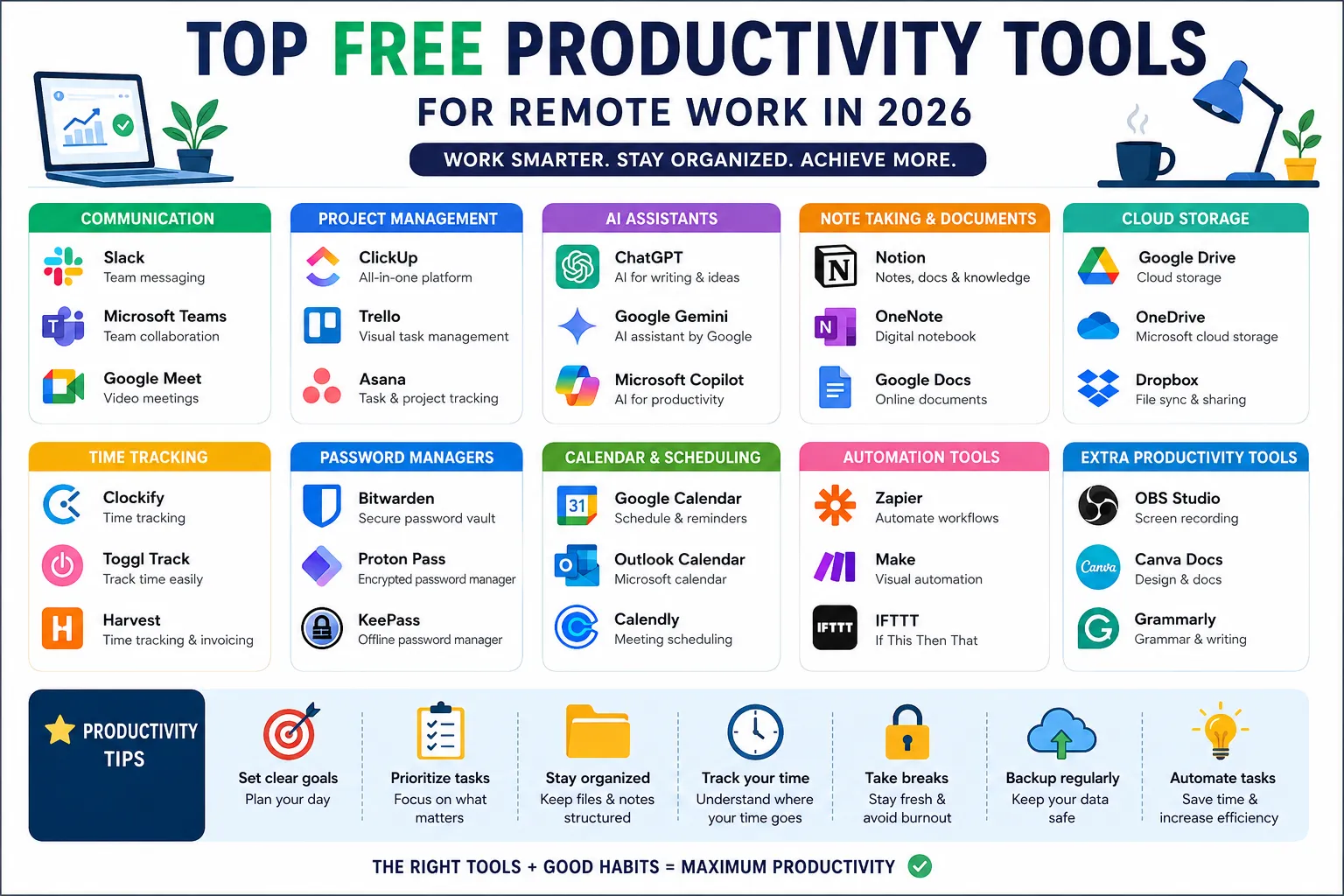
The way people work has changed dramatically over the past few years. Traditional office-based jobs are no longer the only option for professionals. Thanks to high-speed internet, cloud computing, and digital collaboration platforms, millions of employees, freelancers, entrepreneurs, and businesses now work remotely from their homes, coworking spaces, or even while traveling.
Remote work has become more than just a trend—it's a long-term shift in how modern organizations operate. Companies around the world have embraced flexible work environments because they reduce operational costs, improve employee satisfaction, and provide access to a global talent pool. However, remote work also introduces new challenges, including communication barriers, project management difficulties, time tracking, document sharing, and maintaining team collaboration.
This is where productivity tools become essential.
The right productivity software helps remote workers stay organized, collaborate efficiently, communicate seamlessly, manage projects, automate repetitive tasks, and maintain high levels of productivity regardless of their location.
Fortunately, you don't always need expensive software subscriptions. Today, many companies offer powerful free productivity tools that provide professional features suitable for individuals, startups, small businesses, and even large organizations.
In this comprehensive guide, we'll explore the best free productivity tools available in 2026 and help you choose the right solutions for your remote work setup.
What Are Productivity Tools?
Productivity tools are software applications designed to help individuals and teams complete their work more efficiently. They simplify everyday tasks, improve collaboration, organize information, automate workflows, and reduce the time spent on repetitive activities.
Instead of managing projects manually or communicating through scattered emails, productivity tools centralize work into a single platform where teams can collaborate in real time.
These tools cover various categories, including:
- Communication
- Project Management
- Video Conferencing
- File Sharing
- Cloud Storage
- Time Tracking
- Task Management
- Note Taking
- Artificial Intelligence
- Automation
- Password Management
- Screen Recording
- PDF Editing
- Calendar Scheduling
Whether you're a solo freelancer or managing a team of hundreds, productivity tools help create a more organized and efficient work environment.
Why Productivity Tools Are Important for Remote Work
Working remotely offers flexibility, but it also creates several challenges.
Without face-to-face communication, employees can easily lose track of tasks, deadlines, meetings, and project updates. Important documents may become difficult to locate, while communication delays can slow down entire projects.
Productivity tools solve these problems by providing a centralized digital workspace.
Some of the biggest advantages include:
Better Communication
Instant messaging, video meetings, and team discussions become much easier when everyone uses the same communication platform.
Improved Task Management
Employees always know what needs to be completed, upcoming deadlines, and project priorities.
Real-Time Collaboration
Multiple team members can work on the same document simultaneously without creating multiple versions.
Increased Transparency
Managers can monitor project progress while team members understand their responsibilities clearly.
Reduced Manual Work
Automation tools eliminate repetitive tasks like reminders, status updates, and data transfers.
Higher Productivity
Workers spend less time switching between applications and more time completing meaningful work.
The Rise of Remote Work
Remote work has evolved significantly over the past decade.
Initially, working from home was considered a temporary arrangement or a privilege offered by only a few companies. Today, remote and hybrid work models have become common across industries such as software development, digital marketing, customer support, education, design, consulting, finance, and healthcare.
Businesses have realized that remote employees can often be just as productive—or even more productive—than office-based workers when equipped with the right tools.
Some companies now operate entirely without physical offices, relying completely on cloud-based productivity software.
As technology continues to improve, remote work is expected to remain a permanent part of the modern workplace.
Benefits of Using Free Productivity Tools
Many people believe professional software always requires expensive subscriptions. Fortunately, numerous companies now provide generous free plans that include most essential features.
Here are some major benefits of using free productivity tools:
Cost Savings
Small businesses, freelancers, startups, and students can significantly reduce software expenses by choosing free alternatives.
Instead of paying hundreds of dollars each month, users can access professional-grade tools at no cost.
Easy Collaboration
Cloud-based productivity platforms allow multiple users to work together in real time.
Whether editing documents, assigning tasks, or discussing projects, collaboration becomes much more efficient.
Accessibility
Most modern productivity applications work across multiple devices.
Users can access their work from:
- Windows
- macOS
- Linux
- Android
- iPhone
- Tablets
- Web Browsers
This flexibility allows employees to remain productive wherever they are.
Automatic Synchronization
Cloud synchronization ensures that documents, notes, calendars, and tasks remain updated across all connected devices.
Changes made on one device instantly appear on others.
Better Organization
Instead of storing files in different folders or email threads, productivity software keeps everything organized in one location.
Projects, documents, conversations, calendars, and tasks become much easier to manage.
Improved Team Coordination
Managers can assign responsibilities, monitor deadlines, receive progress updates, and ensure everyone stays aligned.
This reduces confusion and improves accountability.
Common Challenges of Remote Work
Although remote work offers many advantages, it also presents unique challenges.
Understanding these challenges helps explain why productivity software has become essential.
Communication Gaps
Without face-to-face conversations, misunderstandings can occur more frequently.
Messaging platforms and video conferencing software help bridge this gap.
Time Management
Working from home often introduces distractions.
Without proper scheduling tools, productivity may decrease.
Time tracking applications help users understand how they spend their working hours.
File Sharing
Sending large files through email is inefficient.
Cloud storage services allow teams to share documents securely while maintaining version control.
Collaboration Difficulties
Team members working in different locations need platforms that allow simultaneous editing and communication.
Collaborative document editors solve this problem.
Meeting Management
Scheduling meetings across different time zones can be difficult.
Calendar applications automate scheduling while reducing conflicts.
Project Visibility
Managers need visibility into project progress.
Task management platforms provide dashboards, timelines, Kanban boards, and reporting features.
Essential Categories of Productivity Tools
A complete remote work setup usually includes several different types of software.
Some of the most important categories include:
Communication Tools
Used for team chats, announcements, and instant messaging.
Examples include Slack, Microsoft Teams, and Discord.
Video Conferencing Software
Allows virtual meetings, presentations, interviews, and webinars.
Examples include Zoom, Google Meet, and Microsoft Teams.
Project Management Platforms
Help organize projects, assign tasks, monitor deadlines, and track progress.
Popular options include Trello, ClickUp, Asana, Jira, and Notion.
AI Productivity Tools
Artificial intelligence can assist with:
- Writing
- Coding
- Research
- Brainstorming
- Email drafting
- Content generation
Popular AI tools include ChatGPT, Google Gemini, Microsoft Copilot, Claude AI, and Perplexity AI.
Cloud Storage
Cloud storage allows users to access documents from anywhere while securely sharing files with teammates.
Examples include Google Drive, OneDrive, Dropbox, and MEGA.
Time Tracking
Time tracking software helps freelancers and businesses measure productivity, create invoices, and monitor work hours.
Examples include Clockify, Toggl Track, and Harvest.
Password Managers
Password managers improve online security by storing encrypted passwords and generating strong credentials.
Popular tools include Bitwarden, Proton Pass, and KeePass.
Note-Taking Applications
These tools help organize meeting notes, ideas, research, and personal knowledge.
Popular options include Notion, Obsidian, OneNote, Google Keep, and Evernote.
How to Choose the Right Productivity Tool
Not every productivity tool is suitable for every user.
Before selecting software, consider the following factors:
- Ease of use
- Free plan limitations
- Cross-platform compatibility
- Collaboration features
- Security
- Cloud synchronization
- Mobile applications
- AI capabilities
- Integration with other software
- Customer support
Choosing software that matches your workflow is more important than simply selecting the most popular application.
What You'll Learn in This Guide
This guide is designed for:
- Remote employees
- Freelancers
- Students
- Entrepreneurs
- Startups
- Developers
- Digital marketers
- Designers
- Project managers
- Business owners
In the following sections, we'll review the best free productivity tools across every major category.
You'll learn about:
- Communication software
- Project management platforms
- AI assistants
- Note-taking apps
- Cloud storage services
- Time tracking software
- Browser extensions
- Screen recording tools
- Password managers
- PDF utilities
- Automation platforms
- Collaboration software
Each recommendation will include its features, advantages, limitations, ideal use cases, and why it's worth considering in 2026.
Effective communication is the foundation of every successful remote team. Whether you're working with colleagues across different cities or collaborating with clients in multiple countries, staying connected is essential for completing projects on time and maintaining productivity.
Unlike traditional office environments where face-to-face conversations happen naturally, remote teams depend entirely on digital communication platforms. Choosing the right communication and collaboration tools can reduce misunderstandings, improve teamwork, speed up decision-making, and keep everyone aligned.
Fortunately, many of the world's best communication tools offer generous free plans, making them ideal for freelancers, startups, students, and small businesses.
In this section, we'll explore the best free communication and collaboration tools available in 2026, their features, advantages, limitations, and ideal use cases.
1. Slack
Slack is one of the most popular communication platforms used by businesses worldwide. It replaces long email conversations with organized channels where teams can discuss projects, share files, and collaborate in real time.
Instead of searching through countless email threads, employees can join dedicated channels for departments, projects, or clients.
Key Features
- Team chat
- Public and private channels
- Direct messaging
- File sharing
- Voice and video calls
- Workflow automation
- Integration with thousands of apps
- Searchable conversation history
Free Plan Includes
- Unlimited users
- 90-day message history
- File sharing
- Basic integrations
- Audio and video meetings
Advantages
- Clean and modern interface
- Excellent third-party integrations
- Easy collaboration
- Fast search
- Mobile and desktop applications
Limitations
- Limited message history in the free plan
- Advanced workflow automation requires paid plans
Best For
- Startups
- Software development teams
- Marketing agencies
- Remote businesses
2. Microsoft Teams
Microsoft Teams has become one of the most widely used communication platforms for businesses and educational institutions.
It combines chat, video conferencing, file sharing, calendars, and collaboration into a single platform.
Teams integrates seamlessly with Microsoft 365 applications such as Word, Excel, PowerPoint, Outlook, and OneDrive.
Key Features
- Team messaging
- Video meetings
- Screen sharing
- File collaboration
- Calendar integration
- Task management
- Live captions
- Meeting recordings (plan-dependent)
Free Plan Includes
- Group meetings
- Chat
- File sharing
- Mobile apps
- Cloud storage
Advantages
- Excellent for Microsoft Office users
- High-quality video calls
- Secure collaboration
- Enterprise-grade security
Limitations
- Interface may feel overwhelming for beginners
- Some advanced features require Microsoft 365 subscriptions
Best For
- Businesses
- Corporate teams
- Schools
- Microsoft 365 users
3. Google Meet
Google Meet is Google's video conferencing solution that integrates with Gmail and Google Calendar.
It requires almost no setup and works directly inside a web browser without downloading additional software.
Key Features
- HD video meetings
- Screen sharing
- Live captions
- Meeting scheduling
- Browser-based meetings
- Mobile applications
Free Plan Includes
- Video conferencing
- Screen sharing
- Live captions
- Google Calendar integration
Advantages
- Very easy to use
- No installation required
- Excellent video quality
- Works perfectly with Google Workspace
Limitations
- Fewer collaboration features than Teams
- Meeting duration limits on free accounts
Best For
- Freelancers
- Students
- Small businesses
- Google Workspace users
4. Zoom
Zoom became one of the most recognized video conferencing platforms during the global shift toward remote work.
It remains a favorite for webinars, online classes, client meetings, interviews, and team discussions.
Key Features
- HD video meetings
- Screen sharing
- Virtual backgrounds
- Meeting recording
- Breakout rooms
- Whiteboard
- Waiting rooms
- Polls
Free Plan Includes
- Video meetings
- Screen sharing
- Chat
- Whiteboard
- Virtual backgrounds
Advantages
- Excellent video quality
- Reliable performance
- Easy meeting invitations
- Large participant support
Limitations
- Group meetings have time limits on the free plan
- Some webinar features require paid plans
Best For
- Client meetings
- Online education
- Webinars
- Remote interviews
5. Discord
Although Discord started as a platform for gamers, it has evolved into a powerful communication tool for remote communities and businesses.
Many startups, developer communities, and open-source projects now use Discord daily.
Key Features
- Voice channels
- Video calls
- Text chat
- Screen sharing
- Community servers
- Bots
- Roles and permissions
- File sharing
Free Plan Includes
- Unlimited servers
- Voice chat
- Video calls
- File sharing
- Community features
Advantages
- Completely free for most users
- Excellent voice quality
- Large community support
- Powerful automation bots
Limitations
- Less formal than Slack or Teams
- Interface may feel complex initially
Best For
- Developer communities
- Gaming teams
- Online communities
- Open-source projects
6. Telegram
Telegram is widely known as a messaging application, but it also works well for remote collaboration.
Its cloud-based architecture allows users to access conversations from multiple devices instantly.
Key Features
- Group chats
- Channels
- Voice calls
- Video calls
- File sharing
- Bots
- Cloud synchronization
Advantages
- Fast messaging
- Large file sharing
- Cross-platform support
- Cloud-based storage
Limitations
- Limited project management capabilities
Best For
- Freelancers
- Small teams
- Communities
7. WhatsApp Business
Many freelancers and small businesses communicate primarily through WhatsApp.
WhatsApp Business adds professional features that improve customer communication.
Features
- Business profile
- Quick replies
- Labels
- Product catalog
- Broadcast messaging
Advantages
- Familiar interface
- Fast communication
- High adoption worldwide
Limitations
- Not ideal for managing large remote teams
Best For
- Small businesses
- Freelancers
- Customer support
Collaboration Tools Beyond Messaging
Communication alone isn't enough for productive remote work.
Modern collaboration platforms also help teams work together on documents, spreadsheets, presentations, and shared files.
Google Workspace
Google Workspace offers powerful collaboration through:
- Google Docs
- Google Sheets
- Google Slides
- Google Drive
- Google Forms
- Google Calendar
Multiple users can edit documents simultaneously while changes are automatically saved.
Advantages
- Real-time collaboration
- Automatic saving
- Browser-based editing
- Excellent sharing controls
Best For
- Students
- Businesses
- Content creators
- Remote teams
Microsoft 365 Online
Microsoft also provides browser-based collaboration tools including:
- Word Online
- Excel Online
- PowerPoint Online
- OneDrive
- Outlook
These applications maintain compatibility with Microsoft Office files while supporting real-time collaboration.
Best For
- Office users
- Corporate teams
- Enterprise environments
Dropbox Paper
Dropbox Paper is a lightweight collaborative document editor designed for brainstorming and project planning.
Features include:
- Shared documents
- Task assignments
- Images
- Videos
- Code snippets
- Comments
Best For
- Creative teams
- Designers
- Startups
Communication Tips for Remote Teams
Having the right tools is only part of successful remote communication. Following good communication practices is equally important.
Some useful tips include:
- Schedule regular team meetings.
- Use video calls for important discussions.
- Keep chat channels organized.
- Avoid unnecessary notifications.
- Share meeting notes after discussions.
- Set clear expectations for response times.
- Use status indicators to show availability.
- Record important meetings for future reference.
- Encourage transparent communication.
- Respect different time zones when scheduling meetings.
These habits help improve collaboration and reduce misunderstandings.
Communication Tool Comparison
| Tool | Best For | Video Calls | Team Chat | File Sharing | Free Plan |
|---|---|---|---|---|---|
| Slack | Startups | Yes | Yes | Yes | Yes |
| Microsoft Teams | Businesses | Yes | Yes | Yes | Yes |
| Google Meet | Meetings | Yes | Limited | Yes | Yes |
| Zoom | Video Conferences | Yes | Yes | Yes | Yes |
| Discord | Communities | Yes | Yes | Yes | Yes |
| Telegram | Small Teams | Yes | Yes | Yes | Yes |
| WhatsApp Business | Small Businesses | Yes | Yes | Limited | Yes |
Which Communication Tool Should You Choose?
The best communication tool depends on your workflow and team size.
- Slack is ideal for startups, software companies, and teams that rely on app integrations.
- Microsoft Teams is perfect for organizations already using Microsoft 365.
- Google Meet is an excellent choice for users who depend on Gmail and Google Workspace.
- Zoom remains one of the best platforms for webinars, interviews, and large online meetings.
- Discord is well suited for developer communities, open-source projects, and informal collaboration.
- Telegram works well for freelancers and small teams that need fast, cloud-based messaging.
- WhatsApp Business is best for customer communication and very small businesses.
There is no single tool that fits every situation. Many remote teams even combine multiple platforms—for example, using Slack for daily communication, Zoom for meetings, and Google Drive for file collaboration.
Managing remote work is much more than simply communicating through chat or attending video meetings. Every successful remote team needs a reliable system to organize projects, assign tasks, track deadlines, share knowledge, and stay productive throughout the day.
Without proper project management software, important tasks can be forgotten, deadlines may be missed, and team members may struggle to understand their responsibilities. Similarly, without AI-powered assistants and note-taking applications, employees spend valuable time performing repetitive work instead of focusing on high-value activities.
Fortunately, many powerful productivity platforms offer generous free plans that provide everything individuals, startups, freelancers, and even growing businesses need.
In this section, we'll explore the best free project management software, AI productivity tools, and note-taking applications available in 2026.
Why Project Management Tools Are Important
Project management software provides a centralized workspace where teams can plan, organize, and monitor their work.
Instead of maintaining spreadsheets or sending endless email updates, every project can be managed from a single dashboard.
Project management tools help teams:
- Organize tasks
- Assign responsibilities
- Track deadlines
- Monitor project progress
- Improve accountability
- Reduce confusion
- Increase collaboration
- Improve reporting
- Meet deadlines consistently
These platforms are especially valuable for remote teams because everyone can access project information regardless of their location.
1. Trello
Trello is one of the easiest project management tools to learn. It uses a visual Kanban board system where projects are organized into lists and cards.
Users simply drag tasks between columns such as:
- To Do
- In Progress
- Under Review
- Completed
This visual workflow makes it easy to understand project status at a glance.
Key Features
- Kanban boards
- Task cards
- Due dates
- Labels
- Checklists
- File attachments
- Team collaboration
- Calendar view
- Automation (limited)
Advantages
- Beginner friendly
- Clean interface
- Fast setup
- Excellent mobile apps
- Ideal for small teams
Limitations
- Limited reporting
- Fewer advanced features than ClickUp or Jira
Best For
- Freelancers
- Small businesses
- Students
- Marketing teams
- Content creators
2. ClickUp
ClickUp has rapidly become one of the most feature-rich productivity platforms available.
Unlike Trello, ClickUp combines project management, documentation, goals, dashboards, calendars, reminders, chat, and AI features into one application.
Many companies use ClickUp as their complete workplace solution.
Key Features
- Task management
- Kanban boards
- Gantt charts
- Mind maps
- Calendar
- Goals
- Dashboards
- Time tracking
- Whiteboards
- Docs
- Automation
Advantages
- Extremely powerful
- Highly customizable
- Suitable for teams of any size
- Excellent free plan
Limitations
- Slight learning curve
- Many features may overwhelm beginners
Best For
- Startups
- Agencies
- Developers
- Large projects
- Growing businesses
3. Asana
Asana focuses on helping teams organize complex projects with clear timelines and responsibilities.
Managers can assign tasks, set priorities, monitor deadlines, and receive progress updates.
Features
- Tasks
- Projects
- Timelines
- Calendar
- Milestones
- Forms
- Team collaboration
- Workflow automation
Advantages
- Easy task assignment
- Excellent collaboration
- Beautiful interface
- Strong reporting
Limitations
- Advanced reporting requires paid plans
Best For
- Marketing
- HR teams
- Operations
- Remote companies
4. Notion
Notion is much more than a note-taking application.
It combines documentation, task management, databases, calendars, wikis, and project planning into one highly flexible workspace.
Many startups use Notion as their internal knowledge base.
Features
- Notes
- Databases
- Wikis
- Project boards
- Calendar
- Templates
- Team collaboration
- AI integration
Advantages
- Highly customizable
- Beautiful interface
- Excellent templates
- Powerful databases
Limitations
- Can become complex for new users
Best For
- Startups
- Students
- Knowledge management
- Documentation
5. Jira
Jira is one of the world's most popular project management tools for software development.
It supports Agile, Scrum, and Kanban methodologies.
Development teams use Jira to track bugs, manage releases, and organize sprint planning.
Features
- Sprint planning
- Bug tracking
- Agile boards
- Reporting
- Roadmaps
- Releases
- Backlogs
Advantages
- Excellent for software teams
- Powerful reporting
- Enterprise ready
Limitations
- Not beginner friendly
- Complex interface
Best For
- Developers
- Software companies
- IT teams
AI Productivity Tools
Artificial Intelligence is changing the way people work.
Instead of manually researching information, writing emails, generating code, or creating documents, AI tools can perform many of these tasks within seconds.
Remote workers now rely on AI daily for productivity.
6. ChatGPT
ChatGPT has become one of the most popular AI assistants in the world.
It helps users:
- Write articles
- Generate emails
- Debug code
- Explain concepts
- Brainstorm ideas
- Translate languages
- Create documentation
- Summarize content
Advantages
- Easy to use
- Excellent writing assistance
- Coding support
- Brainstorming
- Large knowledge base
Best For
- Writers
- Developers
- Students
- Businesses
- Content creators
7. Google Gemini
Google Gemini integrates with Google's ecosystem and provides AI assistance for productivity.
Users can generate content, summarize information, answer questions, and improve writing workflows.
Gemini also works well with Google Workspace applications.
Features
- AI writing
- Research
- Summaries
- Coding
- Google integration
Best For
- Gmail users
- Google Docs
- Students
- Researchers
8. Microsoft Copilot
Microsoft Copilot integrates directly into Microsoft Edge and Microsoft 365.
It assists users with:
- Word documents
- Excel formulas
- PowerPoint presentations
- Outlook emails
- Coding
- Research
Advantages
- Excellent Office integration
- AI document assistance
- Built-in browser support
Best For
- Microsoft Office users
- Businesses
- Enterprise teams
9. Claude AI
Claude AI is known for generating thoughtful, well-structured responses and handling long documents effectively.
It is widely used for:
- Writing
- Research
- Coding
- Summarization
- Business documentation
Best For
- Researchers
- Writers
- Analysts
10. Perplexity AI
Perplexity AI combines AI-generated answers with web-based sources, making it particularly useful for research.
Users receive concise answers along with references, helping them verify information quickly.
Best For
- Research
- Fact-checking
- Learning
- News summaries
Best Note-Taking Applications
Organized notes are essential for remote workers who attend meetings, conduct research, or manage multiple projects.
Modern note-taking applications synchronize across devices, making information available anywhere.
11. Microsoft OneNote
OneNote functions like a digital notebook.
Users can organize information into:
- Notebooks
- Sections
- Pages
It supports handwriting, images, files, checklists, and audio recordings.
Advantages
- Free
- Cross-platform
- Excellent organization
- Office integration
12. Google Keep
Google Keep is a lightweight note-taking application.
It allows users to create:
- Quick notes
- Checklists
- Voice notes
- Images
- Reminders
Everything synchronizes instantly through a Google account.
Best For
- Personal notes
- Shopping lists
- Daily reminders
13. Obsidian
Obsidian is designed for building a personal knowledge base.
Unlike many cloud-based tools, Obsidian stores notes locally while allowing advanced linking between documents.
Features
- Markdown support
- Graph view
- Backlinks
- Plugins
- Offline storage
Best For
- Developers
- Writers
- Researchers
14. Evernote
Evernote remains one of the best-known note-taking applications.
It supports:
- Notes
- Images
- Documents
- Scanned files
- Web clipping
- Task lists
Its search functionality makes finding information extremely easy.
Best For
- Professionals
- Business users
- Research
Comparison Table
| Tool | Category | Free Plan | Best For |
|---|---|---|---|
| Trello | Project Management | Yes | Small Teams |
| ClickUp | Project Management | Yes | Businesses |
| Asana | Project Management | Yes | Team Collaboration |
| Notion | Workspace | Yes | Documentation |
| Jira | Development | Yes | Software Teams |
| ChatGPT | AI Assistant | Yes | Writing & Coding |
| Google Gemini | AI | Yes | Google Users |
| Microsoft Copilot | AI | Yes | Office Users |
| Claude AI | AI | Yes | Long-form Writing |
| Perplexity AI | AI Search | Yes | Research |
| OneNote | Notes | Yes | Office Users |
| Google Keep | Notes | Yes | Quick Notes |
| Obsidian | Knowledge Base | Yes | Developers |
| Evernote | Notes | Yes | Professionals |
Which Tool Should You Choose?
The ideal tool depends on your workflow and priorities.
- Trello is perfect for users who prefer a simple, visual Kanban board for organizing tasks.
- ClickUp is best for businesses and teams looking for an all-in-one productivity platform with advanced customization.
- Asana works well for collaborative project planning and structured task management.
- Notion is an excellent choice for documentation, knowledge bases, and flexible workspaces.
- Jira remains the industry standard for software development and Agile project management.
For AI assistance:
- ChatGPT excels at writing, coding, brainstorming, and general productivity.
- Google Gemini is ideal for users deeply integrated into Google's ecosystem.
- Microsoft Copilot is the best option for Microsoft 365 users.
- Claude AI is particularly strong for long-form writing and document analysis.
- Perplexity AI is a valuable research companion that combines AI with sourced information.
For note-taking:
- OneNote is great for professionals and Office users.
- Google Keep is ideal for quick notes and reminders.
- Obsidian suits developers and researchers building interconnected knowledge.
- Evernote remains a solid choice for organizing large collections of notes and documents.
Remote work isn't just about communication and project management. Every remote professional also needs reliable cloud storage, secure password management, accurate time tracking, organized scheduling, and workflow automation. These tools help teams work efficiently, collaborate securely, and eliminate repetitive manual tasks.
Whether you're a freelancer managing multiple clients, a startup scaling operations, or a large business coordinating global teams, these productivity tools can save hours every week.
In this section, we'll explore the best free cloud storage platforms, time tracking software, password managers, calendar applications, and automation tools available in 2026.
Why These Productivity Tools Matter
As remote work becomes more complex, managing files, passwords, schedules, and repetitive workflows manually becomes inefficient and increases the risk of errors.
Modern productivity tools help by:
- Keeping files accessible from anywhere
- Tracking billable hours accurately
- Securing online accounts
- Organizing meetings and deadlines
- Automating repetitive work
- Reducing human error
- Improving collaboration
- Saving valuable time
Together, these tools create a more efficient digital workspace.
Best Free Cloud Storage Services
Cloud storage allows users to access files from any device while securely sharing documents with colleagues and clients.
Instead of storing files only on a local computer, cloud platforms automatically synchronize data across devices.
1. Google Drive
Google Drive is one of the most widely used cloud storage platforms.
It integrates seamlessly with:
- Google Docs
- Google Sheets
- Google Slides
- Google Forms
- Google Meet
- Gmail
Users can create, edit, and collaborate on documents in real time.
Features
- Cloud storage
- File sharing
- Real-time collaboration
- Version history
- Offline access
- Mobile apps
- File backup
Advantages
- Excellent collaboration
- Fast synchronization
- Browser-based editing
- Easy sharing
Limitations
- Storage shared across Google services
Best For
- Students
- Businesses
- Freelancers
- Remote teams
2. Microsoft OneDrive
OneDrive integrates deeply with Windows and Microsoft 365.
Files synchronize automatically between your computer and Microsoft's cloud.
Features
- Automatic backup
- File sharing
- Office integration
- Version history
- Cross-platform apps
- Secure cloud storage
Advantages
- Excellent Windows integration
- Office collaboration
- Automatic synchronization
Best For
- Microsoft Office users
- Businesses
- Windows users
3. Dropbox
Dropbox remains one of the most reliable cloud storage platforms.
It focuses on simple file synchronization and sharing.
Features
- File synchronization
- Shared folders
- Version history
- File recovery
- Desktop synchronization
Advantages
- Fast syncing
- Easy sharing
- Stable platform
Best For
- Freelancers
- Agencies
- Designers
4. MEGA
MEGA focuses on privacy and encrypted cloud storage.
Unlike many competitors, MEGA offers end-to-end encryption for stored files.
Features
- Encrypted storage
- Secure file sharing
- Mobile apps
- Desktop synchronization
Advantages
- Strong privacy
- Secure sharing
- Large free storage allocation
Best For
- Privacy-conscious users
- Businesses handling sensitive documents
Best Free Time Tracking Tools
Time tracking software helps users understand where their working hours go.
Freelancers can create invoices while businesses can analyze employee productivity.
5. Clockify
Clockify is one of the most popular free time tracking platforms.
Users simply start a timer while working.
Reports show exactly how much time was spent on different projects.
Features
- Unlimited time tracking
- Timesheets
- Reports
- Team management
- Billable hours
- Project tracking
Advantages
- Completely free core features
- Simple interface
- Excellent reports
Best For
- Freelancers
- Agencies
- Businesses
6. Toggl Track
Toggl Track provides a clean and user-friendly interface for tracking work hours.
Users can organize time by:
- Client
- Project
- Task
- Team member
Features
- Time tracking
- Reports
- Calendar
- Project tracking
- Mobile apps
Advantages
- Beautiful interface
- Easy reporting
- Fast timer
Best For
- Consultants
- Freelancers
- Small businesses
7. Harvest
Harvest combines time tracking with invoicing.
Freelancers can record work hours and immediately generate invoices for clients.
Features
- Time tracking
- Expense tracking
- Invoicing
- Reports
- Project budgeting
Advantages
- Excellent client billing
- Professional reports
Best For
- Freelancers
- Agencies
Best Free Password Managers
Using the same password across multiple websites is one of the biggest cybersecurity risks.
Password managers securely store login credentials while generating strong passwords.
8. Bitwarden
Bitwarden is one of the best free password managers available today.
It uses end-to-end encryption to protect user credentials.
Features
- Password vault
- Password generator
- Browser extensions
- Mobile apps
- Secure notes
- Cross-device sync
Advantages
- Open source
- Excellent security
- Free synchronization
Best For
- Everyone
9. Proton Pass
Developed by the team behind Proton Mail, Proton Pass emphasizes privacy and encryption.
Features
- Password storage
- Secure notes
- Email aliases
- Autofill
- Cross-platform apps
Advantages
- Privacy focused
- Strong encryption
Best For
- Security-conscious users
10. KeePass
KeePass stores passwords locally rather than in the cloud.
Users have complete control over their password database.
Features
- Offline password storage
- Password generator
- Plugin support
- Portable version
Advantages
- Completely free
- Offline security
- Open source
Best For
- Advanced users
- Developers
Best Free Calendar Applications
Managing schedules is essential when working remotely across different time zones.
Calendar apps prevent missed meetings and improve planning.
11. Google Calendar
Google Calendar remains one of the best scheduling applications available.
Users can:
- Schedule meetings
- Create reminders
- Share calendars
- Set recurring events
- Integrate Google Meet
Advantages
- Easy scheduling
- Excellent synchronization
- Mobile apps
Best For
- Individuals
- Businesses
- Students
12. Microsoft Outlook Calendar
Outlook Calendar integrates with Microsoft Teams and Microsoft 365.
Features
- Meeting scheduling
- Shared calendars
- Team availability
- Email integration
Best For
- Office users
- Corporate teams
Best Workflow Automation Tools
Automation saves hours by performing repetitive tasks automatically.
Instead of manually copying data between applications, automation tools connect different services.
13. Zapier
Zapier connects thousands of applications.
Examples include:
- Save Gmail attachments to Google Drive
- Create Trello cards from emails
- Send Slack notifications automatically
- Add leads to CRM systems
- Sync spreadsheets
Advantages
- No coding required
- Huge app library
- Easy automation
Best For
- Businesses
- Marketing
- Sales teams
14. Make (Formerly Integromat)
Make provides advanced visual workflow automation.
Users can create complex automations using drag-and-drop workflows.
Features
- Visual automation
- Scheduling
- Data transformation
- API integrations
Best For
- Advanced users
- Developers
- Businesses
15. IFTTT
IFTTT (If This Then That) focuses on simple automations.
Example:
"If I receive an email attachment, automatically save it to cloud storage."
Advantages
- Very easy to use
- Beginner friendly
Best For
- Personal productivity
- Smart home
- Basic automation
Productivity Tips for Better Workflow
Even the best tools are only effective when used properly.
To maximize productivity:
- Organize files into structured folders.
- Use cloud storage instead of local drives.
- Track your working hours daily.
- Store passwords in a secure password manager.
- Schedule tasks using digital calendars.
- Automate repetitive workflows.
- Enable two-factor authentication.
- Regularly clean unnecessary files.
- Review weekly productivity reports.
- Backup important documents.
These habits improve organization while reducing stress.
Comparison Table
| Tool | Category | Free Plan | Best For |
|---|---|---|---|
| Google Drive | Cloud Storage | Yes | Collaboration |
| OneDrive | Cloud Storage | Yes | Windows Users |
| Dropbox | Cloud Storage | Yes | File Sharing |
| MEGA | Cloud Storage | Yes | Privacy |
| Clockify | Time Tracking | Yes | Freelancers |
| Toggl Track | Time Tracking | Yes | Consultants |
| Harvest | Time Tracking | Yes | Client Billing |
| Bitwarden | Password Manager | Yes | Everyone |
| Proton Pass | Password Manager | Yes | Privacy |
| KeePass | Password Manager | Yes | Offline Security |
| Google Calendar | Calendar | Yes | Scheduling |
| Outlook Calendar | Calendar | Yes | Microsoft Users |
| Zapier | Automation | Yes | Businesses |
| Make | Automation | Yes | Advanced Workflows |
| IFTTT | Automation | Yes | Beginners |
Which Tools Should You Choose?
Your ideal toolkit depends on your workflow:
- Google Drive is the best choice for teams that collaborate on documents in real time.
- OneDrive is perfect for users who rely on Microsoft 365 and Windows.
- Dropbox is excellent for fast file synchronization and sharing.
- MEGA is ideal if privacy and encrypted storage are your top priorities.
- Clockify is one of the best completely free time trackers for freelancers and teams.
- Toggl Track offers a polished experience for consultants and small businesses.
- Harvest is a great option for professionals who need integrated invoicing.
- Bitwarden provides outstanding password security with generous free features.
- Google Calendar simplifies scheduling and integrates seamlessly with Google services.
- Zapier, Make, and IFTTT can automate repetitive tasks, helping you save time and reduce manual work.
As remote work continues to evolve, professionals need more than communication and project management software. Recording tutorials, capturing screenshots, editing PDF documents, improving writing quality, managing browser workflows, and using developer utilities have become essential parts of everyday work.
Whether you're creating training materials, documenting bugs, writing reports, designing websites, or collaborating with clients, the right productivity tools can save hours every week.
In this section, we'll explore the best free screen recording software, screenshot tools, PDF utilities, browser extensions, writing assistants, and developer productivity applications available in 2026.
Why These Tools Matter
Remote workers often need to:
- Explain complex tasks
- Record software demonstrations
- Capture screenshots
- Edit PDF files
- Improve grammar
- Block distractions
- Test websites
- Debug applications
- Organize browser tabs
Using dedicated productivity tools makes these tasks much faster and more professional.
Best Free Screen Recording Software
Screen recording software is widely used for tutorials, online courses, bug reporting, product demonstrations, and client presentations.
1. OBS Studio
OBS Studio (Open Broadcaster Software) is one of the most powerful free screen recording and live streaming applications.
Despite being completely free and open source, OBS offers professional-quality recording features.
Key Features
- Full HD and 4K recording
- Live streaming
- Multi-scene support
- Audio mixing
- Webcam overlay
- Screen capture
- Window capture
- Game recording
- Custom transitions
Advantages
- Completely free
- No watermark
- Unlimited recording
- Highly customizable
- Cross-platform support
Limitations
- Learning curve for beginners
Best For
- YouTubers
- Teachers
- Developers
- Content creators
- Streamers
2. Loom
Loom is designed specifically for quick screen recordings.
Instead of writing long emails, users can record short videos explaining problems or giving feedback.
Features
- Screen recording
- Webcam recording
- Instant sharing
- Video comments
- Team collaboration
Advantages
- Extremely easy to use
- Cloud sharing
- Browser extension available
- Excellent for remote teams
Limitations
- Recording limits on free accounts
Best For
- Businesses
- Customer support
- Tutorials
- Team communication
3. ShareX
ShareX is one of the most feature-rich Windows productivity tools.
It combines screen recording, screenshots, OCR, file uploads, image editing, and automation into one application.
Features
- Screen recording
- GIF creation
- Screenshot editor
- OCR
- Image annotation
- File upload automation
Advantages
- Completely free
- Lightweight
- Extremely powerful
Best For
- Developers
- Technical writers
- QA testers
Best Screenshot Tools
Screenshots are essential when reporting bugs, documenting workflows, or creating user guides.
4. Greenshot
Greenshot provides a fast way to capture and annotate screenshots.
Features
- Region capture
- Window capture
- Full-screen capture
- Annotation
- Export options
Advantages
- Fast
- Lightweight
- Easy editing
Best For
- Office users
- Developers
- Students
5. Lightshot
Lightshot is one of the easiest screenshot applications available.
Users can instantly capture, edit, and share screenshots.
Features
- Screenshot capture
- Annotation
- Quick upload
- Sharing links
Advantages
- Very easy to use
- Fast editing
- Lightweight
Best For
- Daily office work
- Education
- Customer support
Best Free PDF Productivity Tools
PDF files are used everywhere—from contracts and reports to invoices and resumes. Remote workers frequently need to merge, split, compress, convert, or annotate PDF documents.
6. PDF24 Creator
PDF24 Creator is one of the best free PDF software solutions.
Features
- Merge PDFs
- Split PDFs
- Compress PDFs
- Convert documents
- OCR support
- Password protection
- PDF editing
Advantages
- Completely free
- No watermark
- Offline support
Best For
- Businesses
- Students
- Office users
7. Smallpdf (Free Plan)
Smallpdf provides browser-based PDF tools without requiring software installation.
Features
- PDF compression
- PDF conversion
- Merge
- Split
- eSign
- Edit PDFs
Advantages
- Modern interface
- Fast processing
- Cloud-based
Limitations
- Daily usage limits on the free plan
8. iLovePDF (Free Plan)
iLovePDF is another popular online PDF platform.
Features
- Merge
- Split
- Rotate
- Compress
- Convert
- Watermark
- Organize pages
Best For
- Students
- Businesses
- Freelancers
Best Browser Extensions for Productivity
Browser extensions can significantly improve workflow by adding useful features directly to your browser.
9. Grammarly
Grammarly helps improve writing quality by checking:
- Grammar
- Spelling
- Punctuation
- Clarity
- Tone
Best For
- Bloggers
- Students
- Professionals
- Content writers
10. LanguageTool
LanguageTool is a multilingual grammar checker supporting dozens of languages.
It works across browsers, office software, and websites.
Best For
- International teams
- Writers
- Students
11. Bitwarden Browser Extension
Bitwarden's browser extension securely stores and autofills passwords.
Features
- Autofill
- Password generator
- Secure vault
- Cross-device synchronization
12. Dark Reader
Dark Reader converts almost every website into dark mode.
Benefits include:
- Reduced eye strain
- Better night browsing
- Battery savings on OLED displays
13. uBlock Origin
uBlock Origin is one of the best ad blockers available.
It improves browsing speed while reducing unwanted advertisements and trackers.
Advantages
- Faster browsing
- Better privacy
- Lower bandwidth usage
14. Momentum
Momentum replaces the browser's new tab page with a productivity dashboard.
Features include:
- Daily goals
- Inspirational quotes
- Weather
- To-do lists
- Beautiful backgrounds
Best Writing & Content Creation Tools
Remote professionals frequently write reports, emails, documentation, blogs, and presentations.
15. Hemingway Editor
Hemingway improves readability by highlighting:
- Complex sentences
- Passive voice
- Difficult words
- Long paragraphs
It encourages clear and concise writing.
16. Google Docs
Google Docs remains one of the most powerful free writing platforms.
Features include:
- Real-time collaboration
- Comments
- Suggestions
- Version history
- Offline editing
17. Canva Docs
Canva Docs combines document creation with modern design tools.
Users can create:
- Reports
- Presentations
- Marketing materials
- Team documentation
Best Developer Productivity Tools
Developers require specialized applications that improve coding efficiency and debugging.
18. Visual Studio Code
VS Code has become the world's most popular code editor.
Features
- IntelliSense
- Git integration
- Terminal
- Extensions
- Debugger
- AI coding support
- Remote development
Best For
- Web developers
- Software engineers
- Students
19. GitHub Desktop
GitHub Desktop simplifies Git version control.
Users can:
- Commit code
- Push changes
- Pull repositories
- Resolve conflicts
without using command-line tools.
20. Postman
Postman is the industry standard for API development and testing.
Features
- API requests
- Collections
- Authentication
- Environment variables
- API documentation
Best For
- Backend developers
- API testers
- QA engineers
Daily Productivity Tips
Using productivity software effectively requires good habits.
Consider these practical tips:
- Start each day by reviewing your tasks.
- Record tutorials instead of writing long explanations.
- Use screenshots when reporting bugs.
- Organize PDFs into folders.
- Keep browser extensions to a minimum.
- Update passwords regularly.
- Use grammar checkers before sending emails.
- Automate repetitive work whenever possible.
- Keep your browser organized with tab groups.
- Review completed tasks at the end of each week.
Comparison Table
| Tool | Category | Free Plan | Best For |
|---|---|---|---|
| OBS Studio | Screen Recording | Yes | Content Creators |
| Loom | Screen Recording | Yes | Businesses |
| ShareX | Recording & Screenshots | Yes | Developers |
| Greenshot | Screenshots | Yes | Office Users |
| Lightshot | Screenshots | Yes | Beginners |
| PDF24 Creator | PDF Tools | Yes | Everyone |
| Smallpdf | PDF Tools | Yes | Online Editing |
| iLovePDF | PDF Tools | Yes | Document Management |
| Grammarly | Writing | Yes | Professionals |
| LanguageTool | Grammar | Yes | Multilingual Users |
| Bitwarden | Password Extension | Yes | Everyone |
| Dark Reader | Browser Extension | Yes | Night Browsing |
| uBlock Origin | Ad Blocker | Yes | Faster Browsing |
| Momentum | Productivity | Yes | Focus |
| Google Docs | Writing | Yes | Collaboration |
| Canva Docs | Documents | Yes | Designers |
| Visual Studio Code | Development | Yes | Developers |
| GitHub Desktop | Version Control | Yes | Programmers |
| Postman | API Testing | Yes | Backend Developers |
Which Productivity Tools Should You Choose?
The ideal combination depends on your profession:
- Freelancers should consider Loom, Clockify, Google Drive, Grammarly, and Bitwarden.
- Content creators benefit from OBS Studio, Canva Docs, Google Docs, and ChatGPT.
- Developers can boost productivity with Visual Studio Code, GitHub Desktop, Postman, ShareX, and Obsidian.
- Business professionals may prefer Microsoft Teams, OneDrive, Outlook Calendar, PDF24 Creator, and Microsoft Copilot.
- Students can stay organized using Google Docs, Google Keep, Notion, Grammarly, and Google Calendar.
Selecting a toolkit that matches your daily workflow is more valuable than installing dozens of applications you'll rarely use.
Remote work has become a permanent part of modern business. Whether you're a freelancer, software developer, digital marketer, content creator, virtual assistant, entrepreneur, or part of a multinational company, using the right productivity tools can dramatically improve efficiency, collaboration, and work-life balance.
Throughout this guide, we've explored dozens of free productivity tools covering communication, project management, AI assistants, note-taking, cloud storage, automation, password management, PDF editing, browser extensions, and developer utilities.
In this final section, we'll answer common questions, discuss common productivity mistakes, explore future trends, and help you build the perfect remote work toolkit.
Common Productivity Mistakes to Avoid
Even with the best software, poor work habits can reduce productivity. Here are some common mistakes remote workers make.
1. Using Too Many Productivity Apps
Many people install dozens of tools hoping to become more productive.
Instead, they waste time switching between applications.
Choose only the tools you actually need.
A simple workflow is often more effective than a complicated one.
2. Ignoring Task Priorities
Not every task is equally important.
Always begin your day by identifying:
- High priority work
- Medium priority tasks
- Low priority activities
Completing the most important work first increases overall productivity.
3. Poor File Organization
Saving files randomly makes searching difficult.
Create folders such as:
- Clients
- Projects
- Documents
- Images
- Reports
- Invoices
- Presentations
A well-organized folder structure saves hours every month.
4. Weak Password Security
Never reuse the same password across multiple websites.
Instead:
- Use Bitwarden or another password manager.
- Enable two-factor authentication.
- Generate unique passwords.
Strong security protects your business data.
5. Skipping Regular Backups
Computers can fail unexpectedly.
Always back up important files using:
- Google Drive
- OneDrive
- Dropbox
- External drives
Automatic backups provide peace of mind.
6. Too Many Browser Tabs
Keeping 100 browser tabs open reduces focus and may slow your computer.
Use:
- Tab Groups
- Reading List
- Bookmarks
Close tabs that are no longer needed.
7. Ignoring Breaks
Working continuously for long hours often reduces productivity.
Try techniques like:
- 25 minutes focused work
- 5 minute break
or
- 50 minutes work
- 10 minute break
Short breaks help maintain concentration.
Best Productivity Tool Combinations
Different professions require different software.
Here are some recommended combinations.
For Freelancers
Recommended toolkit:
- Slack
- Google Meet
- Trello
- Clockify
- Google Drive
- Grammarly
- Bitwarden
- ChatGPT
- Canva Docs
Perfect for:
- Writers
- Designers
- Consultants
- Virtual assistants
For Students
Recommended toolkit:
- Notion
- Google Docs
- Google Keep
- Google Calendar
- ChatGPT
- Grammarly
- Zoom
Benefits:
- Better organization
- Assignment planning
- Research
- Exam preparation
For Developers
Recommended toolkit:
- Visual Studio Code
- GitHub Desktop
- Postman
- Jira
- Slack
- ChatGPT
- Obsidian
- ShareX
Benefits:
- Faster coding
- API testing
- Bug tracking
- Documentation
For Small Businesses
Recommended toolkit:
- Microsoft Teams
- ClickUp
- OneDrive
- Outlook Calendar
- Microsoft Copilot
- PDF24 Creator
- Bitwarden
Benefits:
- Better collaboration
- Secure document sharing
- Improved project tracking
For Content Creators
Recommended toolkit:
- OBS Studio
- Canva Docs
- Google Docs
- ChatGPT
- Grammarly
- Google Drive
- Loom
Benefits:
- Video production
- Content writing
- Script creation
- File sharing
For Marketing Teams
Recommended toolkit:
- Slack
- ClickUp
- Google Drive
- Canva Docs
- ChatGPT
- Google Meet
- Zapier
Benefits:
- Campaign planning
- Team collaboration
- Marketing automation
Remote Work Best Practices
Following good habits is just as important as choosing the right software.
Some best practices include:
- Plan your day before starting work.
- Keep a dedicated workspace.
- Use cloud storage instead of local files.
- Track deadlines using project management software.
- Attend meetings on time.
- Keep communication clear and professional.
- Automate repetitive work whenever possible.
- Review completed tasks every week.
- Regularly update software.
- Protect accounts with strong passwords.
Future of Remote Work Productivity
Technology continues to evolve rapidly.
Here are some trends expected to shape remote work over the next few years.
AI Will Become a Daily Assistant
Artificial intelligence will help users:
- Write documents
- Summarize meetings
- Create presentations
- Analyze data
- Generate code
- Schedule tasks
- Answer emails
AI will save countless hours every week.
More Workflow Automation
Automation platforms will continue connecting applications without coding.
Routine tasks such as:
- Data entry
- Notifications
- Report generation
- CRM updates
will become increasingly automated.
Better Virtual Collaboration
Future collaboration platforms will include:
- AI meeting summaries
- Automatic translations
- Real-time transcription
- Smarter whiteboards
making international teamwork easier.
Stronger Security
As remote work grows, cybersecurity becomes increasingly important.
Future productivity platforms will focus on:
- Better encryption
- Biometric authentication
- Zero-trust security
- AI threat detection
Cross-Platform Workspaces
The distinction between desktop and mobile devices will continue to disappear.
Users will seamlessly move between:
- Desktop
- Laptop
- Tablet
- Smartphone
without interrupting their workflow.
Frequently Asked Questions (FAQs)
1. Which is the best free productivity tool?
There isn't a single best tool for everyone. ChatGPT, Notion, ClickUp, Slack, Google Drive, and Trello are among the most popular choices because they solve different productivity challenges.
2. Which project management tool is best?
ClickUp is excellent for businesses needing an all-in-one platform, while Trello is ideal for simple visual task management and Asana is great for collaborative planning.
3. Which communication app should remote teams use?
Slack is great for startups, Microsoft Teams suits businesses using Microsoft 365, and Google Meet is an excellent choice for quick online meetings.
4. Which AI assistant is best?
ChatGPT is highly versatile for writing, coding, brainstorming, and learning. Microsoft Copilot works well with Microsoft 365, while Google Gemini integrates smoothly with Google Workspace.
5. Which cloud storage service should I choose?
Google Drive is ideal for collaboration, OneDrive is perfect for Windows users, Dropbox offers fast synchronization, and MEGA focuses on privacy.
6. Are free productivity tools enough?
For many freelancers, students, startups, and small businesses, free plans provide more than enough functionality. Larger organizations may eventually require premium features.
7. Which password manager is safest?
Bitwarden, Proton Pass, and KeePass are all trusted options. The best choice depends on whether you prefer cloud synchronization or offline storage.
8. Which tool is best for note-taking?
Notion is ideal for flexible workspaces, OneNote is excellent for Office users, Google Keep is perfect for quick notes, and Obsidian is designed for building personal knowledge bases.
9. Can AI replace productivity tools?
No. AI enhances productivity by assisting with writing, coding, research, and automation, but it complements rather than replaces project management, communication, and collaboration software.
10. How can I stay productive while working remotely?
Create a daily routine, prioritize important tasks, use project management software, minimize distractions, take regular breaks, and automate repetitive work whenever possible.
Ultimate Productivity Stack (2026)
| Category | Best Recommendation |
|---|---|
| Communication | Slack |
| Video Meetings | Google Meet |
| Team Collaboration | Microsoft Teams |
| Project Management | ClickUp |
| Simple Task Management | Trello |
| Documentation | Notion |
| AI Assistant | ChatGPT |
| Research | Perplexity AI |
| Cloud Storage | Google Drive |
| Time Tracking | Clockify |
| Password Manager | Bitwarden |
| Calendar | Google Calendar |
| Automation | Zapier |
| Screen Recording | OBS Studio |
| Screenshot Tool | ShareX |
| PDF Tools | PDF24 Creator |
| Grammar Checker | Grammarly |
| Code Editor | Visual Studio Code |
| API Testing | Postman |
| Version Control | GitHub Desktop |
Final Recommendations by User Type
| User Type | Recommended Tools |
|---|---|
| Student | Notion, Google Docs, Google Calendar, ChatGPT |
| Freelancer | Trello, Clockify, Grammarly, Google Drive |
| Developer | VS Code, GitHub Desktop, Postman, Jira, ChatGPT |
| Designer | Canva Docs, Google Drive, Loom, Notion |
| Business Owner | Microsoft Teams, ClickUp, OneDrive, Bitwarden |
| Marketing Team | Slack, ClickUp, Canva Docs, Zapier |
| Startup | Slack, Notion, Google Drive, ChatGPT |
| Enterprise | Microsoft Teams, Jira, Outlook Calendar, Copilot |
Final Verdict
The right productivity toolkit isn't about using the largest number of applications—it's about choosing tools that fit your workflow and help you work smarter.
For communication, Slack, Microsoft Teams, and Google Meet remain top choices. For project management, ClickUp, Notion, Trello, and Asana provide excellent free plans. AI assistants such as ChatGPT, Google Gemini, Microsoft Copilot, and Claude AI can dramatically reduce the time spent on writing, coding, and research.
Cloud storage services like Google Drive, OneDrive, and Dropbox ensure your files are always accessible, while Bitwarden keeps your accounts secure. Productivity tools such as Clockify, Zapier, OBS Studio, PDF24 Creator, and Visual Studio Code further enhance efficiency for remote professionals.
The best approach is to start with a small, reliable toolkit and expand only when your workflow requires additional features. By combining the right communication, collaboration, AI, security, and automation tools, you can create a powerful remote work environment without paying for expensive software.
Whether you're a student, freelancer, developer, content creator, startup founder, or business owner, these free productivity tools can help you stay organized, collaborate effectively, and achieve more in 2026 while keeping costs to a minimum.
Your email address will not be published. Comments are moderated.
0 Comments on This Post
Leave a Reply
Comments (0)
Spread the Word!
Join Our Developer Community!
Get weekly coding tips, tool updates, and exclusive tutorials straight to your inbox.
Request a Tool
×