Best Password Managers Compared in 2026 (Free & Paid): Secure Your Digital Life
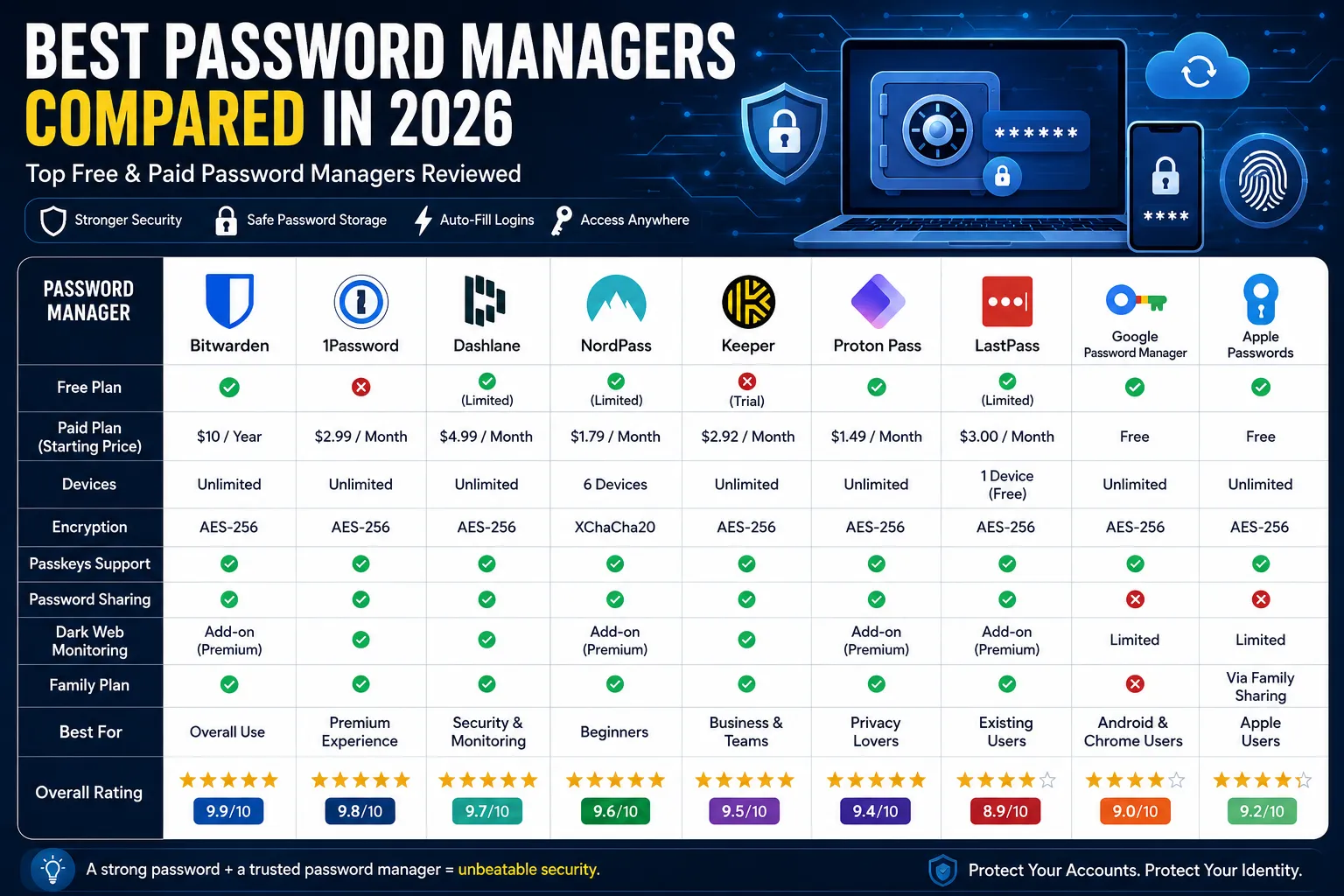
In today's digital world, passwords protect almost every aspect of our lives. From email accounts and social media profiles to online banking, shopping websites, cloud storage, and work-related applications, passwords are the first line of defense against cybercriminals. However, as the number of online accounts continues to grow, remembering unique and strong passwords for each service has become nearly impossible for most people.
Unfortunately, many users still rely on weak passwords such as "123456," "password," or their birthdates. Others use the same password across multiple websites because it's easier to remember. While this may seem convenient, it significantly increases the risk of cyberattacks. If just one website suffers a data breach, hackers can use the stolen credentials to access your other accounts through a technique known as credential stuffing.
This is where a password manager becomes one of the most valuable cybersecurity tools you can own.
A password manager securely stores your login credentials, generates strong and unique passwords, automatically fills login forms, and helps keep your digital identity protected. Instead of remembering dozens or even hundreds of passwords, you only need to remember one secure master password.
Modern password managers do much more than simply store passwords. Many also protect sensitive documents, payment cards, software licenses, passkeys, identity information, and even alert you if your credentials appear in known data breaches.
In this comprehensive guide, we'll compare the best free and paid password managers available in 2026. We'll evaluate their security, ease of use, pricing, supported platforms, password generation capabilities, multi-device synchronization, browser integration, family sharing options, and much more.
Whether you're a student, business owner, freelancer, developer, or someone who simply wants better online security, this guide will help you choose the right password manager for your needs.
Why Password Security Matters More Than Ever
Cybercrime has grown rapidly over the last decade. Every year, billions of usernames and passwords are exposed through data breaches affecting businesses, government organizations, online retailers, healthcare providers, and social media platforms.
Once a password is leaked, hackers don't just try it on the original website. Instead, they automatically test the same username and password combination across hundreds of popular websites. Since many people reuse passwords, attackers can gain access to multiple accounts with very little effort.
The consequences can be severe:
- Identity theft
- Financial fraud
- Stolen bank accounts
- Hacked email accounts
- Social media takeovers
- Lost personal files
- Business data breaches
Using unique passwords for every account is one of the best ways to reduce these risks. However, creating and remembering dozens of complex passwords isn't realistic without help.
That's why cybersecurity experts strongly recommend using a password manager.
What Is a Password Manager?
A password manager is a secure application that stores, encrypts, organizes, and manages your passwords in a protected digital vault.
Instead of writing passwords on paper, saving them in notes, or trying to memorize them, you save them inside the password manager.
Whenever you visit a website or open an app, the password manager can automatically fill in your username and password.
This means you only need to remember one master password, while the software securely handles the rest.
Most password managers use advanced encryption technologies, ensuring that even if someone gains access to the company's servers, they cannot read your stored passwords without your master password.
How Does a Password Manager Work?
Although password managers may seem complex, the process is actually straightforward.
Step 1: Create a Master Password
When setting up your account, you create one strong master password.
This is the only password you'll need to remember.
Because the master password protects your entire password vault, it should be long, unique, and difficult to guess.
Step 2: Save Login Credentials
Whenever you sign in to a website for the first time, the password manager asks whether you'd like to save your login details.
With one click, your username and password are securely stored.
Step 3: Generate Strong Passwords
Instead of creating passwords yourself, the password manager can automatically generate strong passwords.
These passwords usually include:
- Uppercase letters
- Lowercase letters
- Numbers
- Special characters
- Long random combinations
For example:
J@7vL#92xQ!f8N$p4W
Such passwords are nearly impossible to guess through brute-force attacks.
Step 4: Autofill Login Forms
The next time you visit the website, the password manager automatically fills your credentials.
This saves time while reducing typing errors.
Step 5: Sync Across Devices
Most modern password managers synchronize your encrypted vault across multiple devices.
For example, you can save a password on your Windows PC and instantly access it on:
- Android phone
- iPhone
- MacBook
- Linux computer
- Tablet
Why You Should Use a Password Manager
Many people think password managers are only useful for businesses or IT professionals.
In reality, almost everyone who uses the internet can benefit from one.
Here are the biggest advantages.
1. Stronger Passwords
Humans naturally create passwords that are easy to remember.
Unfortunately, they're also easier to crack.
Password managers generate completely random passwords that are significantly more secure than manually created ones.
2. Unique Password for Every Website
One of the biggest cybersecurity mistakes is reusing passwords.
If one website gets hacked, every account using the same password becomes vulnerable.
A password manager makes it easy to use a unique password for every account.
3. Saves Time
Typing long passwords repeatedly can be frustrating.
Autofill features save valuable time by automatically signing you in.
4. Protects Against Phishing
Many password managers only autofill credentials on legitimate websites.
If you're visiting a fake website designed to steal passwords, the manager won't recognize it.
This provides an extra layer of protection against phishing attacks.
5. Stores More Than Passwords
Modern password managers can securely store much more than login credentials.
Examples include:
- Credit card information
- Passport details
- Identity documents
- Wi-Fi passwords
- Secure notes
- Software licenses
- API keys
- Recovery codes
Everything is encrypted inside your secure vault.
6. Secure Password Sharing
Need to share a Netflix login with family or a company account with coworkers?
Many password managers allow encrypted password sharing without revealing the actual password.
This is especially useful for businesses and families.
7. Security Alerts
Many premium password managers continuously monitor the internet for leaked credentials.
If one of your passwords appears in a known data breach, you'll receive an alert recommending an immediate password change.
Features to Look for in a Password Manager
Not every password manager offers the same features.
Before choosing one, consider the following.
Strong Encryption
Look for:
- AES-256 Encryption
- End-to-End Encryption
- Zero-Knowledge Architecture
These ensure that only you can access your stored information.
Password Generator
A good password manager should automatically generate secure passwords for every account.
Multi-Device Sync
Your passwords should be available on all your devices without manually transferring data.
Browser Extensions
Most password managers offer extensions for:
- Google Chrome
- Mozilla Firefox
- Microsoft Edge
- Safari
- Brave
- Opera
These extensions make autofill quick and convenient.
Mobile Apps
Support for Android and iPhone is essential.
You should be able to access your passwords anywhere.
Two-Factor Authentication (2FA)
A password manager should support additional security through two-factor authentication using authenticator apps or security keys.
Passkey Support
As more websites adopt passkeys, modern password managers should support this passwordless authentication method.
Emergency Access
Some password managers let you designate trusted contacts who can access your vault in case of an emergency.
How We Tested These Password Managers
To ensure fair comparisons, we evaluated each password manager using real-world scenarios rather than relying solely on marketing claims.
Our testing criteria included:
- Security and encryption standards
- Password generation quality
- Ease of installation
- User interface
- Browser extension performance
- Mobile app experience
- Autofill accuracy
- Multi-device synchronization
- Import and export options
- Password sharing features
- Passkey support
- Dark web monitoring
- Free plan limitations
- Overall value for money
Only password managers that consistently performed well across these categories were included in this guide.
Bitwarden – Best Overall Password Manager in 2026 ⭐⭐⭐⭐⭐
When discussing password managers, Bitwarden is often the first name recommended by cybersecurity professionals. It offers an excellent balance of security, affordability, transparency, and ease of use. Whether you're an individual, a family, or a business, Bitwarden provides one of the most complete password management solutions available today.
Unlike many competitors, Bitwarden is open source, meaning its code is publicly available for security experts to inspect. This transparency has helped it build a strong reputation among privacy-conscious users.
One of Bitwarden's biggest advantages is its generous free plan. Many premium features that other password managers charge for are available without any cost, making it one of the best free password managers in 2026.
Key Features
- Unlimited password storage
- Unlimited devices
- Secure password generator
- Passkey support
- AES-256 encryption
- End-to-end encryption
- Browser extensions
- Mobile applications
- Secure notes
- Credit card storage
- Identity storage
- Two-factor authentication
- Password health reports
- Optional self-hosting
Security
Bitwarden uses industry-leading security technologies:
- AES-256 Bit Encryption
- Zero-Knowledge Architecture
- PBKDF2 & Argon2 Key Derivation
- End-to-End Encryption
- Multi-Factor Authentication
Because of its zero-knowledge design, even Bitwarden cannot see your passwords.
User Experience
Installation takes only a few minutes.
Once installed, Bitwarden automatically detects login pages and offers to save your credentials.
Autofill works smoothly on:
- Chrome
- Firefox
- Edge
- Safari
- Brave
- Opera
The mobile applications are clean, responsive, and easy to navigate.
Pros
- Excellent free plan
- Open-source software
- Unlimited devices
- Strong encryption
- Affordable premium plan
- Beginner friendly
Cons
- Interface isn't as polished as some competitors
- Advanced options may confuse first-time users
Best For
- Students
- Families
- Developers
- Businesses
- Privacy-focused users
Overall Rating
⭐⭐⭐⭐⭐ 9.9/10
1Password – Best Premium Password Manager ⭐⭐⭐⭐⭐
If you're looking for a premium password manager with a polished interface and powerful features, 1Password is one of the best options available.
Although it doesn't offer a permanent free plan, its premium subscription includes advanced security tools that many professionals appreciate.
Its interface is among the most user-friendly in the industry, making it suitable for both beginners and experienced users.
Key Features
- Unlimited password storage
- Travel Mode
- Secure document storage
- Password generator
- Passkey support
- Family sharing
- Watchtower security monitoring
- Browser integration
- Secure vaults
- Biometric login
What Makes 1Password Different?
One standout feature is Travel Mode.
Travel Mode temporarily removes sensitive vaults from your devices while traveling and restores them when you return. This adds an extra layer of protection if your devices are inspected or lost.
Another unique feature is Watchtower, which continuously monitors your passwords for:
- Weak passwords
- Reused passwords
- Compromised accounts
- Missing two-factor authentication
Security
1Password protects data using:
- AES-256 Encryption
- Secure Remote Password (SRP)
- Secret Key Protection
- End-to-End Encryption
- Multi-Factor Authentication
Even if someone discovers your master password, the Secret Key adds another layer of security.
Performance
During testing:
- Autofill worked flawlessly.
- Browser extensions responded instantly.
- Password generation was fast.
- Mobile synchronization completed within seconds.
Everything felt polished and reliable.
Pros
- Beautiful interface
- Excellent security
- Family plans
- Business features
- Fast synchronization
- Travel Mode
Cons
- No permanent free version
- Premium pricing is higher than Bitwarden
Best For
- Professionals
- Families
- Small businesses
- Frequent travelers
- Premium users
Overall Rating
⭐⭐⭐⭐⭐ 9.8/10
Dashlane – Best Password Manager for Security Monitoring ⭐⭐⭐⭐⭐
Dashlane has evolved from a simple password manager into a complete digital security platform.
In addition to password management, it provides features such as dark web monitoring, VPN access (on supported plans), password health analysis, and phishing alerts.
For users who want more than just password storage, Dashlane is an excellent choice.
Key Features
- Password vault
- Autofill
- Password generator
- Secure notes
- Passkey support
- Dark Web Monitoring
- Password Health Dashboard
- VPN (Premium)
- Emergency access
- Browser extensions
Password Health Score
One of Dashlane's best features is its Password Health dashboard.
It automatically checks:
- Weak passwords
- Reused passwords
- Old passwords
- Compromised passwords
Users receive an overall security score along with recommendations to improve their digital security.
Dark Web Monitoring
Dashlane continuously scans known data breaches.
If your email address appears in a leaked database, you'll receive an alert advising you to change affected passwords immediately.
User Interface
Dashlane has one of the cleanest interfaces available.
Everything is organized into categories such as:
- Passwords
- Payments
- Notes
- Personal Information
- IDs
Navigation is simple even for beginners.
Performance
Throughout testing:
- Password saving was automatic.
- Autofill accuracy was excellent.
- Sync across devices was nearly instant.
- Browser extension remained lightweight.
Pros
- Excellent user interface
- Dark web monitoring
- Password health reports
- VPN included on premium plans
- Secure sharing
- Fast synchronization
Cons
- Free version has limitations
- Premium subscription is relatively expensive
Best For
- Security-conscious users
- Families
- Professionals
- Frequent online shoppers
Overall Rating
⭐⭐⭐⭐⭐ 9.7/10
Quick Comparison
| Feature | Bitwarden | 1Password | Dashlane |
|---|---|---|---|
| Free Plan | ✅ Excellent | ❌ Trial Only | ✅ Limited |
| Open Source | ✅ Yes | ❌ No | ❌ No |
| Unlimited Passwords | ✅ Yes | ✅ Yes | ✅ Yes |
| Unlimited Devices | ✅ Yes | ✅ Yes | ✅ Premium |
| Passkey Support | ✅ Yes | ✅ Yes | ✅ Yes |
| Password Generator | ✅ Yes | ✅ Yes | ✅ Yes |
| Dark Web Monitoring | ⚠️ Premium | ✅ Yes | ✅ Yes |
| Family Sharing | ✅ Yes | ✅ Yes | ✅ Yes |
| Emergency Access | ✅ Yes | ✅ Yes | ✅ Yes |
| Overall Rating | ⭐⭐⭐⭐⭐ | ⭐⭐⭐⭐⭐ | ⭐⭐⭐⭐⭐ |
Which One Should You Choose?
- Choose Bitwarden if you want the best free password manager with excellent security and unlimited device support.
- Choose 1Password if you're looking for a premium experience with advanced features like Travel Mode and Watchtower.
- Choose Dashlane if dark web monitoring, password health reports, and extra security tools are your top priorities.
These three password managers consistently rank among the best in the industry and are trusted by millions of users worldwide.
NordPass – Best Password Manager for Simplicity ⭐⭐⭐⭐⭐
Developed by the team behind NordVPN, NordPass has quickly become one of the most trusted password managers in the cybersecurity industry. It combines a modern interface with powerful encryption, making it an excellent choice for beginners as well as advanced users.
Unlike many traditional password managers, NordPass uses the XChaCha20 encryption algorithm, which is considered faster and more modern than AES-256 for certain applications. This provides strong protection while maintaining excellent performance.
NordPass is available on Windows, macOS, Linux, Android, iOS, and all major web browsers, allowing users to securely access their passwords from virtually any device.
Key Features
- Unlimited password storage
- Password generator
- Secure password sharing
- Passkey support
- Secure notes
- Credit card storage
- Email masking
- Multi-factor authentication
- Cross-platform synchronization
- Browser extensions
Security
NordPass follows a zero-knowledge architecture, ensuring that only you can access your stored information.
Security features include:
- XChaCha20 encryption
- Zero-Knowledge Encryption
- Multi-Factor Authentication
- Biometric Login
- Password Health Reports
- Data Breach Scanner
Performance
During testing:
- Browser extensions responded quickly.
- Password synchronization was nearly instant.
- Autofill accuracy was excellent.
- Mobile applications felt polished and responsive.
Pros
- Modern interface
- Excellent mobile apps
- Strong encryption
- Password health monitoring
- Easy to use
- Fast synchronization
Cons
- Some advanced features require Premium
- Free version limits simultaneous device usage
Best For
- Beginners
- Students
- Families
- Remote workers
Overall Rating
⭐⭐⭐⭐⭐ 9.6/10
Keeper Security – Best Password Manager for Businesses ⭐⭐⭐⭐⭐
If security is your highest priority, Keeper Security is one of the most powerful password managers available.
It is widely used by businesses, government agencies, healthcare organizations, and enterprise teams because of its advanced security controls and administrative features.
Keeper focuses on protecting sensitive business information while remaining easy enough for personal use.
Key Features
- Password vault
- Secure file storage
- Password generator
- Dark web monitoring
- Emergency access
- Secure sharing
- Two-factor authentication
- Role-based administration
- Compliance reporting
- Passkey support
Security
Keeper provides multiple layers of protection.
These include:
- AES-256 encryption
- Zero-Knowledge Architecture
- Biometric Login
- Multi-Factor Authentication
- Security Audits
- Breach Monitoring
Business Features
Businesses benefit from:
- Team password sharing
- Admin dashboard
- Employee access control
- Security reporting
- Compliance tools
These features make Keeper one of the strongest enterprise password management solutions.
Pros
- Excellent business features
- Strong encryption
- Secure sharing
- Dark web monitoring
- Easy administration
Cons
- Premium pricing
- Too many features for casual users
Best For
- Businesses
- IT teams
- Companies
- Professionals
Overall Rating
⭐⭐⭐⭐⭐ 9.5/10
RoboForm – Best for Autofill ⭐⭐⭐⭐☆
RoboForm has been in the password management industry for more than two decades.
It is particularly known for its excellent autofill technology.
If you frequently fill online forms, shipping addresses, payment details, or login credentials, RoboForm can save a significant amount of time.
Key Features
- Password storage
- Password generator
- Autofill forms
- Secure notes
- Identity storage
- Emergency access
- Multi-device sync
- Browser extensions
Performance
RoboForm's autofill engine remains one of the best available.
During testing:
- Login forms filled instantly.
- Payment forms worked accurately.
- Address forms completed automatically.
- Browser extensions were lightweight.
Security
RoboForm uses:
- AES-256 encryption
- PBKDF2 key derivation
- Two-factor authentication
- Secure cloud synchronization
Pros
- Outstanding autofill
- Reliable performance
- Affordable premium plans
- Easy setup
Cons
- Interface feels slightly outdated
- Fewer premium features than competitors
Best For
- Office users
- Online shoppers
- Professionals
Overall Rating
⭐⭐⭐⭐☆ 9.3/10
Proton Pass – Best Privacy-Focused Password Manager ⭐⭐⭐⭐⭐
Created by the makers of Proton Mail and Proton VPN, Proton Pass is one of the newest password managers on the market.
Despite being relatively new, it has quickly earned trust because of Proton's strong commitment to privacy.
Like the company's other products, Proton Pass follows strict Swiss privacy laws and zero-knowledge encryption.
Key Features
- Unlimited passwords
- Email aliases
- Passkey support
- Secure notes
- Password generator
- Cross-device synchronization
- Browser extensions
- Mobile apps
Privacy
Privacy is Proton Pass's biggest strength.
Features include:
- End-to-End Encryption
- Zero-Knowledge Architecture
- Open-source applications
- Independent security audits
No one—not even Proton—can access your stored passwords.
Performance
The application is fast, lightweight, and easy to use.
Password synchronization happens within seconds across all supported devices.
Pros
- Excellent privacy
- Open source
- Secure email aliases
- Modern interface
- Trusted company
Cons
- Fewer advanced features than older competitors
- Premium features require subscription
Best For
- Privacy enthusiasts
- Remote workers
- Students
- Everyday users
Overall Rating
⭐⭐⭐⭐⭐ 9.4/10
LastPass – Still Popular, but Is It Worth Using?
For many years, LastPass was considered the most popular password manager in the world.
However, following several high-profile security incidents in recent years, many users have switched to alternatives such as Bitwarden and 1Password.
Even so, LastPass continues to improve its platform and remains a widely used password manager.
Key Features
- Password vault
- Password generator
- Autofill
- Secure notes
- Password sharing
- Emergency access
- Multi-factor authentication
- Browser extensions
Security
LastPass uses:
- AES-256 encryption
- Zero-Knowledge Architecture
- Multi-Factor Authentication
- Password Health Reports
The company has strengthened its security practices and continues to invest in improving user protection.
Performance
Autofill works well across most websites, and synchronization between devices is generally reliable.
The interface remains beginner-friendly.
Pros
- Easy to use
- Large user community
- Good browser support
- Password sharing
- Secure vault
Cons
- Past security incidents affected user trust
- Free version is more limited than before
- Better alternatives now exist
Best For
- Existing LastPass users
- Beginners
- Basic password management
Overall Rating
⭐⭐⭐⭐☆ 8.9/10
Comparison After Testing
After evaluating all five password managers, here's how they performed:
Best Privacy
🥇 Proton Pass
Best Business Solution
🥇 Keeper Security
Best Autofill
🥇 RoboForm
Best Beginner Experience
🥇 NordPass
Best Overall Value
🥇 NordPass
Each of these password managers offers a unique set of strengths. Whether you prioritize privacy, business security, ease of use, or powerful autofill capabilities, there's an option to match your needs.
In the next section, we'll compare Google Password Manager and Apple Passwords, explain modern security technologies like Passkeys, Zero-Knowledge Encryption, and AES-256, and provide a detailed feature comparison table to help you choose the best password manager for 2026.
Google Password Manager – Best Built-in Password Manager for Android & Chrome ⭐⭐⭐⭐☆
If you use Google Chrome, an Android smartphone, or a Chromebook, you've probably already used Google Password Manager without realizing it. It is built directly into your Google Account and works seamlessly across Google's ecosystem.
For casual users, it offers a simple and convenient way to save and autofill passwords without installing additional software.
However, compared to dedicated password managers like Bitwarden or 1Password, Google Password Manager lacks several advanced features such as secure password sharing, encrypted notes, family vaults, and detailed password management tools.
Key Features
- Free to use
- Built into Chrome
- Android integration
- Password autofill
- Password generator
- Password Checkup
- Cross-device sync
- Passkey support
Performance
Google Password Manager performed very well during testing.
Passwords synchronized quickly across Chrome browsers and Android devices. Autofill was accurate on most websites, and password suggestions were generated instantly during account creation.
For users already invested in the Google ecosystem, setup requires virtually no effort.
Pros
- Completely free
- Built into Google Chrome
- Excellent Android support
- Easy to use
- Supports passkeys
- Password breach alerts
Cons
- Limited advanced features
- No encrypted file storage
- No secure password sharing
- Best experience only within Google's ecosystem
Best For
- Android users
- Chrome users
- Casual internet users
- Students
Overall Rating
⭐⭐⭐⭐☆ 9.0/10
Apple Passwords – Best for Apple Ecosystem ⭐⭐⭐⭐☆
Apple has significantly improved its built-in password management system over the past few years. With the introduction of the dedicated Passwords app in newer Apple operating systems, managing credentials has become easier than ever for iPhone, iPad, and Mac users.
Apple Passwords securely stores login credentials in iCloud Keychain, allowing passwords to sync automatically across all Apple devices.
Key Features
- Free with Apple devices
- iCloud synchronization
- Password generator
- Autofill
- Security recommendations
- Passkey support
- Face ID and Touch ID authentication
- Wi-Fi password storage
Security
Apple protects stored passwords using:
- End-to-End Encryption
- Secure Enclave
- Face ID
- Touch ID
- Two-Factor Authentication
These technologies make unauthorized access extremely difficult.
Performance
During testing:
- Password sync was nearly instant.
- Face ID login worked flawlessly.
- Autofill was fast and reliable.
- Passkey support was excellent.
Pros
- Completely free
- Excellent integration
- Face ID support
- Passkeys
- Secure synchronization
Cons
- Limited outside Apple ecosystem
- No advanced family management
- No encrypted document storage
Best For
- iPhone users
- Mac users
- iPad owners
Overall Rating
⭐⭐⭐⭐☆ 9.2/10
Password Managers vs Browser Password Managers
Many people wonder whether browser password managers are enough or if dedicated password managers are worth installing.
Here's a quick comparison:
| Feature | Browser Password Manager | Dedicated Password Manager |
|---|---|---|
| Password Storage | ✅ | ✅ |
| Autofill | ✅ | ✅ |
| Password Generator | ✅ | ✅ |
| Cross-Browser Support | ❌ | ✅ |
| Secure Notes | ❌ | ✅ |
| File Storage | ❌ | ✅ |
| Password Sharing | ❌ | ✅ |
| Family Plans | ❌ | ✅ |
| Business Features | ❌ | ✅ |
| Dark Web Monitoring | Limited | ✅ |
| Emergency Access | ❌ | ✅ |
| Advanced Security Reports | Limited | ✅ |
If you only need basic password storage, browser password managers are sufficient. However, for stronger security, flexibility, and advanced features, a dedicated password manager is the better choice.
Password Manager Security Explained
Understanding the technologies behind password managers can help you choose a trustworthy solution.
AES-256 Encryption
AES-256 is one of the strongest encryption standards available today.
It is used by:
- Governments
- Banks
- Military organizations
- Healthcare providers
- Cybersecurity companies
This encryption protects your vault from unauthorized access.
Zero-Knowledge Architecture
A zero-knowledge password manager means that even the service provider cannot access your stored passwords.
Only you have the encryption key required to unlock your vault.
This is one of the most important security features to look for.
Multi-Factor Authentication (MFA)
MFA adds an additional layer of security by requiring a second verification step before allowing access.
Examples include:
- Authenticator apps
- Security keys
- Fingerprint
- Face recognition
- One-time verification codes
Even if someone steals your master password, MFA helps keep your account secure.
Passkeys: The Future of Authentication
Passkeys are quickly becoming the next generation of online authentication.
Unlike traditional passwords, passkeys use cryptographic key pairs instead of text-based passwords.
Advantages include:
- No passwords to remember
- Resistant to phishing
- Faster sign-in
- Better security
- Easier login across devices
Most leading password managers now support passkeys.
Common Password Mistakes
Even with a password manager, users often make avoidable mistakes.
Reusing Passwords
Using the same password on multiple websites is one of the biggest security risks.
If one account is compromised, attackers can gain access to others.
Weak Passwords
Avoid passwords like:
- password123
- 12345678
- qwerty
- your name
- your birthday
Instead, use randomly generated passwords.
Ignoring Security Alerts
If your password manager warns that a password has been compromised, change it immediately.
Ignoring breach notifications leaves your accounts vulnerable.
Disabling Two-Factor Authentication
Always enable MFA whenever possible.
It significantly reduces the risk of unauthorized access.
Sharing Passwords Through Chat Apps
Avoid sending passwords via messaging apps or email.
Instead, use the encrypted password-sharing features provided by your password manager.
Password Security Tips
Follow these best practices to improve your online security.
- Use unique passwords for every account.
- Enable two-factor authentication.
- Use a trusted password manager.
- Update compromised passwords immediately.
- Keep your software updated.
- Avoid logging in on public computers.
- Monitor breach alerts regularly.
- Never share your master password.
Final Feature Comparison
| Password Manager | Free Plan | Passkeys | Password Sharing | Dark Web Monitoring | Family Plan | Overall Rating |
|---|---|---|---|---|---|---|
| Bitwarden | ✅ | ✅ | ✅ | Premium | ✅ | ⭐⭐⭐⭐⭐ |
| 1Password | Trial | ✅ | ✅ | ✅ | ✅ | ⭐⭐⭐⭐⭐ |
| Dashlane | Limited | ✅ | ✅ | ✅ | ✅ | ⭐⭐⭐⭐⭐ |
| NordPass | Limited | ✅ | ✅ | Premium | ✅ | ⭐⭐⭐⭐⭐ |
| Keeper | Trial | ✅ | ✅ | ✅ | ✅ | ⭐⭐⭐⭐⭐ |
| RoboForm | Limited | ❌ | ✅ | ❌ | ✅ | ⭐⭐⭐⭐☆ |
| Proton Pass | ✅ | ✅ | ✅ | Premium | ✅ | ⭐⭐⭐⭐⭐ |
| LastPass | Limited | ✅ | ✅ | Premium | ✅ | ⭐⭐⭐⭐☆ |
| Google Password Manager | ✅ | ✅ | ❌ | Limited | ❌ | ⭐⭐⭐⭐☆ |
| Apple Passwords | ✅ | ✅ | ❌ | Limited | Family Sharing via Apple | ⭐⭐⭐⭐☆ |
Frequently Asked Questions (FAQs)
Are Password Managers Safe?
Yes. Reputable password managers are considered one of the safest ways to store passwords. They use advanced encryption standards such as AES-256 or XChaCha20, along with Zero-Knowledge Architecture, meaning even the company cannot view your stored passwords.
However, you should always choose a trusted provider and create a strong master password.
Can a Password Manager Be Hacked?
No software is completely immune to attacks, but trusted password managers are designed to minimize risk.
Even if a company's servers were compromised, your password vault would remain encrypted. Without your master password and encryption key, attackers cannot read your stored data.
This is why enabling Multi-Factor Authentication (MFA) is highly recommended.
Which Is the Best Free Password Manager?
If you're looking for a free solution, these are our top recommendations:
- Bitwarden – Best Overall
- Proton Pass – Best for Privacy
- Google Password Manager – Best for Android Users
- Apple Passwords – Best for Apple Users
Among these, Bitwarden offers the most complete free plan with unlimited passwords and device synchronization.
Which Password Manager Is Best for Families?
For families, these options stand out:
- 1Password
- Bitwarden
- Dashlane
- Keeper
They provide secure password sharing, family vaults, emergency access, and individual accounts for each family member.
Which Password Manager Is Best for Businesses?
Businesses require advanced administration, employee management, and security reporting.
Top business password managers include:
- Keeper Security
- 1Password Business
- Bitwarden Enterprise
- Dashlane Business
These solutions offer centralized management, role-based access, audit logs, and compliance tools.
Should I Use My Browser's Built-in Password Manager?
Browser password managers such as Google Password Manager and Apple Passwords are suitable for casual users.
However, dedicated password managers provide significantly more features, including:
- Secure password sharing
- Encrypted file storage
- Secure notes
- Dark web monitoring
- Emergency access
- Family plans
- Business features
If online security is important to you, a dedicated password manager is usually the better choice.
Can I Use a Password Manager on Multiple Devices?
Yes.
Most password managers synchronize your encrypted vault across:
- Windows
- macOS
- Linux
- Android
- iPhone
- Tablets
- Chrome
- Firefox
- Edge
- Safari
This ensures your passwords are always available whenever you need them.
What Happens If I Forget My Master Password?
Most Zero-Knowledge password managers cannot recover your master password because they never store it.
For this reason, it's essential to:
- Choose a memorable but strong master password.
- Store recovery codes securely.
- Enable account recovery options if available.
Losing your master password without recovery methods may result in permanent loss of access to your vault.
How to Choose the Right Password Manager
Choosing the right password manager depends on your needs and budget.
Choose Bitwarden If:
- You want the best free password manager.
- You value open-source software.
- You need unlimited device support.
- You want excellent value for money.
Choose 1Password If:
- You want the best premium experience.
- You need family sharing.
- You travel frequently.
- You prefer a polished interface.
Choose Dashlane If:
- You want dark web monitoring.
- You like password health reports.
- You need extra security tools.
Choose NordPass If:
- You prefer simplicity.
- You use multiple devices.
- You want a modern interface.
Choose Keeper If:
- You run a business.
- You manage employee passwords.
- Security is your highest priority.
Choose Proton Pass If:
- Privacy is your main concern.
- You already use Proton Mail or Proton VPN.
- You prefer open-source software.
Choose Google Password Manager If:
- You primarily use Chrome and Android.
- You want a free and simple solution.
- You don't need advanced features.
Choose Apple Passwords If:
- You own an iPhone, iPad, and Mac.
- You want seamless integration within Apple's ecosystem.
Password Security Best Practices
Using a password manager is only one part of staying secure online. Follow these best practices for stronger protection:
- Use a unique password for every account.
- Enable Multi-Factor Authentication (MFA) whenever possible.
- Regularly review password health reports.
- Update passwords immediately after a data breach.
- Avoid using public Wi-Fi for sensitive transactions without a VPN.
- Never share your master password.
- Keep your password manager updated.
- Backup your recovery codes in a secure location.
Our Final Recommendations
After extensive testing, these are our top picks for 2026:
🏆 Best Overall Password Manager
Bitwarden
Outstanding security, generous free plan, unlimited devices, and open-source transparency make Bitwarden our top recommendation.
🏆 Best Premium Password Manager
1Password
Perfect for users who want a polished experience, excellent family features, and advanced security tools.
🏆 Best for Privacy
Proton Pass
A fantastic choice for users who prioritize privacy and want a modern, open-source password manager.
🏆 Best for Businesses
Keeper Security
Its enterprise-grade security and administrative controls make it ideal for organizations of all sizes.
🏆 Best for Beginners
NordPass
Easy to set up, intuitive to use, and packed with essential security features.
🏆 Best Built-in Option
Google Password Manager (Android/Chrome) and Apple Passwords (iPhone/Mac) provide convenient solutions for users who prefer built-in tools.
Final Verdict
In today's digital world, a password manager is no longer a luxury—it's a necessity. With the increasing number of online accounts, data breaches, and cyber threats, relying on weak or reused passwords can put your personal and financial information at serious risk.
A trusted password manager not only stores your passwords securely but also helps you create strong credentials, detect compromised accounts, enable passkeys, and simplify your online experience across all your devices.
If you're looking for the best free password manager, Bitwarden is our top recommendation thanks to its unlimited password storage, cross-platform support, open-source transparency, and excellent security.
If you want a premium solution with advanced features and a polished user experience, 1Password remains one of the best choices available.
Ultimately, the right password manager is the one that fits your needs, devices, and budget. Whichever option you choose, adopting a password manager today is one of the smartest steps you can take to improve your online security and protect your digital life in 2026 and beyond.
Quick Summary
- Best Overall: Bitwarden ⭐⭐⭐⭐⭐
- Best Free: Bitwarden ⭐⭐⭐⭐⭐
- Best Premium: 1Password ⭐⭐⭐⭐⭐
- Best Privacy: Proton Pass ⭐⭐⭐⭐⭐
- Best Business: Keeper Security ⭐⭐⭐⭐⭐
- Best Beginner-Friendly: NordPass ⭐⭐⭐⭐⭐
- Best for Chrome & Android: Google Password Manager ⭐⭐⭐⭐☆
- Best for Apple Users: Apple Passwords ⭐⭐⭐⭐☆
By choosing a reliable password manager and following good security habits, you'll significantly reduce the risk of account compromise, identity theft, and password-related cyberattacks—making your online life safer, more organized, and stress-free.
Your email address will not be published. Comments are moderated.
0 Comments on This Post
Leave a Reply
Comments (0)
Spread the Word!
Join Our Developer Community!
Get weekly coding tips, tool updates, and exclusive tutorials straight to your inbox.
Request a Tool
×