How to Edit Images Online Without Installing Any Software
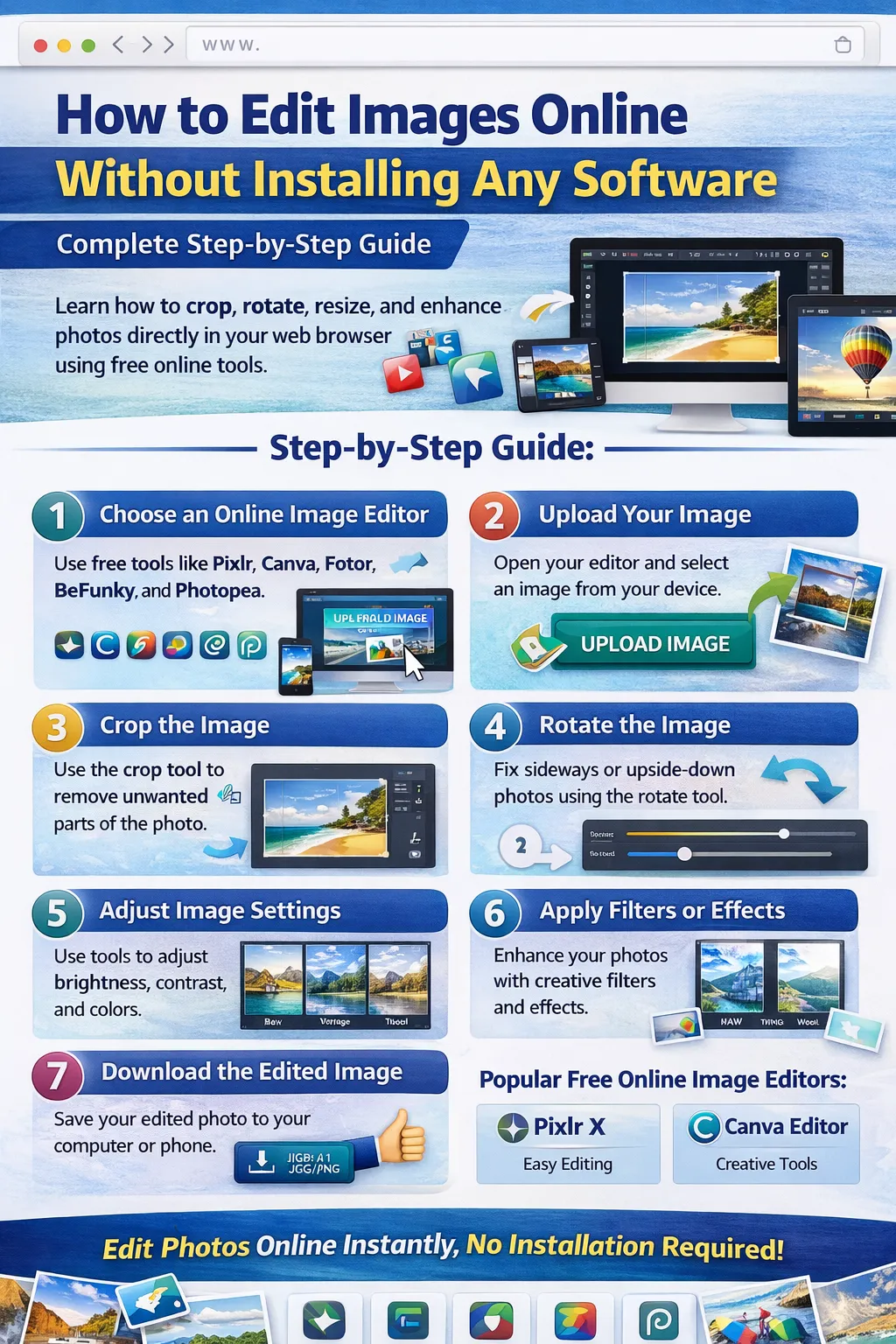
Photo editing used to require expensive software and powerful computers. Programs like Photoshop or other desktop applications had to be installed before you could make even simple edits. However, technology has changed dramatically. Today, you can edit images online without installing any software directly from your browser.
Online image editors allow you to crop photos, rotate images, adjust brightness, apply filters, and enhance images instantly. These tools work on desktops, laptops, tablets, and even smartphones.
In this complete guide, you will learn how to edit images online using free tools, what features to look for, and how to get professional results without installing any software.
Why Use Online Image Editors?
Online photo editing tools are becoming extremely popular worldwide. Here are some important reasons why millions of people prefer them.
No Installation Required
Traditional photo editing software requires downloading and installing large programs. Online editors work directly in your browser, saving both time and storage space.
Works on Any Device
Whether you are using Windows, Mac, Linux, Android, or iOS, browser-based editors work everywhere.
Free to Use
Most online image editors offer free versions with powerful editing features.
Easy to Use
Online editors are designed for beginners. Even users with no editing experience can quickly learn how to crop or enhance photos.
Instant Editing
You can upload an image, make edits, and download the result within seconds.
Common Image Editing Features Available Online
Most free online image editors provide essential editing tools.
Crop Images
Cropping allows you to remove unwanted areas from a photo. It helps focus on the main subject and improve composition.
Example uses:
-
Cropping profile photos
-
Adjusting social media image sizes
-
Removing background distractions
Rotate Images
Sometimes images appear sideways or upside down. The rotate tool fixes orientation issues instantly.
You can rotate:
-
90 degrees
-
180 degrees
-
Custom angles
Resize Images
Resizing reduces or increases the dimensions of an image.
Example uses:
-
Optimizing images for websites
-
Creating thumbnails
-
Reducing file size
Adjust Brightness and Contrast
Brightness and contrast adjustments make photos clearer and more vibrant.
Apply Filters
Filters add stylistic effects such as vintage, black-and-white, or cinematic looks.
Image Enhancement
Automatic enhancement tools improve image quality with a single click.
Step-by-Step Guide to Edit Images Online
Editing images online is extremely simple. Follow these steps.
Step 1: Choose an Online Image Editor
First, select a reliable online photo editor.
Popular options include:
-
Pixlr
-
Canva
-
Fotor
-
BeFunky
-
Photopea
These tools offer powerful editing features without installation.
Step 2: Upload Your Image
Most online editors have an upload button.
Steps:
-
Open the image editor website.
-
Click Upload Image or Open Image.
-
Select the image from your device.
The editor will load the image in the workspace.
Step 3: Crop the Image
Cropping removes unnecessary parts of the image.
Steps:
-
Select the Crop Tool.
-
Adjust the crop frame.
-
Confirm the crop.
This helps improve composition and focus.
Step 4: Rotate the Image
If the image orientation is incorrect, rotate it.
Steps:
-
Click the Rotate Tool.
-
Choose 90° or custom rotation.
-
Apply the change.
Step 5: Adjust Image Settings
Now improve the photo quality.
Common adjustments include:
-
Brightness
-
Contrast
-
Saturation
-
Sharpness
Small adjustments can dramatically improve the appearance.
Step 6: Apply Filters or Effects
Filters can enhance photos quickly.
Examples:
-
Black and white
-
Vintage effect
-
Warm tone
-
Cool tone
Choose a filter that fits your style.
Step 7: Download the Edited Image
After editing:
-
Click Download or Save.
-
Choose format (JPG or PNG).
-
Save the image to your device.
Your edited image is now ready to use.
Best Free Online Image Editors
Here are some popular tools you can use.
Pixlr
Pixlr is one of the most powerful free online editors.
Features:
-
Crop and resize tools
-
AI image enhancement
-
Filters and overlays
-
Simple interface
Best for beginners and quick edits.
Canva Photo Editor
Canva offers a professional editing environment.
Features:
-
Crop and rotate tools
-
Color adjustments
-
Filters and effects
-
Design templates
Perfect for social media graphics and blog images.
Fotor
Fotor is known for its automatic enhancement feature.
Features:
-
One-click photo enhancement
-
Basic editing tools
-
Creative effects
Great for quick improvements.
BeFunky
BeFunky offers fun editing features.
Features:
-
Artistic filters
-
Background remover
-
Photo retouch tools
Good for creative image editing.
Photopea
Photopea is the closest alternative to Photoshop.
Features:
-
Layer editing
-
PSD support
-
Professional tools
Ideal for advanced users.
Tips for Better Online Photo Editing
To get professional results, follow these tips.
Use High-Quality Images
Always start with high-resolution images.
Avoid Over-Editing
Too many filters can make photos look unnatural.
Keep File Size Optimized
Large images slow down websites. Compress images before uploading online.
Maintain Aspect Ratio
When resizing images, keep the aspect ratio locked to prevent distortion.
Save Backup Copies
Always keep the original image before editing.
Benefits of Editing Images Online
Online editing provides many advantages.
Fast Workflow
Editing takes only a few minutes.
Cloud-Based Editing
Some tools store projects online.
Easy Sharing
Edited images can be instantly shared on social media or websites.
No Software Updates
Online tools update automatically.
When Should You Use Online Image Editors?
Online editors are ideal for:
-
Bloggers creating website images
-
Social media creators
-
Students and teachers
-
Small businesses
-
Website owners
They provide a fast and simple editing solution.
Limitations of Online Image Editors
Although powerful, online tools have some limitations.
Internet Required
You need an internet connection to use them.
Limited Advanced Features
Some professional editing tools may require paid plans.
File Size Limits
Some editors restrict large image uploads.
Conclusion
Editing images online without installing any software has become easier than ever. With modern browser-based tools, you can crop photos, rotate images, apply filters, and enhance image quality within seconds.
Free online image editors like Pixlr, Canva, Fotor, BeFunky, and Photopea offer powerful features that rival many desktop applications.
Whether you are a blogger, website owner, social media creator, or student, these tools allow you to edit photos quickly and professionally without installing any software.
Start using online image editors today and transform your photos instantly.
Your email address will not be published. Comments are moderated.
0 Comments on This Post
Leave a Reply
Comments (0)
Spread the Word!
Join Our Developer Community!
Get weekly coding tips, tool updates, and exclusive tutorials straight to your inbox.
Request a Tool
×