Step-by-Step Guide: Adjust Brightness, Contrast & Saturation Online
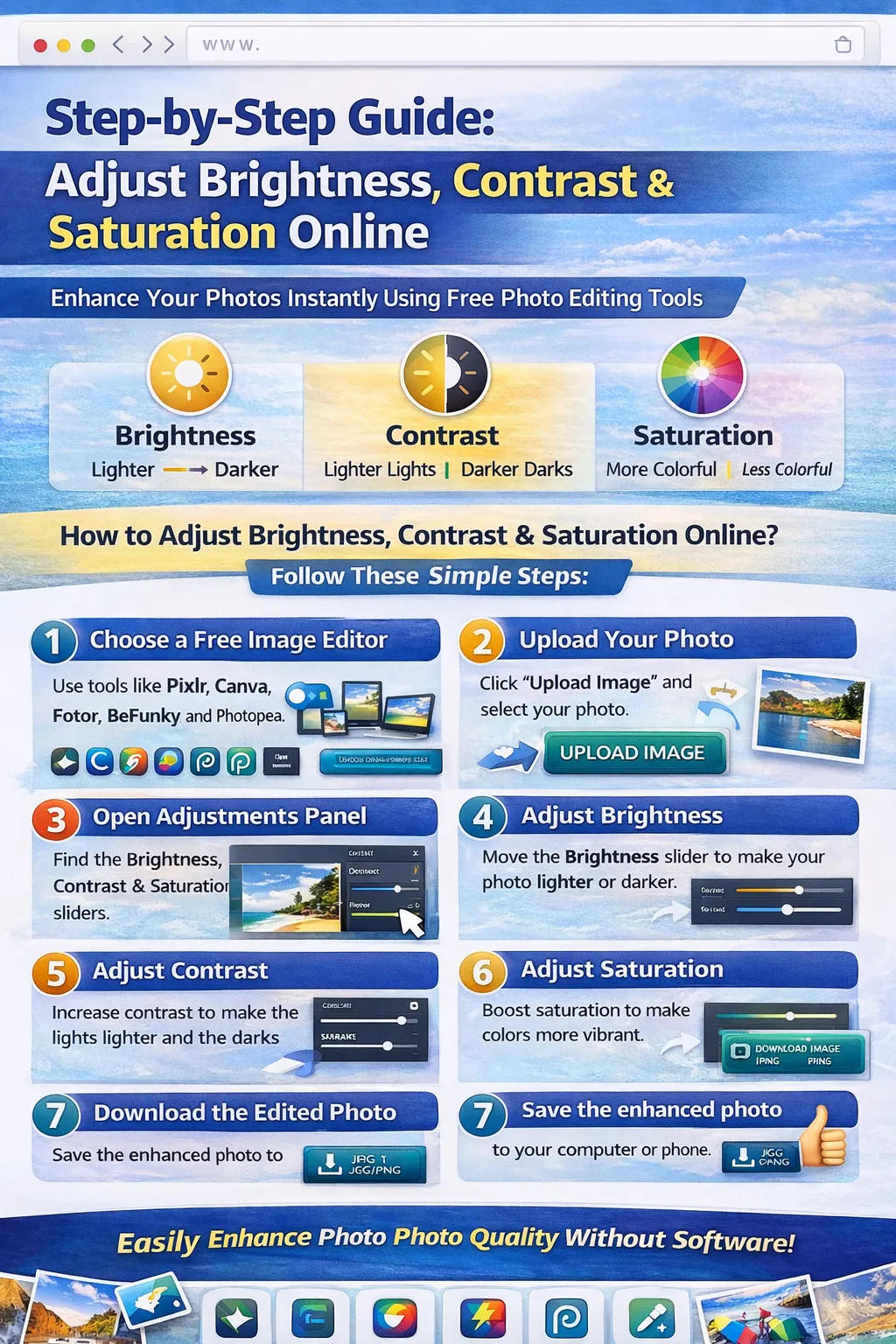
Photo editing plays a crucial role in improving the quality and visual appeal of images. Whether you are a photographer, blogger, social media creator, or website owner, adjusting brightness, contrast, and saturation can significantly enhance your photos.
Fortunately, modern online image editors allow you to make these adjustments instantly without installing any software. With just a browser and an internet connection, you can correct lighting, improve colors, and transform dull images into vibrant visuals.
In this complete guide, you will learn how to adjust brightness, contrast, and saturation online step by step using free tools.
Understanding Brightness, Contrast, and Saturation
Before editing images, it's important to understand what these adjustments do.
Brightness
Brightness controls the overall lightness or darkness of an image.
Increasing brightness makes the image lighter.
Decreasing brightness makes the image darker.
This adjustment is useful for photos taken in poor lighting conditions.
Contrast
Contrast controls the difference between light and dark areas of an image.
Higher contrast:
-
Makes shadows darker
-
Makes highlights brighter
-
Adds depth and clarity
Lower contrast:
-
Produces softer images
-
Reduces harsh lighting differences
Saturation
Saturation controls the intensity of colors in an image.
Higher saturation:
-
Colors appear more vibrant
-
Photos look more vivid
Lower saturation:
-
Colors appear faded
-
Can create a muted or vintage look
Why Adjust Brightness, Contrast & Saturation?
Adjusting these settings helps improve photo quality in many ways.
Fix Lighting Problems
Photos taken in low light can appear dark or dull. Increasing brightness can fix this issue.
Improve Image Clarity
Contrast adjustments help make objects stand out more clearly.
Enhance Colors
Saturation adjustments make images look more vibrant and visually appealing.
Create Professional-Looking Photos
These simple adjustments can make ordinary photos look professionally edited.
Step-by-Step Guide to Adjust Brightness, Contrast & Saturation Online
Follow these simple steps to enhance your photos.
Step 1: Choose an Online Image Editor
First, select a reliable free image editor.
Popular tools include:
-
Pixlr
-
Canva
-
Fotor
-
BeFunky
-
Photopea
These tools allow you to adjust brightness, contrast, and saturation easily.
Step 2: Upload Your Image
Once you open the editor:
-
Click Upload Image or Open Photo
-
Select the image from your computer or phone
-
The image will appear in the editing workspace
Most online editors support formats like JPG, PNG, and WebP.
Step 3: Adjust Brightness
Now adjust the brightness of your image.
Steps:
-
Open the Adjustments or Edit panel
-
Locate the Brightness slider
-
Move the slider to the right to increase brightness
-
Move it to the left to reduce brightness
Tips:
-
Increase brightness slightly for dark photos
-
Avoid making the image too bright
Step 4: Adjust Contrast
Next, improve the contrast of your image.
Steps:
-
Find the Contrast slider in the adjustment panel
-
Move the slider slowly to increase contrast
-
Observe the highlights and shadows carefully
Tips:
-
Moderate contrast improves clarity
-
Too much contrast can lose image details
Step 5: Adjust Saturation
Now enhance the colors using saturation.
Steps:
-
Locate the Saturation control
-
Increase it slightly to make colors vibrant
-
Reduce it if the colors look too strong
Tips:
-
Small changes usually produce the best results
-
Over-saturation can make images look unrealistic
Step 6: Preview the Changes
Before saving the image:
-
Compare the edited version with the original
-
Check whether lighting and colors look natural
Most editors provide a before and after preview feature.
Step 7: Download the Edited Image
After finishing your edits:
-
Click Download or Export
-
Choose the image format (JPG or PNG)
-
Save the image to your device
Your enhanced photo is now ready to use.
Best Free Tools to Adjust Brightness, Contrast & Saturation Online
Here are some excellent tools you can use.
Pixlr
Pixlr is a powerful browser-based photo editor.
Features:
-
Brightness and contrast adjustments
-
Color correction tools
-
Filters and overlays
-
Easy-to-use interface
Best for beginners and quick editing.
Canva Photo Editor
Canva offers simple yet powerful editing features.
Features:
-
Color adjustment sliders
-
Professional filters
-
Drag-and-drop interface
-
Social media design templates
Great for bloggers and content creators.
Fotor Online Editor
Fotor is known for its automatic photo enhancement.
Features:
-
One-click photo enhancement
-
Color adjustment tools
-
HDR effects
Perfect for fast image improvements.
BeFunky
BeFunky offers creative photo editing tools.
Features:
-
Advanced color adjustments
-
Artistic filters
-
Retouch tools
Ideal for creative editing.
Photopea
Photopea is a professional-level online editor.
Features:
-
Advanced color controls
-
Layer-based editing
-
Photoshop-like interface
Best for advanced users.
Tips for Perfect Color Adjustments
To achieve the best results, keep these tips in mind.
Make Small Adjustments
Small changes often produce the most natural results.
Avoid Over-Saturation
Too much color intensity can make photos look unrealistic.
Balance Brightness and Contrast
Both settings should complement each other.
Use Natural Lighting Reference
Always compare with real-world lighting conditions.
Benefits of Online Photo Enhancement Tools
Online tools provide several advantages.
Fast Editing
Adjustments take only a few seconds.
No Software Installation
Everything works directly in the browser.
Accessible Anywhere
You can edit photos on laptops, tablets, or smartphones.
Free Tools Available
Many editors provide powerful features at no cost.
Conclusion
Adjusting brightness, contrast, and saturation is one of the easiest and most effective ways to improve photo quality. With free online image editors, you can enhance lighting, improve clarity, and make colors more vibrant without installing any software.
Tools like Pixlr, Canva, Fotor, BeFunky, and Photopea provide simple sliders that allow you to control these adjustments with precision.
Whether you are editing images for social media, websites, blogs, or personal projects, learning these basic editing techniques will help you create visually appealing photos quickly and easily.
Start using online photo editors today and transform your images with just a few simple adjustments.
Your email address will not be published. Comments are moderated.
0 Comments on This Post
Leave a Reply
Comments (0)
Spread the Word!
Join Our Developer Community!
Get weekly coding tips, tool updates, and exclusive tutorials straight to your inbox.
Request a Tool
×