Top 5 Free Online Image Editors to Crop, Rotate & Enhance Photos Instantly
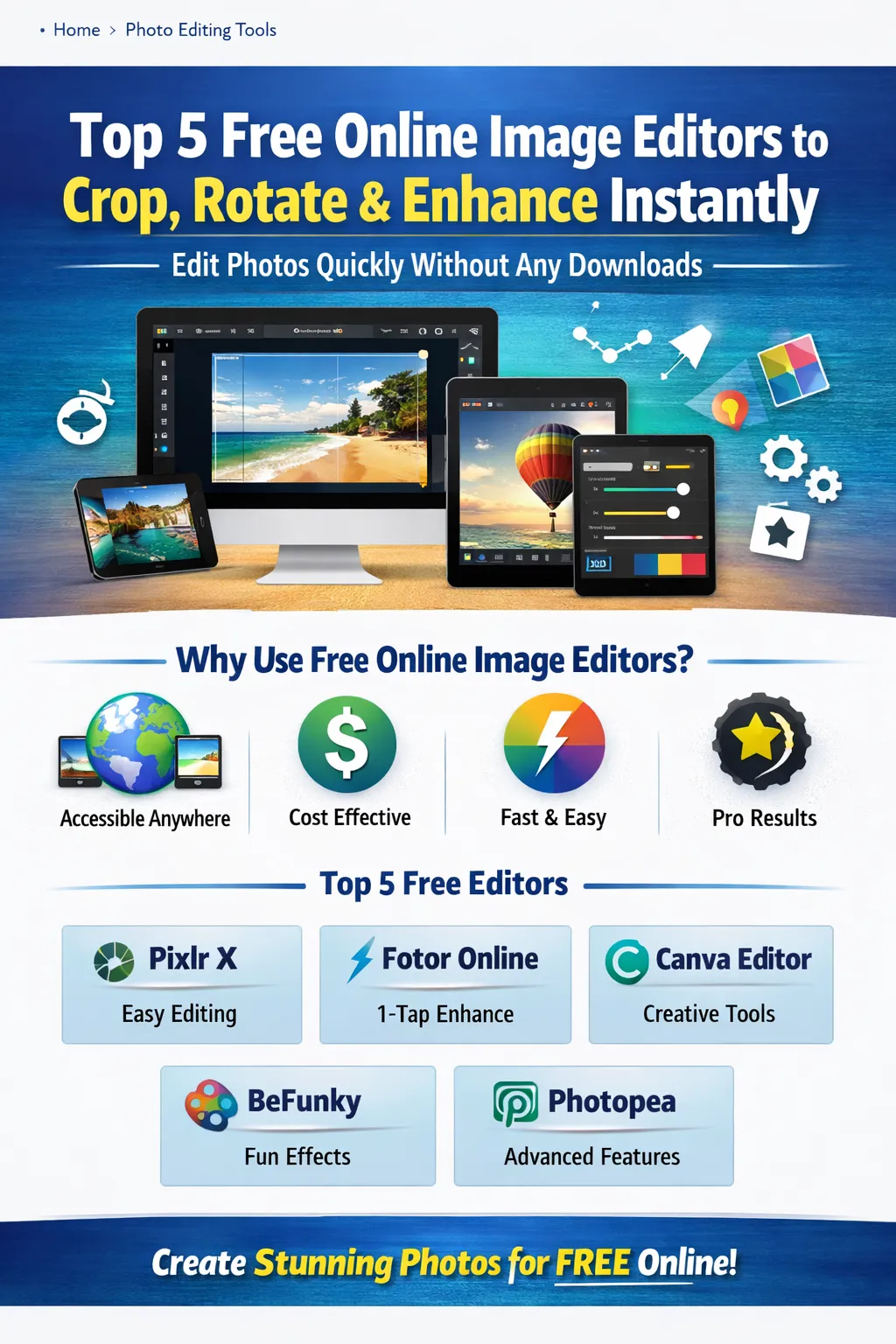
Images are the cornerstone of digital communication. Whether you are a blogger, social media marketer, e-commerce store owner, or just someone who loves photography, high-quality visuals make a huge difference. However, not everyone can afford professional tools like Adobe Photoshop or Affinity Photo. Thankfully, there are free online image editors that allow you to crop, rotate, and enhance photos instantly without installing any software.
In this guide, we’ll explore the top 5 free online image editors, their features, pros, cons, and step-by-step tips to make your images look professional.
Why Use Free Online Image Editors?
Before diving into the tools, it’s important to understand why online editors are a practical choice:
-
Accessibility: Edit images anywhere, anytime, on any device with internet access.
-
No Installation Required: Save time and storage space; everything works in the browser.
-
Cost-Effective: Get professional-level results without spending money on software licenses.
-
Global Usability: Most tools support multiple languages and work across regions.
-
Instant Results: Quick cropping, rotation, and enhancement make online editors perfect for social media posts, blogs, and e-commerce visuals.
1. Pixlr X – The Beginner-Friendly Editor
Pixlr X is one of the most popular online image editors. Its user-friendly interface is perfect for beginners and professionals who want quick results.
Features:
-
Crop, rotate, flip, and resize images
-
Auto-enhance for instant improvements
-
Filters, overlays, and text tools
-
Supports PNG, JPEG, and WebP formats
-
No registration required
How to Crop, Rotate, and Enhance in Pixlr X:
-
Open Pixlr X in your browser.
-
Upload your image by clicking “Open Image”.
-
Click the Crop Tool on the left panel and adjust the dimensions.
-
To rotate, use the Rotate Tool and adjust the angle manually or by presets.
-
Click Adjust > Auto-Fix to instantly enhance brightness, contrast, and saturation.
-
Apply filters or overlays if needed, then click Save.
Pros: Simple, fast, free, no downloads
Cons: Some advanced features require a paid plan
2. Fotor Online – Instant Photo Enhancements
Fotor is a versatile editor that provides both basic and creative editing tools. Its “1-Tap Enhance” feature is perfect for global users looking for quick photo improvements.
Features:
-
Crop, rotate, straighten images
-
1-Tap Enhance for brightness, contrast, and color
-
Stickers, frames, and text overlays
-
High-resolution exports
How to Use Fotor:
-
Visit Fotor Online and select Edit a Photo.
-
Upload your image from your device or cloud storage.
-
Crop using the Crop Tool and rotate if necessary.
-
Click 1-Tap Enhance to automatically improve your photo.
-
Optionally, add stickers, text, or frames.
-
Download the edited image in your preferred format.
Pros: Easy to use, creative tools, high-resolution output
Cons: Free version adds watermark on some features
3. Canva Photo Editor – Collaborative and Creative
Canva is famous for graphic design, but its free online photo editor is equally powerful. It allows global users to crop, rotate, and enhance images while also offering collaboration tools.
Features:
-
Crop, rotate, flip, and adjust images
-
Adjust brightness, contrast, saturation, and tint
-
Pre-built filters and effects
-
Real-time collaboration for teams
-
Works on desktop and mobile
Step-by-Step Editing in Canva:
-
Go to Canva and create a free account.
-
Click Upload Media and select your image.
-
Use the Crop Tool to adjust dimensions.
-
Rotate using the Rotate Button.
-
Click Adjust to modify brightness, contrast, and saturation.
-
Apply filters or text overlays as needed.
-
Download your finished image in PNG or JPEG format.
Pros: Collaboration, intuitive interface, multi-device support
Cons: Some filters and effects require a Canva Pro account
4. BeFunky Online Photo Editor – Creative and Fun
BeFunky is ideal for users who want to combine basic edits with creative effects. It provides quick cropping, rotation, and advanced enhancements.
Features:
-
Crop, rotate, straighten, and resize
-
Auto-fix tool for instant enhancements
-
Artistic filters for a unique look
-
High-resolution image support
Editing Steps:
-
Open BeFunky in your browser.
-
Upload your image.
-
Crop using the Crop Tool and rotate if necessary.
-
Use Auto Enhance for one-click adjustments.
-
Apply effects, frames, or touch-ups.
-
Download the final image.
Pros: Fun creative tools, fast edits, high-quality output
Cons: Some effects are locked in free version
5. Photopea – Photoshop Alternative for Free
Photopea is a browser-based editor resembling Photoshop, making it perfect for users who need professional-grade tools. It supports layers, masks, and multiple file formats, including PSD.
Features:
-
Crop, rotate, and adjust images
-
Layer-based editing
-
Support for PSD, XCF, Sketch, and more
-
Professional filters and retouching tools
-
Completely free and accessible globally
How to Edit in Photopea:
-
Visit Photopea.
-
Open your image using File > Open.
-
Use the Crop Tool to adjust the image size.
-
Rotate images via Image > Image Rotation.
-
Adjust brightness, contrast, hue, and saturation using Image > Adjustments.
-
Save in PSD, JPEG, PNG, or WebP format.
Pros: Advanced features, PSD support, free globally
Cons: Can be complex for beginners
Tips for Effective Online Image Editing
-
Use High-Resolution Images: Start with high-quality images to maintain clarity after edits.
-
Combine Tools: Crop, rotate, and enhance together for the best results.
-
Explore Filters: Filters can dramatically improve visual appeal without manual adjustments.
-
Adjust Brightness and Contrast: Small tweaks can make images pop instantly.
-
Check Export Settings: Choose the right format and resolution depending on whether it’s for web or print.
Benefits of Using Online Editors Globally
Online editors are not just convenient—they are designed for a global audience:
-
Multi-language support for international users
-
Works on any device with internet access
-
Instant cloud-based editing saves time
-
Free tools make professional editing accessible worldwide
-
Reduces dependency on heavy desktop software
Conclusion
Free online image editors are transforming how people create and enhance visuals. From basic cropping and rotation to advanced enhancements and filters, these tools provide professional results without any downloads or costs.
The top 5 editors we recommend for global users are:
-
Pixlr X – Beginner-friendly, fast, and intuitive
-
Fotor Online – Quick enhancements and creative elements
-
Canva Photo Editor – Collaborative and professional
-
BeFunky – Fun, creative, and versatile
-
Photopea – Advanced, Photoshop-like editing in a browser
Whether you are editing for social media, blogs, e-commerce, or personal use, these editors will save time and effort while giving your images a polished, professional look. Start editing today and make your visuals stand out globally!
Your email address will not be published. Comments are moderated.
0 Comments on This Post
Leave a Reply
Comments (0)
Spread the Word!
Join Our Developer Community!
Get weekly coding tips, tool updates, and exclusive tutorials straight to your inbox.
Request a Tool
×